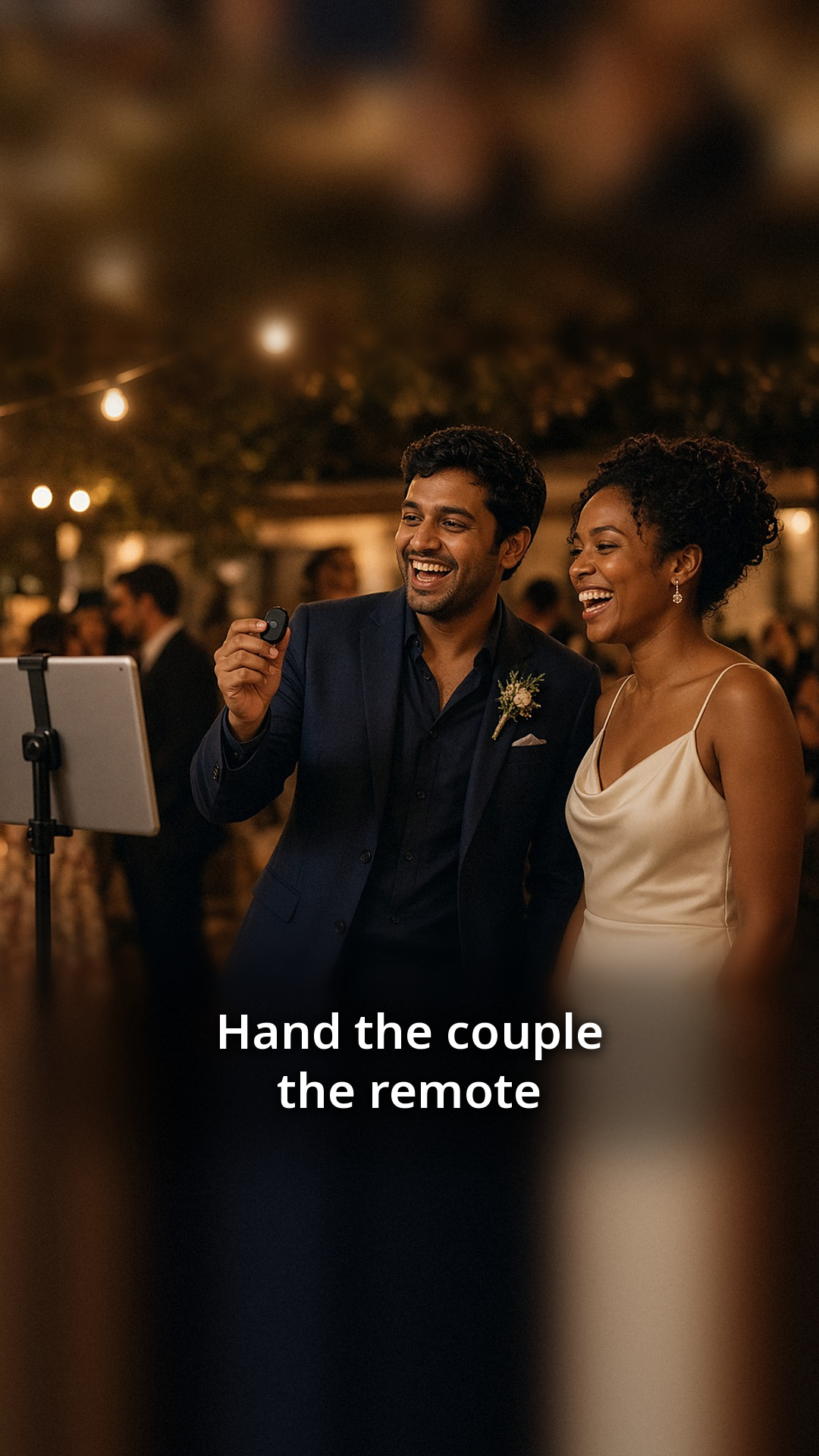
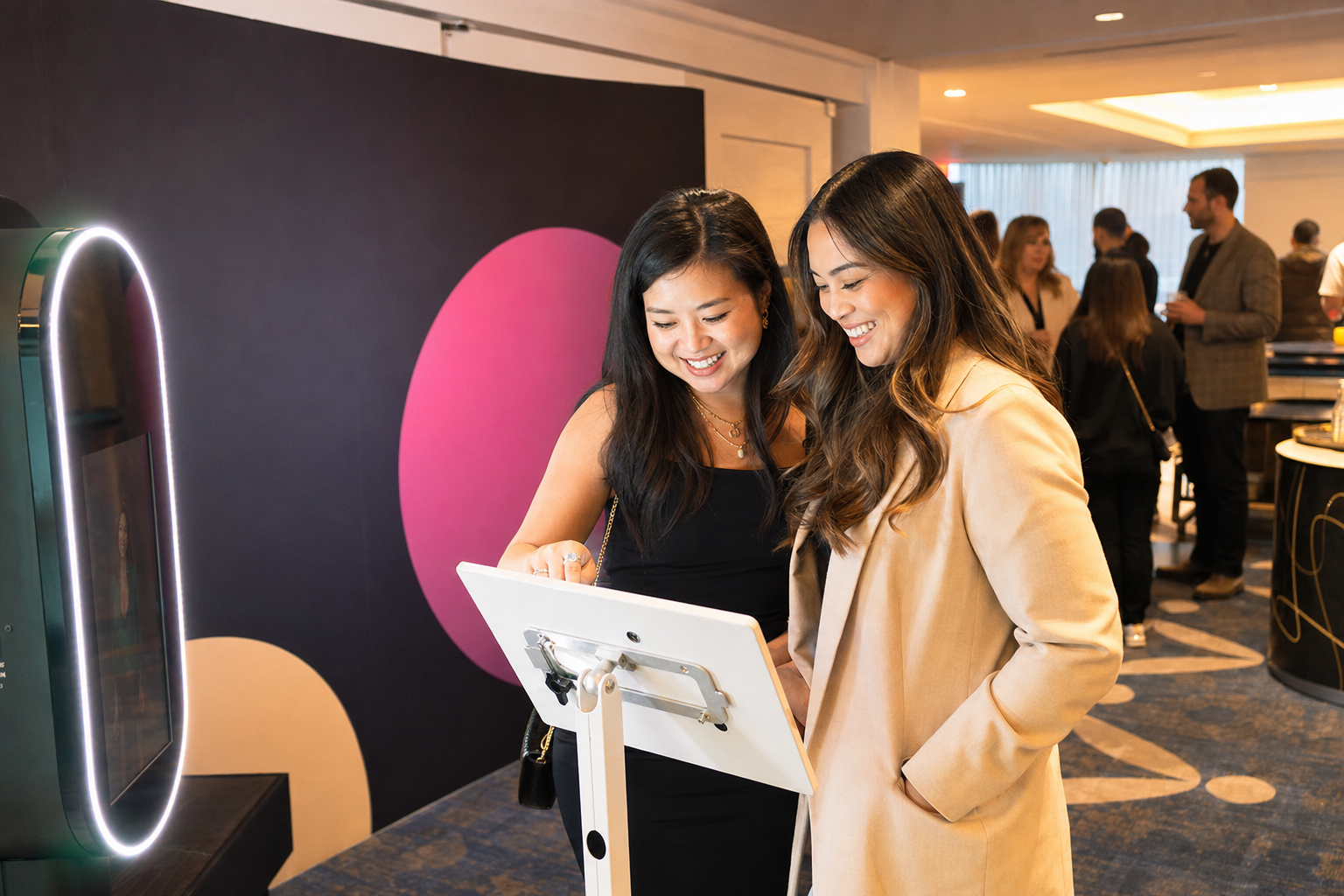
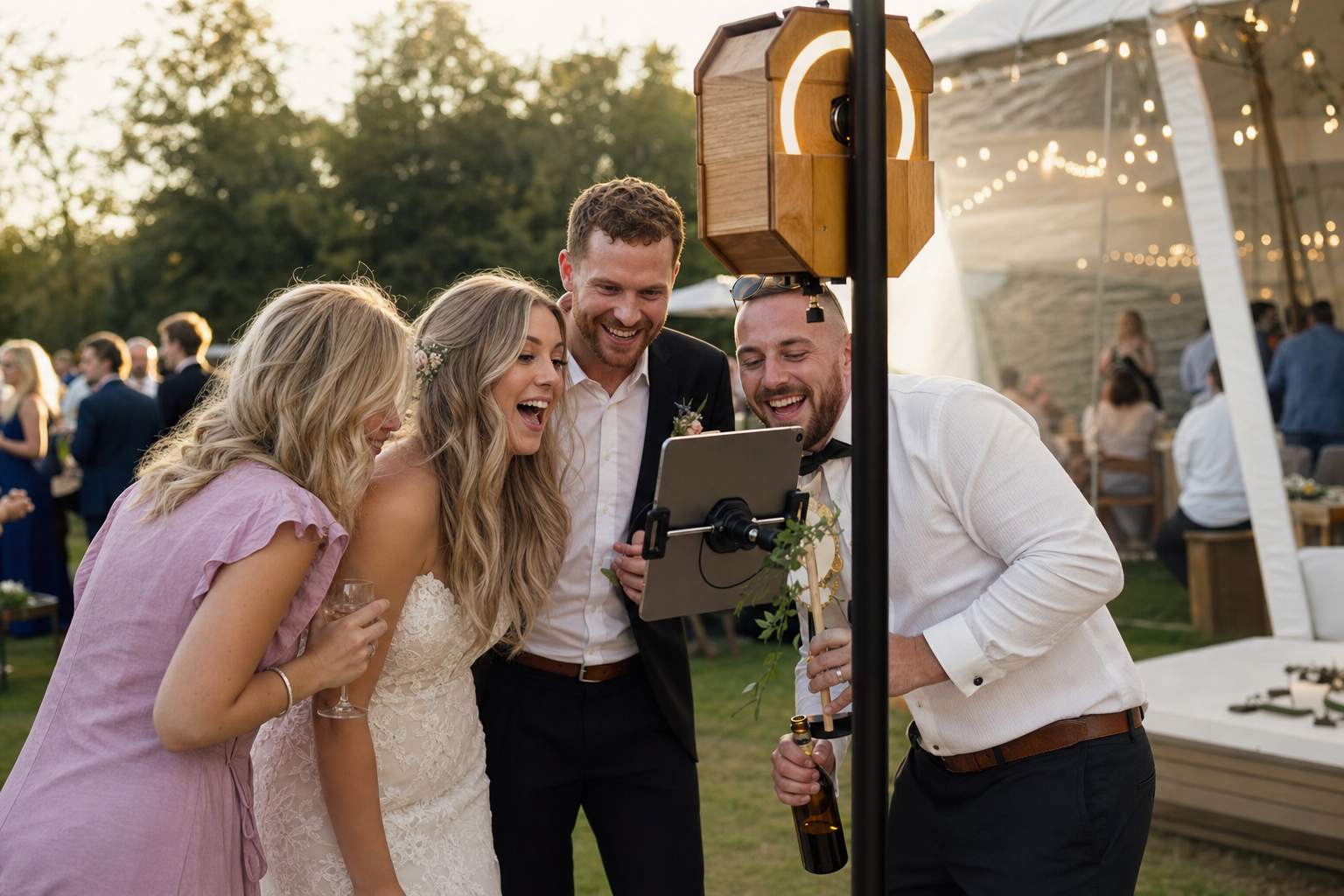
Most couples never get a proper turn at their own photo booth. Guests crowd around it, the line moves fast, and the newlyweds are busy greeting people. A small Bluetooth remote fixes that. Hand it to the couple, and they decide exactly when the countdown starts.
What the remote does
With ZillaBooth Pro, you can turn on Bluetooth Remote Shutter, pair a small Bluetooth shutter remote, and a single click starts the countdown. One press starts the countdown and then all four shots. Four photos later, the couple has a strip of their own. The booth runs the same way for guests, who tap the screen as usual.
It is an opt-in setting, so it does not change anything until you switch it on.
How to set it up
The setup is quick, and it is worth doing a day or two before the reception:
Open ZillaBooth on the iPad and go to Settings.
Turn on Bluetooth Remote Shutter in the Pro settings.
Pair your remote with the iPad as you would any Bluetooth accessory, then test it with ZillaBooth before the event, since remotes vary.
Run a test session and click the remote once. Check that the countdown starts and four photos are taken.
Try it from the spot where the couple will be standing. Bluetooth works best within a normal room distance, so a short test saves surprises later.
When to hand over the remote
Some couples use it right after the first dance, when the room is buzzing and everyone wants a photo. Others hold it for the end of the night, when the crowd has thinned and they can take a few relaxed strips together. A good rule is to give it to the couple at the start of the reception and let them choose.
If you have a friend acting as the booth contact, ask them to show the couple how to click once and hold still for the countdown.
Prints for the couple
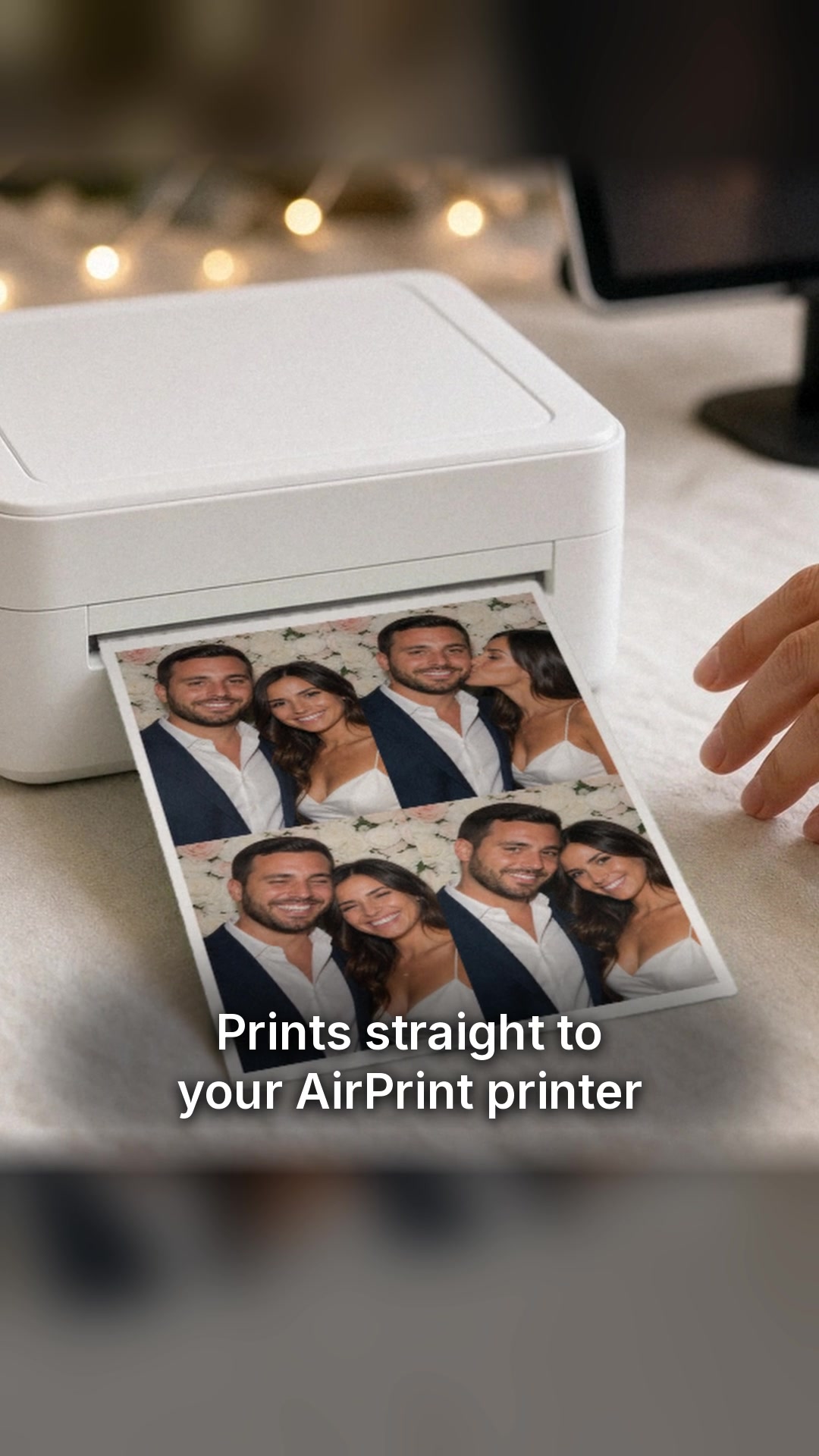
After the session, the couple can print their strip right away. Printing works on every tier through AirPrint, and Pro adds Simple Printing, a one-tap Print button. Keep the printer close to the booth so the couple does not have to walk across the room to collect the print.
A fun idea: keep the first strip of the night for the guest book or the thank-you card.
What it costs
ZillaBooth is free to download. Pro is a monthly or yearly subscription that includes Pocket, and you can see current pricing in the app. If you only need Pro for a wedding weekend, a monthly plan covers it.
Small details that help
Put a fresh battery in the remote and pack a spare.
Pair the remote at home, not during the reception.
Add a “Tap to start” sign so guests know they do not need the remote.
Make sure the iPad is plugged in and the stand is stable.
Where this fits in your wedding plan
The remote is a nice extra, not a requirement. Your reception booth will work well with just the iPad and a stand. If you are still planning, start with our wedding reception photo booth checklist and add the remote once the basics are in place. The wedding photo booth page also shows how couples set up ZillaBooth at receptions.
Short answer: A low-cost alternative to renting a photo booth is the iPad or iPhone you already own plus ZillaBooth. The free version is plenty for a birthday or a backyard party, and ZillaBooth Pro adds what weddings and venues need: a self-serve kiosk with Guided Access, Simple Printing, guest email from your own email address (SMTP) and external camera support on iPad (UVC webcams, plus Canon EOS cameras from about 2010 on; tested on the Rebel SL2, support varies by model).
A rented photo booth is fun, but it’s often one of the pricier extras on an event budget. If you have an iPad or an iPhone in a drawer, you already own the camera, the screen and the computer a booth is built from. Add a stand, a light and the right app, and you have a booth that’s yours for every party after this one too.
What does it cost to rent a photo booth?
Check Cherry’s 2026 guide puts most photo booth rentals in the hundreds of dollars, with weddings and corporate events at the higher end. Prices vary a lot by city, season and booth type.
What a rental gets you, and what you can do yourself
Rentals usually bundle a booth, an attendant, setup and teardown, props, prints and a digital gallery. Some of that is worth paying for. A lot of it you can cover with an iPad and an afternoon of prep:
The booth: your iPad or iPhone on a sturdy stand.
The attendant: ZillaBooth Pro with Guided Access lets guests run it themselves.
Prints: an AirPrint printer saved in Simple Printing (Pro), so guests tap Print for their strip.
Digital copies: sharing from the device on every version, or guest email from your own email address (SMTP) with Pro.
Branding: a PNG overlay with your names, date or logo (Pro, one at a time).
Props and backdrop: a curtain, a wall of balloons or a plain wall works.
What you need
An iPad or iPhone running iOS or iPadOS 26 or later.
A sturdy stand or tripod that holds it at about chest height.
Soft, even light: a window by day, or a lamp or LED panel at night. Our lighting guide covers dim venues.
A power cable and an outlet nearby.
Optional: an AirPrint printer, a backdrop and a box of props.
Which ZillaBooth version do you need?
Free version (Core), for parties: 2×2 grids and 1×4 strips, an automatic countdown and the flash (on by default), with sharing from the device. No account and no watermark.
Pocket, a one-time upgrade: a Black & White filter, borders (small or large, black or white), adjustable countdowns and Flash Control (on devices with a flash), for when you want the strips to look a certain way.
ZillaBooth Pro, for weddings and venues: everything in Pocket, plus Guided Access and Single App Mode kiosks, Simple Printing, guest email from your own email address (SMTP), PNG overlays, the iPad Event Layout and external camera support on iPad (UVC webcams, plus Canon EOS cameras from about 2010 on; tested on the Rebel SL2, support varies by model). With ZillaBooth Pro, the settings button hides automatically while the iPad or iPhone is locked in Guided Access or Single App Mode, and comes back when you end it.
Current pricing for Pocket and Pro is shown in the app.
How to set up an iPad photo booth instead of renting
Put the iPad or iPhone on a stand at about chest height, near an outlet.
Face guests toward soft light, with no bright window behind them.
Install ZillaBooth from the App Store and pick a 2×2 grid or 1×4 strip.
For a guest-run booth, start Guided Access inside ZillaBooth Pro.
Optional: select your AirPrint printer once in Simple Printing (Pro), and set up guest email with your email account’s SMTP settings.
Run a few test sessions with friends the week before.
A DIY iPad booth isn’t the right call for every event. Rent if you want someone else to handle setup and teardown on the day, if you need an attendant, or if you want things ZillaBooth doesn’t do, like GIFs, video, 360 spins, green screen or a hosted online gallery. Pro booth companies often use apps such as Snappic, Touchpix or LumaBooth for those; our best photo booth apps for iPad and Simple Booth alternatives guides compare them.
If you just want guests making strips and taking something home, the iPad you own is usually enough. ZillaBooth is simple yet powerful: it does the essentials of a classic booth and an event photo booth app well, it’s built natively for iPhone and iPad, and updates come through the App Store. Using a phone? See the best photo booth apps for iPhone.
FAQ
What is a low-cost alternative to renting a photo booth?
A low-cost alternative to renting a photo booth is using an iPad or iPhone you already own with ZillaBooth. The free version works for parties, and ZillaBooth Pro adds a self-serve kiosk, Simple Printing and guest email from your own email address (SMTP) for weddings and venues.
How much does a photo booth rental cost?
Check Cherry’s 2026 guide puts most photo booth rentals in the hundreds of dollars, with weddings and corporate events at the higher end. Prices vary by city, season, hours and booth type.
Can I make my own photo booth with an iPad?
Yes. Put the iPad on a stand near soft light, install ZillaBooth, and pick a grid or strip layout. For guests to run it alone, use Guided Access with ZillaBooth Pro.
Can I print photos from an iPad photo booth?
Yes. With ZillaBooth Pro, Simple Printing sends each strip to a saved AirPrint printer with one tap, and DNP printers work through DNP’s WCM-Plus. On any tier, you can also print from the iOS share sheet.
Is a DIY iPad photo booth good enough for a wedding?
For many weddings, yes. ZillaBooth Pro runs a self-serve booth with Guided Access, prints strips with Simple Printing, emails guests from your own email address and adds an overlay with your names and date. Rent instead if you want an attendant or video, GIF or 360 booths.
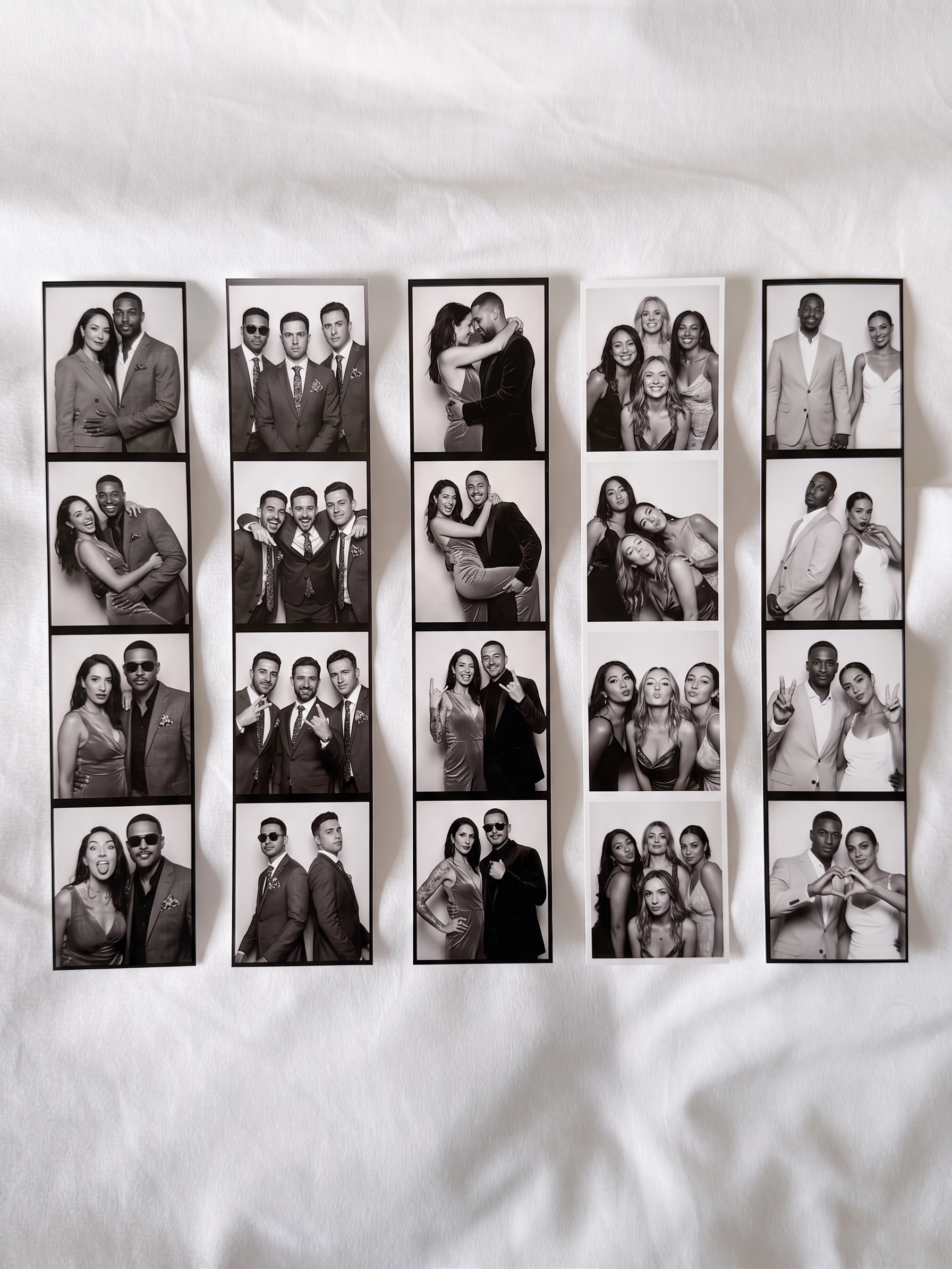
A few example layouts in the style guests make with ZillaBooth: classic 1×4 strips, 2×2 grids, and Pocket looks with black-and-white photos and borders. These are illustrations, not photos from real events.
Short answer: Our top pick for iPhone in 2026 is ZillaBooth. The free version makes a four-photo strip in one tap with no watermark, Pocket is a one-time upgrade that adds a Black & White filter and borders for a classic analog-style strip, and ZillaBooth Pro turns an iPhone or iPad into a self-serve event booth.
If you only want a black-and-white strip from your phone, Cabine is a good single-purpose pick. For template-heavy party booths, try Mini Photobooth.
Most people want the same thing from a photo booth app on iPhone: prop the phone up, tap once, pull a face four times, and get a strip that looks like it came out of a booth at the mall. Some apps do exactly that and nothing else. Others are built for photo booth businesses and happen to run on a phone. Here’s how they compare.
How we picked
We ranked each app on five things that matter when the booth is an iPhone you already own:
What you can do free: whether you get a real photo booth strip without paying or making an account.
How you pay after that: a one-time purchase or a subscription, and which features sit behind each.
Self-serve tools: whether the app can be locked down so guests run the booth on their own at a party.
Output and extras: the kind of strip it makes (including a classic black-and-white look), printing and guest sharing.
Device fit: whether it runs natively on the iPhone (and iPad) you already have.
We checked every app on its own website or US App Store listing on October 28, 2026. ZillaBooth is our own app. We rank it first because it does best on these criteria for most iPhone owners, and we say where each of the others is the better fit.
The best photo booth apps for iPhone at a glance
ZillaBooth: our top pick, from a free strip at home to a self-serve booth at a party or wedding.
Cabine: best for a single black-and-white strip and nothing else.
Mini Photobooth: best for designing layouts with templates, stickers and fonts.
Touchpix: best for photo booth businesses that also run 360 and mirror booths.
LumaBooth: best for operators who run phones, iPads, Macs and Windows PCs together.
iPhone photo booth apps compared
App
Best for
Pricing model
Runs on
Black-and-white strip
Event / self-serve use
ZillaBooth
Strips at home through to events
Free version (Core); Pocket one-time upgrade; Pro monthly or yearly subscription
iPhone, iPad (iOS 26 or later)
Yes, with Pocket’s Black & White filter
Pro: Guided Access or Single App Mode, Simple Printing, guest email from your own email address (SMTP)
Cabine
One black-and-white strip
Free strips; one-time Remove Ads purchase
iPhone only (iOS 17 or later)
Yes, that’s the whole app
Not built for events
Mini Photobooth
Template-heavy party booths
Free download; Pro subscription
iPhone, iPad
Not checked
Event Mode with passcode; Guided Access
Touchpix
Pro, multi-station booths
Professional subscription or annual license
iPhone, iPad, Mac, Windows, Android, Linux
Not checked
Built for photo booth businesses
LumaBooth
Mixed device fleets
Subscription for unlimited events
iPhone, iPad, Mac; Windows; Android
Not checked
Built for photo booth businesses
Checked on each vendor’s own site or US App Store listing on Oct 28, 2026. “Not checked” means we didn’t find it on those pages; it doesn’t mean the feature is missing.
The 5 best photo booth apps for iPhone
1. ZillaBooth: the best photo booth app for iPhone
Best for: ZillaBooth is best for anyone who wants a real photo booth strip from an iPhone, for fun at home or for guests at a party.
On those criteria, ZillaBooth is our top pick for iPhone because the free version makes a four-photo strip in one tap, Pocket adds a Black & White filter and borders for that classic analog look, and ZillaBooth Pro runs a self-serve booth for parties and weddings.
Free version (Core): tap once and you get a countdown, the flash (on by default) and four photos, laid out as a 1×4 strip or a 2×2 grid. No account and no watermark. Share it from the iPhone’s share sheet to Messages, Mail or Photos; you can also print from the iOS share sheet.
Pocket (one-time upgrade): this is the nostalgia tier. Turn on the Black & White filter, add a small or large border in black or white, and you have a strip that looks like it came out of an old analog booth. Pocket also adds adjustable countdowns, Flash Control (On, Off or Auto, on devices with a flash), a choice of which built-in camera to use, and auto-save of individual shots, as captured, to the “ZillaBooth – Individual Images” album. You pay once and keep it.
ZillaBooth Pro (subscription): for when the phone becomes the party booth. Lock it to the app with Guided Access or Single App Mode, send strips to a saved AirPrint printer in one tap with Simple Printing, add a PNG overlay with your names or logo, and send guest email from your own email address (SMTP). With ZillaBooth Pro, the settings button hides automatically while the iPad or iPhone is locked in Guided Access or Single App Mode, and comes back when you end it. The iPad Event Layout and external USB cameras are iPad only.
That’s the idea behind ZillaBooth: simple yet powerful. It has the essentials for a pocket classic booth and for a full event photo booth app, and nothing that gets in the way. It’s built natively for iPhone and iPad and updates through the App Store like any other app.
Worth knowing: ZillaBooth needs iOS 26 or later. It makes still photos only (no video, GIF or boomerang), and Black & White is its only filter.
2. Cabine
Best for: people who want one thing, a black-and-white strip, with no settings.
Cabine, from Raden Labs, is an iPhone-only app (iOS 17 or later) styled on old Parisian booths. It takes four shots three seconds apart with a countdown and booth sounds, or builds a strip from four photos you already have, and develops a black-and-white strip you can keep in the app, share or print over AirPrint. It runs on the phone with no account and no subscription. Since Cabine 2.0 every strip is free; the app shows occasional cards for Raden’s other apps, and a one-time Remove Ads purchase also removes the strip footer. It isn’t designed as a guest-run event booth.
3. Mini Photobooth
Best for: party hosts who want to design their own layout.
Mini Photobooth runs on iPhone and iPad with templates, 800+ stickers, 120+ fonts, GIF booths and AirPrint printing. Event Mode adds a passcode, and it supports Guided Access and Canon EOS and Sony cameras. It’s free to download, with a Pro subscription for more.
4. Touchpix
Best for: photo booth businesses that use iPhones alongside 360 and mirror booths.
Touchpix is a professional booth app. One license covers iPhone, iPad, Mac, Windows, Android and Linux, and it handles GIF, boomerang, slow motion, 360 spinners, magic mirrors, offline AI background removal, GoPro and Canon, Nikon and Sony cameras, and offline sharing. It’s sold as a Professional subscription on the App Store or as annual licenses on its website, so it’s more than most people need for a party.
5. LumaBooth
Best for: operators who run the same events on phones, iPads, Macs and Windows PCs.
LumaBooth runs on iPhone, iPad and Mac, and on Windows through dslrBooth, and on Android. It has AI portraits, 820+ templates managed in a browser dashboard, GIF, boomerang and slow-motion, Canon, Sony and Nikon cameras, and AirPrint or USB printing. Its App Store listing says unlimited events need a subscription.
Is there a Photo Booth app on iPhone?
No. Apple’s Photo Booth comes on iPad and Mac, but not on iPhone. On iPad it’s an effects camera (Kaleidoscope, Stretch, X-Ray and others) that saves single photos to Photos; on Mac it can also take a 4-up shot or video. To get a photo booth strip on iPhone, you need an app such as ZillaBooth or Cabine.
How to make a black-and-white photo strip on iPhone
Install ZillaBooth from the App Store and add Pocket.
In settings, choose the 1×4 strip layout and turn on the Black & White filter.
Add a border if you like: small or large, black or white.
Prop the iPhone up at eye level, face a window or a soft lamp, and tap the shutter button.
Strike four poses during the countdown, then share the strip. You can also print from the iOS share sheet.
Want the 4×1 look instead? That’s the free 1×4 strip, held sideways.
Our top pick for iPhone in 2026 is ZillaBooth. The free version makes a four-photo strip in one tap with no watermark, Pocket adds a Black & White filter and borders for a classic analog look, and ZillaBooth Pro turns the phone into a self-serve party booth. Cabine is a good pick if you only want a black-and-white strip.
Is there a free photo booth app for iPhone?
Yes. ZillaBooth’s free version makes 1×4 strips and 2×2 grids with an automatic countdown, has no watermark, and needs no account. Cabine’s strips are also free, and Mini Photobooth is free to download with a Pro subscription.
How do I make a black-and-white photo booth strip on iPhone?
In ZillaBooth with Pocket, pick the 1×4 strip, turn on the Black & White filter, and tap the shutter button to take four photos. Cabine also makes black-and-white strips by default.
Does the iPhone have Photo Booth?
No. Apple’s Photo Booth app is on iPad and Mac, not iPhone. Use a photo booth app such as ZillaBooth to make strips on an iPhone.
Can I use my iPhone as a photo booth at a party?
Yes. Put the iPhone on a tripod at eye level near soft light and open ZillaBooth. The free version is fine for a casual party. For guests to run it themselves, ZillaBooth Pro works with Guided Access and adds Simple Printing and guest email from your own email address (SMTP).
Sources
Features and pricing models were checked on each vendor’s own site or US App Store listing on October 28, 2026, and may change. Product names are trademarks of their owners.
A few example layouts in the style guests make with ZillaBooth: classic 1×4 strips, 2×2 grids, and Pocket looks with black-and-white photos and borders. These are illustrations, not photos from real events.
Short answer: Our top pick for iPad in 2026 is ZillaBooth. It’s free with no watermark, it makes classic 2×2 grids and 1×4 strips, and ZillaBooth Pro turns an iPad into a self-serve kiosk with Guided Access, external camera support on iPad (UVC webcams, plus Canon EOS cameras from about 2010 on; tested on the Rebel SL2, support varies by model), Simple Printing and guest email from your own email address (SMTP).
For brand activations with AI effects and online galleries, look at Simple Booth HALO or Snappic. For 360 booths and setups that mix Apple, Windows and Android hardware, look at Touchpix or LumaBooth.
An iPad makes a good photo booth because it already has the parts: a decent front camera, and a big screen guests can see themselves in. The app decides the rest. Below are the eight we’d look at in 2026, what each one is best for, and where each falls short.
How we picked
We ranked each app on five things that matter when the booth is an iPad you already own:
What you can do free: whether you can run a real photo booth without paying or making an account.
How you pay after that: a one-time purchase or a subscription, and which features sit behind each.
Self-serve tools: whether the app can be locked down so guests run the booth on their own.
Output and extras: the kind of photos it makes, printing, guest sharing and external cameras.
Device fit: whether it runs natively on the iPad (and iPhone) you already have.
We checked every app on its own website or US App Store listing on October 28, 2026. ZillaBooth is our own app. We rank it first because it does best on these criteria for hosts using their own iPad, and we say where each of the others is the better fit.
The best photo booth apps for iPad at a glance
ZillaBooth: best for iPad event booths, from a living-room party to a self-serve wedding or venue kiosk.
Simple Booth HALO: best for brand activations, venues and businesses that want AI effects and online galleries.
Snappic: best for photo booth businesses that run iPad, 360, mirror and roaming booths from one app.
Booth.Events: best for operators who set up events in a browser and run several iPads.
LumaBooth: best for operators who mix iPads, Macs, Windows PCs and Android tablets.
Touchpix: best for 360, mirror and multi-station photo booth businesses.
Mini Photobooth: best for DIY hosts who want lots of templates and stickers.
Apple Photo Booth: best for quick, silly selfies with effects on an iPad you already have.
iPad photo booth apps compared
App
Best for
Pricing model
Runs on
Self-serve lockdown
External camera
Output
ZillaBooth
iPad event booths, parties to venues
Free version (Core); Pocket one-time upgrade; Pro monthly or yearly subscription
iPhone, iPad (iOS 26 or later)
Pro: Guided Access or Single App Mode
Pro, iPad only: UVC webcams, plus Canon EOS cameras from about 2010 on (tested on the Rebel SL2; support varies by model)
2×2 grid and 1×4 strip stills
Simple Booth HALO
Brand activations, venues
Subscription tiers, weekly, monthly or yearly
iPad only (iPadOS 26.1 or later)
Built for walk-up guests
Listed
Photos, GIFs, video, AI effects
Snappic
Pro operators, multiple booth types
Monthly plans (Starter, Business, Premium, Scale)
iPhone, iPad, Mac
Not checked
External cameras and GoPro
Stills, GIF, bursts, 360 video, AI-FX
Booth.Events
Browser-managed, multi-iPad events
Basic, Pro, Pro+ plans; 1-week pass; 4-event Pro credits
iPhone, iPad, Mac
Scheduled events can keep guests in the event
Canon EOS, Nikon, Sony over USB
Photos, GIF, slow-mo, boomerang, video, AI
LumaBooth
Mixed Apple, Windows and Android fleets
Subscription for unlimited events
iPhone, iPad, Mac; Windows; Android
Not checked
Canon, Sony, Nikon
Photos, GIF, boomerang, slow-mo, AI portraits
Touchpix
360, mirror, multi-station businesses
Professional subscription or annual license
iPhone, iPad, Mac, Windows, Android, Linux
Not checked
GoPro 7–13, Canon, Nikon, Sony
Photos, GIF, video, 360, AI
Mini Photobooth
DIY hosts who like templates
Free download; Pro subscription
iPhone, iPad
Event Mode with passcode; Guided Access
Canon EOS, Sony
Template photos, GIFs
Apple Photo Booth
Quick effect selfies
Built into iPad
iPad, Mac
None
None
Single photos with effects
Checked on each vendor’s own site or US App Store listing on Oct 28, 2026. “Not checked” means we didn’t find it on those pages; it doesn’t mean the feature is missing.
The 8 best photo booth apps for iPad
1. ZillaBooth: the best photo booth app for iPad
Best for: ZillaBooth is best for most iPad event booths, from a birthday party to a self-serve wedding or venue kiosk.
On those criteria, ZillaBooth is our top pick for iPad because it covers the whole range in one app: the free version makes classic 2×2 grids and 1×4 strips, Pocket is a one-time upgrade for more control, and ZillaBooth Pro runs a self-serve kiosk with external camera support on iPad (UVC webcams, plus Canon EOS cameras from about 2010 on; tested on the Rebel SL2, support varies by model), Simple Printing and guest email from your own email address (SMTP).
The free version (Core) has no watermark and needs no account. Guests tap the shutter button, get a countdown, and the app takes four photos and builds the collage, ready to share from the iPad (you can also print from the iOS share sheet). Pocket adds adjustable timers, Flash Control (on devices with a flash), borders (small or large, black or white), a Black & White filter, a choice of built-in camera, and auto-save of individual shots to the “ZillaBooth – Individual Images” album.
ZillaBooth Pro is the event tier. It adds the iPad Event Layout, kiosk setups with Guided Access or Single App Mode, Simple Printing, which sends a strip to your saved AirPrint printer in one tap (DNP printers work through DNP’s WCM-Plus), custom PNG overlays (one at a time), guest email sent from your own email address (SMTP), and external USB camera support on iPad, including UVC-compatible USB webcams and Canon EOS cameras from about 2010 on (tested on the Rebel SL2; support varies by model). With ZillaBooth Pro, the settings button hides automatically while the iPad or iPhone is locked in Guided Access or Single App Mode, and comes back when you end it.
We think ZillaBooth is simple yet powerful. It has the essentials for both a pocket classic booth and a full event photo booth app, and it leaves out what most booths don’t need. It’s built natively for Apple’s software and hardware, and updates come through the App Store, so keeping a kiosk current is as easy as updating any other app.
Worth knowing: ZillaBooth is Apple-only and needs iOS or iPadOS 26 or later. It makes still collages only, with no video, GIF, boomerang, 360 or green screen, and it has no cloud gallery.
2. Simple Booth HALO
Best for: brand activations, venues and businesses that want AI effects, guest data and online galleries.
HALO runs on iPad only and needs iPadOS 26.1 or later. It has a Layout Designer, AI effects and background replacement, photos, GIFs and video, external camera support, sharing by text, email, AirDrop and WhatsApp, printing, and an online gallery with a Live Feed. It’s subscription-based, with tiers starting at Lite and billed weekly, monthly or yearly.
3. Snappic
Best for: photo booth businesses that run several booth types and sell AI effects.
Snappic runs iPad, 360, mirror, robot-arm and roaming booths from one app on iPhone, iPad and Mac. It includes AI-FX and VideoFX, stills, GIFs and bursts, green screen and AI background removal, external camera and GoPro support, and text and email sharing. Its pricing page lists four monthly plans: Starter, Business, Premium and Scale.
4. Booth.Events
Best for: operators who set up events in a browser and push them to several iPads.
Booth.Events connects to Canon EOS, Nikon and Sony cameras over USB and runs on iPhone, iPad and Mac. Events are built on the web and sync live to each device. It adds online galleries, text and email sharing, 360 spinner support, AI prompts and portraits, and USB printing on M-series iPads. Besides its Basic, Pro and Pro+ plans, it sells a 1-week Basic pass and a 4-event pack of Pro credits that don’t expire.
5. LumaBooth
Best for: operators who run iPads alongside Macs, Windows PCs and Android tablets.
LumaBooth runs on iPhone, iPad and Mac, and on Windows through dslrBooth, and on Android with the device’s built-in camera, with event setup in a browser dashboard. It has AI portraits, 820+ templates, GIF, boomerang and slow-motion, Canon, Sony and Nikon camera support, and printing over AirPrint or USB to DNP, Citizen and HiTi printers. Its App Store listing says unlimited events need a subscription.
6. Touchpix
Best for: businesses running 360 spinners, magic mirrors and several stations.
One Touchpix license covers iPhone, iPad, Mac, Windows, Android and Linux. It handles 360, mirror, iPad and sharing stations, with offline AI background removal, GIF, boomerang and slow motion, GoPro 7–13 plus Canon, Nikon and Sony cameras, offline sharing, and a built-in paywall. The App Store sells a Professional subscription (weekly, monthly or yearly), and the website sells annual licenses such as PhotoPass and MultiPass.
7. Mini Photobooth
Best for: party hosts who want to design layouts with stickers and fonts.
Mini Photobooth runs on iPhone and iPad with templates, 800+ stickers, 120+ fonts, GIF booths and AirPrint printing. Event Mode adds a passcode, and the app supports Guided Access and Canon EOS and Sony cameras. It’s free to download, with a Pro subscription for more.
8. Apple Photo Booth
Best for: quick effect selfies when you don’t need an event booth.
Apple’s Photo Booth app on iPad shows the front camera in a grid of live effect tiles, such as Kaleidoscope, Stretch and X-Ray, and saves your shots to Photos. It’s a fun camera, not an event booth: Apple’s iPad guide doesn’t describe photo strips, a guest countdown, printing or a kiosk mode.
How to choose a photo booth app for iPad
A party at home: start with ZillaBooth’s free version. Add Pocket if you want black-and-white strips, borders or longer timers.
A bigger camera: ZillaBooth Pro supports external USB cameras on iPad, including Canon EOS cameras from about 2010 on (tested on the Rebel SL2; support varies by model). HALO, Snappic, Booth.Events, LumaBooth, Touchpix and Mini Photobooth also list external camera support.
GIFs, video, 360 or AI: look at Snappic, Touchpix, Booth.Events, LumaBooth or HALO. ZillaBooth sticks to still collages.
Windows or Android hardware: LumaBooth or Touchpix (both run on Windows and Android).
Our top pick for iPad in 2026 is ZillaBooth. The free version makes classic 2×2 grids and 1×4 strips with no watermark, and ZillaBooth Pro adds a self-serve kiosk with Guided Access, external camera support on iPad (UVC webcams, plus Canon EOS cameras from about 2010 on; tested on the Rebel SL2, support varies by model), Simple Printing and guest email from your own email address (SMTP). For AI effects and online galleries, Simple Booth HALO and Snappic are the main alternatives.
Is there a free photo booth app for iPad?
Yes. ZillaBooth’s free version makes 2×2 grids and 1×4 strips with an automatic countdown, has no watermark, and needs no account. Apple’s Photo Booth is also free on iPad, but it’s an effects camera rather than an event booth. Mini Photobooth is free to download, with a Pro subscription for more.
Can I connect a camera to an iPad photo booth app?
Yes. ZillaBooth Pro supports UVC webcams on iPad, and Canon EOS cameras from about 2010 on, iPad with Pro; tested on the Rebel SL2, support varies by model. Simple Booth HALO, Snappic, Booth.Events, LumaBooth, Touchpix and Mini Photobooth also list external camera support.
How do I keep guests inside the photo booth app?
Use Apple’s Guided Access, or Single App Mode on a managed iPad, to lock the iPad to the app. With ZillaBooth Pro, the settings button hides automatically while the iPad or iPhone is locked in Guided Access or Single App Mode, and comes back when you end it.
Which iPad photo booth apps do GIFs, video or 360?
Snappic, Touchpix, Booth.Events, LumaBooth and Simple Booth HALO all list GIF or video capture, and Snappic, Touchpix, Booth.Events and LumaBooth support 360 booths. ZillaBooth focuses on still 2×2 and 1×4 collages.
Sources
Features and pricing models were checked on each vendor’s own site or US App Store listing on October 28, 2026, and may change. Product names are trademarks of their owners.
A few example layouts in the style guests make with ZillaBooth: classic 1×4 strips, 2×2 grids, and Pocket looks with black-and-white photos and borders. These are illustrations, not photos from real events.
Short answer: Our top Simple Booth alternative for iPad and iPhone event booths in 2026 is ZillaBooth: the free version (Core) makes classic strips and grids with no watermark, Pocket is a one-time upgrade, and ZillaBooth Pro turns an iPad into a self-serve kiosk with external camera support on iPad (UVC webcams, plus Canon EOS cameras from about 2010 on; tested on the Rebel SL2, support varies by model), Simple Printing, and guest email from your own email address (SMTP). Other options are Snappic, LumaBooth, Booth.Events, and Touchpix for professional operators, plus Mini Photobooth for DIY parties. If you want a photo booth app without a monthly subscription, ZillaBooth’s free Core and one-time Pocket unlock cover home and DIY events. Booth.Events (1-week pass or event credits) offers a pay-as-you-go option for pro features.
How we picked: we use the same criteria as our roundups of the best photo booth apps for iPad and the best photo booth apps for iPhone: what you can do free, how you pay after that (one-time purchase or subscription), self-serve kiosk tools, output and extras (printing, guest sharing, external cameras), and whether it runs natively on the iPhone or iPad you already own. ZillaBooth is our own app. On those criteria it’s our top pick for iPhone and iPad hosts, and the others are the better fit if you need GIF, 360, AI effects, Windows, or Android.
Why people look for Simple Booth alternatives
Simple Booth HALO is an iPad app built for brand activations, venues, and businesses. People usually start looking elsewhere for one of these reasons:
Recurring cost. HALO is subscription-only. Plans now start with a lower-cost Lite tier, with Core, Plus, Pro, and Select tiers above it, billed weekly, monthly, or yearly depending on the tier.
No free tier for a one-off party. Hosts who only need a booth for a single birthday or wedding often want something free or a one-time purchase.
Device choice. The HALO App Store listing supports iPad only and requires iPadOS 26.1. Some hosts want to run a booth on an iPhone, or on Android or Windows.
Accounts and cloud. Some hosts want an app that works without signing up for an account or uploading guest photos to someone else’s gallery.
Simple Booth alternatives compared
App
Best for
Pricing model
Platforms
Kiosk / self-serve mode
External camera
Own-domain email
ZillaBooth
iPhone/iPad hosts and small operators
Free Core; Pocket one-time purchase; Pro monthly or yearly subscription (current pricing in the app)
iPhone, iPad (iOS 26 or later)
Yes, Pro: Guided Access / Single App Mode. With ZillaBooth Pro, the settings button hides automatically while the iPad or iPhone is locked in Guided Access or Single App Mode, and comes back when you end it. A Restart button (all tiers) gets the booth ready for the next guest
Pro, iPad only: UVC webcams, and Canon EOS cameras from about 2010 on (tested on the Rebel SL2; support varies by model)
Yes, Pro (via your email account’s SMTP)
Simple Booth HALO
Brand activations, venues, businesses
Weekly, monthly, or yearly subscription; plans now start with a lower-cost Lite tier
iPad (App Store)
Built for walk-up guests and permanent venue setups
External cameras (Canon and Sony, per Simple Booth)
Custom email messages on Pro; own-domain sending not stated
Snappic
Pro operators and agencies
Monthly plans (Starter, Business, Premium, Scale)
iPad, iPhone; also runs on Mac
Permanent installs listed as a use case
External cameras and GoPro
White-label URLs & emails (Premium plan)
LumaBooth
Operators mixing Apple, Windows, and Android
Subscription on the App Store for unlimited events
iPhone, iPad, Mac; Windows (LumaBooth for Windows, formerly dslrBooth); Android (built-in cameras)
Motion-triggered sessions, “no attendant needed”
Canon, Nikon, Sony
Not stated
Booth.Events
Operators who manage events in a browser and run 360 booths
Monthly/annual plans, plus a 1-week Basic pass and 4-event Pro credits
iPhone, iPad; Mac as share station; web app
Scheduled Events can stop guests leaving the event
Canon, Nikon, Sony via USB
Custom domain for galleries; email domain not stated
Touchpix
360, mirror, and multi-booth businesses
Professional subscription (App Store) or annual license (website)
iOS, Mac, Windows, Android, Linux
Not stated
GoPro 7–13, Canon, Nikon, Sony
Not stated
Mini Photobooth
DIY hosts who want lots of templates
Free download; Pro Mode monthly or yearly subscription
iPhone, iPad
Event Mode with passcode; Guided Access support
Canon EOS, Sony
Not stated
“Not stated” means we couldn’t find it on the vendor’s official site or App Store page on Oct 28, 2026. It doesn’t mean the feature is missing.
The 6 best Simple Booth alternatives
1. ZillaBooth: the best Simple Booth alternative for iPhone and iPad
ZillaBooth is our top Simple Booth alternative for iPhone and iPad: the free version (Core) makes classic photo booth strips and grids, Pocket is a one-time upgrade for more creative control, and ZillaBooth Pro turns an iPad into a self-serve kiosk with external camera support on iPad (UVC webcams, plus Canon EOS cameras from about 2010 on; tested on the Rebel SL2, support varies by model), Simple Printing, and guest email from your own email address (SMTP).
Best for: ZillaBooth suits hosts and small operators who already own an iPhone or iPad and want a self-serve event booth without a weekly or monthly bill for basic use.
ZillaBooth turns an iPhone or iPad into a photo booth that makes classic 2×2 collages and 1×4 strips. The free version needs no account and adds no watermark. With ZillaBooth Pro, the same iPad becomes a self-serve kiosk locked down with Guided Access, external camera support on iPad (UVC webcams, plus Canon EOS cameras from about 2010 on; tested on the Rebel SL2, support varies by model), Simple Printing, custom PNG overlays (one at a time), and guest email from your own email address (SMTP). It’s simple yet powerful: the essentials for both a pocket classic booth and a full event booth, built natively for iPhone and iPad, with updates through the App Store. The ZillaBooth section below covers the details.
2. Snappic: a multi-booth platform for pro operators
Best for: photo booth businesses that want AI effects, 360 booths, and branded microsites.
Snappic runs iPad, 360, mirror, robot-arm, and roaming booths from one app. It offers AI-FX effects, GIF and burst capture, external camera and GoPro support, and text and email sharing. Its pricing page lists monthly plans: Starter, Business, Premium, and Scale.
3. LumaBooth: a cross-platform option
Best for: operators who run a mix of iPads, Macs, Windows PCs, and Android tablets.
LumaBooth runs on iPhone, iPad, and Mac, on Windows as LumaBooth for Windows (formerly dslrBooth), and on Android using the device’s built-in camera. It works with Canon, Nikon, and Sony cameras and supports AI portraits, GIF, boomerang, slow-mo, AirPrint, and USB printing to DNP, Citizen, and HiTi printers. Its App Store listing says unlimited events need a subscription.
4. Booth.Events: a web-managed iPad booth
Best for: businesses that set up events in a browser and push changes to several iPads.
Booth.Events connects to Canon EOS, Nikon, and Sony cameras over USB. It adds a browser-based admin with Live Sync, online galleries, guest data capture, and 360 spinner support. If you don’t want a subscription, it also sells a 1-week Basic pass and a pack of 4 Pro event credits that don’t expire.
5. Touchpix: for 360 and multi-platform pro booths
Best for: businesses running 360 spinners, magic mirrors, and several stations.
One Touchpix license covers iPhone, iPad, Mac, Windows, Android, and Linux. It includes offline sharing, offline AI background removal, GoPro 7–13 plus Canon, Nikon, and Sony camera support, and a built-in paywall. The App Store sells a Professional subscription (weekly, monthly, or yearly), and the website sells annual licenses such as PhotoPass and MultiPass.
6. Mini Photobooth: a template-focused app for DIY hosts
Best for: party hosts who want to design custom layouts with stickers and fonts.
Mini Photobooth comes with 200+ free templates, 800+ stickers, GIF booths, and AirPrint, plus an Event Mode with a passcode and support for Canon EOS and Sony cameras. Pro Mode is a monthly or yearly subscription on the App Store.
ZillaBooth: an iPad photo booth app without a required subscription
ZillaBooth is a native iPhone and iPad event photo booth app with three tiers. ZillaBooth Pro is where it shines at events: it turns an iPad into a self-serve booth that guests can use on their own. Current pricing is shown in the app.
Core (free): 2×2 and 1×4 layouts, automatic countdown, flash on by default, share-sheet sharing (Messages, Mail, Photos and more), and a Restart button that gets the booth ready for the next guest. No account and no watermark. You can also print from the iOS share sheet.
Pocket (one-time purchase): adjustable timers, Flash Control (On, Off or Auto, on devices with a flash), a choice of built-in camera, the Black & White filter, borders (small or large, black or white), and auto-save of individual shots, as captured, to the “ZillaBooth – Individual Images” album. You pay once and keep it, with no recurring bill.
ZillaBooth Pro (monthly or yearly subscription): everything in Pocket, plus the iPad Event Layout (Pro, iPad only), Event and Kiosk Mode with Guided Access or Apple Configurator Single App Mode, external USB camera support on iPad (Pro, iPad only: UVC webcams, plus Canon EOS cameras from about 2010 on; tested on the Rebel SL2, support varies by model), Simple Email Sharing, which sends from your own email address (on your own domain if you have one) using its SMTP settings, Simple Printing, which sends a guest’s strip to your saved AirPrint printer in one tap (including DNP printers through DNP’s WCM-Plus print server), custom PNG overlays (Pro, one overlay at a time), and System Monitoring alert emails to your admin email while the app is open. With ZillaBooth Pro, the settings button hides automatically while the iPad or iPhone is locked in Guided Access or Single App Mode, and comes back when you end it. Optional Auto-Restart (Pro): after 5 minutes with no touch on the collage screen, it clears the session and returns to the camera; any touch resets the timer. In Guided Access, set Display Auto-Lock to Never and keep the iPad plugged in so the screen stays on all event.
ZillaBooth’s limits: It’s Apple-only (iPhone and iPad) and needs iOS/iPadOS 26 or later. Kiosk mode, external USB camera support, Simple Email Sharing, overlays, and Simple Printing all need the Pro subscription, and external cameras work only on iPad. ZillaBooth focuses on still 2×2 and 1×4 collages. It doesn’t do GIF, video, 360, green screen, AI effects, SMS delivery, or hosted online galleries, so if you need those, look at Snappic, LumaBooth, Booth.Events, or Touchpix.
One party, tight budget: start with a free app. ZillaBooth’s free version (Core) has no watermark and needs no account. Add Pocket, a one-time purchase, if you want more creative control.
Self-serve wedding photo booth, lobby, or venue: look for kiosk lockdown, a Restart button that gets the booth ready for the next guest, and Simple Printing (guests tap Print). ZillaBooth Pro covers all three with Guided Access, and its optional Auto-Restart clears the session and returns to the camera after 5 minutes with no touch on the collage screen; any touch resets the timer. Mini Photobooth and Booth.Events also list lockdown-style features.
External camera quality: ZillaBooth Pro supports UVC webcams on iPad, and Canon EOS cameras from about 2010 on, iPad with Pro; tested on the Rebel SL2, support varies by model. Simple Booth, Snappic, LumaBooth, Booth.Events, Touchpix, and Mini Photobooth also list external camera support, with brands varying by app.
A paid photo booth business with GIF, 360, and AI: look at Snappic, Touchpix, LumaBooth, or Booth.Events.
Windows or Android: choose LumaBooth or Touchpix. ZillaBooth and Simple Booth HALO run only on Apple devices.
FAQ
What are the best Simple Booth alternatives?
ZillaBooth is our top Simple Booth alternative for iPhone and iPad, and the other strong options are Snappic, LumaBooth, Booth.Events, Touchpix, and Mini Photobooth. ZillaBooth’s free version makes classic strips and grids, Pocket is a one-time upgrade, and ZillaBooth Pro adds a self-serve kiosk, external camera support on iPad (UVC webcams, plus Canon EOS cameras from about 2010 on; tested on the Rebel SL2, support varies by model), Simple Printing, and guest email from your own email address (SMTP). Snappic, LumaBooth, Booth.Events, and Touchpix suit operators who need GIF, 360, or AI features.
Is there a free Simple Booth alternative with no watermark?
Yes. ZillaBooth’s free version (Core) has no watermark, needs no account, and makes classic 2×2 and 1×4 collages on iPhone and iPad (iOS 26 or later). Pocket is a one-time upgrade if you want more creative control.
Is there a photo booth app like Snappic without a monthly subscription?
ZillaBooth Core is free, and Pocket is a one-time purchase. Its kiosk, email, and external camera features need the Pro subscription, though. For pro features without a monthly plan, Booth.Events offers a 1-week Basic pass and 4-event Pro credit packs.
What’s the best photo booth app for iPad?
For most iPad event booths, ZillaBooth is our top pick. The free version covers parties, and ZillaBooth Pro adds a Guided Access kiosk setup, external camera support on iPad (UVC webcams, plus Canon EOS cameras from about 2010 on; tested on the Rebel SL2, support varies by model), and Simple Printing. For brand activations, Simple Booth HALO or Snappic are other options. For mixed Apple, Windows, and Android fleets, LumaBooth. Pick based on budget and whether you need GIF, 360, or AI. See the best photo booth apps for iPad.
Can I connect an external camera to an iPad photo booth app?
Yes. ZillaBooth Pro supports UVC webcams on iPad, and Canon EOS cameras from about 2010 on, iPad with Pro; tested on the Rebel SL2, support varies by model. Simple Booth, Snappic, LumaBooth, Booth.Events, Touchpix, and Mini Photobooth also list external camera support.
Can guests run a self-serve iPad photo booth on their own?
Yes. Lock the iPad to the app with Guided Access or Single App Mode. With ZillaBooth Pro, the settings button hides automatically while the iPad or iPhone is locked in Guided Access or Single App Mode, and comes back when you end it. A Restart button gets the booth ready for the next guest, and System Monitoring (Pro) can send alert emails to your admin email while the app is open.
Pricing models and features were checked on Oct 28, 2026, from each vendor’s website and US App Store listing, and may change. All product names are trademarks of their respective owners.
A few example layouts in the style guests make with ZillaBooth: classic 1×4 strips, 2×2 grids, and Pocket looks with black-and-white photos and borders. These are illustrations, not photos from real events.
The best event photo booth is the one nobody has to explain. A guest walks up, taps the screen, poses, and leaves with something to hold. That is the whole idea behind running ZillaBooth on an iPad, and it works the same way at a birthday, a wedding or a company night.
What a guest sees
The iPad sits on a stand with the camera screen open. A guest taps once and a countdown starts. Four photos are taken in a row, and then the finished picture appears, either a classic strip or a 2×2 grid, whichever layout you picked.
From there they choose what happens next. They can print it, send it to themselves, or both. There is no app to install on their phone and no account to create. Strips and grids are free in the core app, with no watermark.
That is why a self-serve booth works so well. Guests figure it out in about five seconds, and the host gets to enjoy the party.
What you set up once
Most of the work happens before the doors open. Put the iPad on a sturdy stand at chest height, near an outlet if you can. Pick your layout, take a test strip, and check the lighting on a face, not on an empty chair.
If you want prints, you need a printer. Printing works on every tier through AirPrint, so any AirPrint printer on the same network is enough to get started. With Pro, Simple Printing adds a one-tap Print button for guests once you have chosen a printer. If you want the full walkthrough, our printing station guide covers placement and paper.
If you would rather guests keep a digital copy, Pro adds Simple Email Sharing, which sends each guest’s photos from your own email address. Guests type their address, and the photos arrive in their inbox with your name on the sender line.
Small things that keep the line moving
A few habits make a big difference:
Put a small sign next to the iPad that says “Tap to start”. It saves a lot of questions.
Keep the printer within sight but out of the traffic path, so guests do not crowd the booth while they wait.
Add a second light if the room is dim. One lamp pointed at faces beats any amount of editing.
Check the paper and ink before the party, not during it.
Who it suits
A self-serve booth is a good fit anywhere guests mingle: weddings, milestone birthdays, retirement parties, holiday gatherings and office nights. If you are comparing options, the event photo booth app page shows how ZillaBooth fits different event types, and the Pro page explains what operators get when they run booths on a regular basis.
Give it a try
You can start without paying anything. ZillaBooth is free to download, and it turns the iPhone or iPad you already own into a four-shot photo booth. Set it up on a quiet evening, run a few test strips with whoever is nearby, and you will know exactly how your event will feel.
Running a busy photobooth means prints have to keep up. ZillaBooth Pro already prints through Apple AirPrint with Simple Printing, so guests can send their photo straight to a saved printer with no print dialog. With DNP’s WCM-Plus Wireless Communication Module in the middle, that same AirPrint sheet now reaches DNP dye-sublimation printers — including DS620A, DS820A, QW410, DS-RX1HS, DS40, and DS80.
You don’t need a custom SDK or a special ZillaBooth driver. Connect your DNP printer(s) to WCM-Plus over USB, put the iPad on the same network (Wi‑Fi or wired Ethernet), turn on Simple Printing in ZillaBooth Pro, and choose the WCM-advertised printer (for example DS620-4x6) once from the iOS printer list. ZillaBooth saves it, so every print after that goes straight to the printer with no dialog.
Why operators care
High-volume dye-sub quality from DNP event printers
Up to three DNP printers on one WCM-Plus, with a managed queue (processing / transferred / failed, reprint last ten)
Browser admin portal for live queue, media remaining, and device health — no separate DNP management app
Flexible networking: hotspot, venue Wi‑Fi, or Ethernet (including Apple USB‑C Ethernet adapter paths)
Get the full setup
Step-by-step hardware, hotspot IP notes (192.168.4.1 vs venue LAN IP vs direct-cable 192.168.5.1), QW410 power caveats, monitoring tips, and official DNP / Apple links are in our support guide:
The modern reception floor is the front line of any professional operation. It’s the first impression for clients, the central hub for deliveries, and the point of check-in for employees. In this high-traffic, high-stakes environment, the choice of a digital sign-in or informational display solution cannot be a compromise. You don’t need a consumer-grade tablet with a fancy stand; you need a dedicated, hardened, professional kiosk…a system that’s reliable, secure, and visitors can use themselves once Guided Access and Pro’s Hide Settings are on and the iPad is plugged in, from the first morning rush to the last night shift.
This is where the combination of Apple’s iPad and the ZillaBooth Pro application delivers a solution that truly earns the title of “ultimate reliability.” What sets this setup apart is the clever, dual-layered use of the iPad’s native operating system features, specifically Guided Access, in conjunction with the application-level security provided by ZillaBooth Pro’s “Hide Settings” feature. Together, they transform a versatile consumer device into a bulletproof, single-purpose professional tool.
The fundamental challenge with using any standard tablet as a kiosk is maintaining continuous, focused operation. Users are curious. A finger might swipe up to access the home screen, the device might dim and go to sleep during a lull, or a well-meaning but confused visitor might accidentally start adjusting the screen brightness or attempting to connect to a different Wi-Fi network. These small disruptions lead to system failure, requiring intervention from already busy staff. The goal is as few interventions as possible.
The first critical step in building a self-serve kiosk is guaranteeing the screen stays on and the user cannot exit the application. On the iPad, that starts with Guided Access, Apple’s built-in accessibility feature. With ZillaBooth Pro and Guided Access or Single App Mode on, the screen stays on all event. Set Auto-Lock to Never and keep the iPad plugged in.
Layer 1: Guided Access (Screen Stays On)
Guided Access is Apple’s system-level kiosk mode. It is designed to lock the device into a single application and manage which hardware buttons and screen areas are active. This is the ultimate tool for turning a general-purpose tablet into a singular, dedicated digital device.
Setting up Guided Access for a Bulletproof Kiosk:1. Access the Controls: Navigate to the iPad’s Settings app, tap on Accessibility, and then select Guided Access.
2. Enable and Set Security: Turn the toggle switch ON. Crucially, tap on Passcode Settings and set a secure Guided Access Passcode. This passcode is the master key that will be required to exit the ZillaBooth Pro app or change any Guided Access settings. Using Face ID or Touch ID is highly recommended as a fast, secure alternative to the passcode for authorized staff.
3. Activate the Kiosk Session: Open the ZillaBooth Pro application. Now, quickly triple-click the Home button (on older models) or the Side/Power button (on newer models). This action will bring up the Guided Access initiation screen.
4. Configure Essential Options: Before hitting ‘Start’ in the top right corner, check the ‘Options’ menu in the bottom-left. This is where you disable all failure points.
* Disable Sleep/Wake Button: This stops anyone from putting the screen to sleep with the physical button. To keep it on all day, also set Auto-Lock to Never in Settings > Display & Brightness and keep the iPad plugged in.
* Disable Volume Buttons: Prevents users from accidentally muting the device or attempting to exit the app through any non-screen controls.
* Disable Touch: While you generally need touch enabled for a kiosk, this option is vital for advanced troubleshooting. You can temporarily disable touch across the entire screen, allowing you to clean the screen or prevent interaction while a remote update is running.
* Time Limit: Ensure this is disabled, as the kiosk must operate indefinitely.
5. Start the Session: Tap ‘Start.’ The iPad is now entirely locked into the ZillaBooth Pro application. A triple-click of the button will only allow an exit upon successful entry of the Guided Access Passcode.Why Guided Access Creates the Ultimate Reliable Solution:
The reliability is not merely functional; it is systemic. Guided Access is an operating system feature, meaning it overrides the application itself and all other potential system alerts. An application crashing, a rogue notification attempting to pull the user away, or even the device trying to update in the background will all be contained by the Guided Access fence. For a busy reception floor, the benefit is clear: the kiosk remains fixed on the ZillaBooth Pro interface, running hour after hour without anyone re-launching it, as long as the iPad stays plugged in. This level of system-enforced focus is unparalleled and forms the secure shell that contains the application.
Layer 2: Locking Down the App with “Hide Settings”
While Guided Access handles the external, system-level security…preventing the user from exiting the app…the ZillaBooth Pro “Hide Settings” feature handles the internal, application-level security.
Every professional application has configurable settings, whether it’s changing the default language, adjusting camera settings for a photo booth feature, or re-configuring the Wi-Fi connection the app uses. These settings are crucial for management but represent a vulnerability in a self-serve, public environment. Even if a user cannot exit the app, they could potentially find an in-app path to tamper with the kiosk’s configuration, compromising data integrity or the user experience.
The Role of ZillaBooth Pro’s “Hide Settings”:
In ZillaBooth Pro, Hide Settings works on its own. Whenever Guided Access or Single App Mode is on, the Settings button disappears from the booth screen, so guests can’t reach your setup.
How “Hide Settings” works in ZillaBooth Pro:1. There’s no switch to find. Hide Settings is automatic with Pro.
2. Start Guided Access (or Single App Mode) on the iPad.
3. The Settings button disappears from the booth screen while the iPad is locked to the app.
4. Check it: the Settings button should be gone. To get it back, end Guided Access with your passcode.Why the Dual-Layer Approach Is Self-Serve and Secure:
This two-pronged defense is what makes the iPad/ZillaBooth Pro solution a dependable self-serve setup. * External Security (Guided Access, screen stays on): Prevents unauthorized device interaction (exiting the app, turning off the screen, using system buttons). With Auto-Lock set to Never and the iPad plugged in, the device stays awake and running your app.
* Internal Security (ZillaBooth Pro Hide Settings): Prevents unauthorized application interaction (changing your layout, overlay, or sharing settings). This ensures the integrity of your data and the consistency of the user experience.This combination lets visitors use the kiosk themselves with far less supervision. If a user tries to exit, they hit the Guided Access passcode lock. If a user manages to find an in-app configuration menu, the “Hide Settings” feature renders it inoperable. This cuts down on supervision and ensures the data you collect is never compromised by unauthorized configuration changes.
The iPad vs. The World: Why iOS Wins the Kiosk War
While other tablets exist, the iPad’s unique architecture and integration are essential to this robust self-serve solution, justifying its place in a professional environment:1. Unified OS and Hardware: Apple controls both the hardware and the software, ensuring that Guided Access is a perfectly integrated, rock-solid feature that is immune to the kind of software bugs or hardware inconsistencies that can plague third-party kiosk modes on fragmented operating systems.
2. Predictable Power Management: The iPad’s power management is highly standardized, which is critical for long-term, always-on operation. You know exactly how the device will behave when plugged in for days or even weeks on end.
3. Enterprise Aesthetic and Durability: iPads are built with high-quality components, offering a sleek, professional appearance that elevates the look of any reception floor. Their glass and aluminum construction is durable and easy to clean, critical for a high-touch, public-facing machine.
4. Simplified Management: Once locked down, managing a fleet of iPads is simpler than managing a mixed environment. Set up one booth, and the next one takes the same few steps.In the fast-paced environment of a busy reception floor, every second spent troubleshooting a digital device is a second lost on core business operations. By implementing the technical tandem of the iPad’s Guided Access (with Pro, the screen stays on while it runs) and ZillaBooth Pro’s “Hide Settings,” you create more than just a tablet in a stand…you create a dependable, industrial-strength, self-serve digital receptionist. Set Auto-Lock to Never, keep it plugged in, and visitors can use it all day.
ZillaBooth 3.0 is officially here. This major update brings a mature, feature-complete experience designed for event professionals, venue operators, and casual hosts who need a reliable photo booth that can run guest-led.
We built ZillaBooth with a focus on stability and ease of use. Whether you are managing a high-traffic brand activation or setting up an iPad at a wedding reception, ZillaBooth 3.0 turns your hardware into a polished kiosk that works while you host. With Guided Access plus Pro’s Hide Settings, and the iPad plugged in, guests can run the booth themselves, so you can run the event.
Here is an overview of the new professional tools, our three user tiers, and the engineering that makes ZillaBooth the smart choice for your next event.
What’s New in Version 3.0?
Version 3.0 introduces a suite of powerful, thoughtfully engineered features designed to give operators complete control and peace of mind during live events.
USB External Camera Support: For professional setups, you can now connect UVC-compliant USB webcams and tethered Canon EOS cameras to your iPad. This provides a camera connection option with a clean, high-quality feed, giving you consistent framing independent of the iPad’s built-in camera.
Live Readiness Checklist: Make sure your hardware is ready before the doors open. Open Settings → Pro → System Monitoring to see a live checklist of battery and charging, device temperature, storage, printer, network, and email queue.
Ambient Device Status Alerts: Subtle live status chips on the iPad camera screen keep operators informed of low battery, overheating, or printer issues without interrupting the guest flow.
Bluetooth Remote Shutter: Trigger photo captures seamlessly using standard Bluetooth remotes, volume buttons, or the new iPhone Camera Control button. It utilizes a unified shutter path to ensure flawless hands-free attendant operation.
Custom Save Locations: Professional workflows require flexibility. You can now save individual photos and finished collages directly to external drives, Files folders, or iCloud Drive for instant editor access and same-night handoffs.
Attention-Grabbing Shutter Button: Designed for guest-led setups, an optional animated particle halo or swirling emoji ring around the iPad shutter helps draw guests in and maximize engagement.
Three Tiers Designed for Different Users
Rather than a one-size-fits-all approach, ZillaBooth is structured into three distinct tiers tailored to different types of users and use cases. With the 3.0 release, we are officially renaming our one-time purchase tier to Pocket to better reflect its intended use.
Core (Free)
ZillaBooth Core is designed for casual use and testing. It remains completely free to download, requires no account or login, and produces clean collages with zero watermarks.
Classic Collages: Capture exactly four photos in sequence to automatically generate a 2×2 grid or 1×4 vertical strip.
Automated Flow: Simple automatic countdown timers and full-screen flash for consistent illumination.
Instant Sharing: Share or save your collage instantly using the native iOS share sheet.
Pocket (One-Time Purchase)
Designed for casual users and content creators who want a customizable photo booth experience right in their pocket. While it works beautifully on an iPad, Pocket is primarily envisioned for iPhone users.
Custom Timing & Manual Capture: Adjust initial and between-photo countdowns, or switch to Manual Capture to take photos at a natural, human-paced rhythm.
Creative Aesthetics: Apply professional black-and-white filters and add customized border spacing and colors.
Automated Organization: Auto-save individual photos and collages directly to your library, and embed GPS metadata with geotagging.
Custom Share Messages: Pre-fill the iOS share sheet with your own custom caption or event hashtag.
Pro (Monthly or Yearly Subscription)
The Pro tier is aimed directly at pros and DIY users running events, parties, and permanently installed photo booths. It leverages all the custom controls of Pocket and adds a complete suite of event-grade tools.
iPad Event Layout: Transform your iPad into a full-screen kiosk with an oversized shutter and dedicated collage review buttons.
Integrated SMTP Email: Guests receive their collages in seconds via your own email domain. A persistent BCC feature seamlessly integrates with your marketing lists.
Graphic Overlays: Import your own transparent PNG artwork for custom logos, borders, and brand themes. There is no proprietary template lock-in.
Simple Printing: Connect to any AirPrint-compatible venue printer to instantly deliver 4×6 physical keepsakes.
Booth Automation: Auto-Restart after idle periods, plus Hide Settings while Guided Access is on, keep the booth guest-ready. With Guided Access or Single App Mode on, the screen stays on all event. Set Auto-Lock to Never and keep the iPad plugged in.
Why ZillaBooth?
ZillaBooth 3.0 is built natively for iPhone and iPad using Apple’s AVFoundation framework. This ensures highly reliable captures, system-level performance, and an interface that feels instantly familiar to your staff and guests.
Most importantly, ZillaBooth respects your professional workflow. We believe in zero proprietary lock-in: use the hardware you already own, the email infrastructure you trust, and the branding your clients demand.
Your designer sent a beautiful logo file. Your booth still outputs plain collages. Graphic overlays brand every share and print without requiring a design degree—or a last-minute Photoshop marathon.
Available in ZillaBooth Pro.
The problem
Event branding lives on step-and-repeats and bar menus, but booth output often ships unmarked. Post-event editing does not scale when hundreds of collages roll through a busy night. Operators need overlays baked into capture so every takeaway carries sponsor logos, wedding monograms, or campaign art automatically.
Why it matters
Apply PNG graphic overlays to every collage automatically
Brand shares and prints without manual post-processing
Support sponsor deliverables with consistent logo placement
Let non-designers use pre-made assets from clients or templates
Pair with iPad kiosk layout for a fully polished guest-facing experience
Who it’s for
PNG overlays serve ZillaBooth Pro users and brand-conscious hosts: corporate experiential teams, wedding planners with monogram assets, venue marketers running sponsored booths, and booth businesses promising branded deliverables.
Real-world moments
A corporate activation bakes sponsor logos into every collage, so every share, email and print carries them
A wedding applies monogram art to strips for guest book and take-home prints
A retail launch uses campaign artwork on shares going to social feeds same-night
How ZillaBooth delivers
ZillaBooth Pro’s PNG overlay support renders your graphic assets onto finished collages as part of the capture pipeline. Combined with full-screen iPad layout, Simple Printing, and Simple Email Sharing, overlays complete the pro booth look guests associate with rental-quality experiences.
Brand the collage once—every guest takeaway follows.
Want to let guests walk away from your photo booth with their photos without exchanging phone numbers, handing out USBs, or managing a complicated app? QR Code Image Delivery makes it effortless — guests scan a posted QR code, find their photo in a shared cloud gallery, and save it directly to their phone in seconds.
The best part: this works with ZillaBooth right now, using features already built in. No app updates, no new subscriptions, no code. Just a 15-minute setup using free tools you likely already have.
What is QR Code Image Delivery?
QR Code Image Delivery is a setup — not a separate feature — that uses ZillaBooth’s built-in Simplified Sharing BCC field together with an IFTTT automation and a cloud storage folder (like Google Drive) to create a self-updating photo gallery guests can access by scanning a single QR code.
Every time a guest completes a photo session and taps Share, ZillaBooth silently BCC’s a copy of the email — photo attachment included — to an IFTTT trigger address. IFTTT automatically deposits that photo into your cloud folder. Guests scan the QR code you’ve posted near the booth, open the gallery on their phone, and save their photo. No app to download. No account to create. No friction.
Start by creating a dedicated folder in your cloud storage provider (like Google Drive) for your event. Giving it a specific name (like Smith Wedding 2026 Photos) keeps it organized and ensures guests only see photos from their event.
Replace this image: ZillaBooth settings screen for ZillaBooth QR Code Photo Delivery Setup
Open Google Drive and create a new folder for your event.
Right-click the folder → Share → change access to “Anyone with the link can view.”
Copy the shareable link — you’ll use it to generate your QR code in Step 4.
Tip: Create a fresh folder and QR code for each event so guests only see photos from that day — not from previous sessions.
Step 2 — Set up the IFTTT automation
IFTTT (If This Then That) is a free automation platform that connects your apps and services. Here you’ll set it up to watch for incoming emails and automatically save any photo attachments to your Google Drive folder.
Click Connect and authorize both your email and Google Drive accounts when prompted.
When configuring the action, set the Google Drive folder path to the event folder you created in Step 1.
Save and enable the applet.
Note your IFTTT trigger email address: trigger@applet.ifttt.com — this is the address you’ll enter in ZillaBooth.
That’s the automation. Any email sent to trigger@applet.ifttt.com with a file attachment will have that attachment automatically uploaded to your specified Google Drive folder.
Step 3 — Configure ZillaBooth’s BCC field
Open ZillaBooth and navigate to your Simplified Sharing settings.
In the BCC field, enter: trigger@applet.ifttt.com (or whatever your specific IFTTT trigger email address is)
Save your settings.
That’s it on the ZillaBooth side. From this point on, every time a guest completes a session and taps Share, ZillaBooth will silently BCC that email — and IFTTT will automatically deposit the photo into your Google Drive event folder.
Step 4 — Generate and display your QR code
Take the shareable Google Drive folder link you copied in Step 1.
Paste it into a free QR code generator.
Download the QR code image.
Print it on a sign, postcard, table tent, or sticker — anywhere guests will see it near the booth.
Suggested sign text:“Scan to get your photos! Your image will appear here within seconds of sharing.”
Tip: Many QR code generators let you add a logo or custom colors. Drop in your event or company branding to make the sign look polished and professional.
The guest experience
Here’s what the flow looks like from a guest’s point of view:
Guest takes photos at the ZillaBooth.
Guest enters any email address at the sharing screen (their own, a placeholder, or a dummy — it doesn’t matter) and taps Share.
The photo arrives in the Google Drive folder automatically via IFTTT — typically within seconds to about a minute.
Guest scans the QR code posted near the booth, opens the folder on their phone, finds their photo, and saves it.
The flow is familiar, zero-friction, and requires no app installation on the guest’s part.
Tips and customization
One folder per event: Create a fresh Google Drive folder and a new QR code for each event so guests only see photos from their event — not previous ones.
Want it even faster? Upgrade to IFTTT Pro for near-real-time automation speeds. The free tier can have up to a 1-hour delay.
Not a Google Drive user? IFTTT also supports Dropbox, OneDrive, Box, and others. Swap in whatever cloud storage you already use — the ZillaBooth BCC configuration stays exactly the same.
Want branded QR codes? Tools like QRCode Monkey let you embed a logo and choose custom colors for a more polished look. For a streamlined, minimal QR code, we love using PEW’s Corner QR Code Generator.
Already use Make or Zapier? Both platforms support similar email-to-cloud-storage automations if you prefer them over IFTTT.
A note on the sharing step
For this flow to work, the guest does need to complete the Simplified Sharing step — entering an email and tapping Share. This is intentional: it’s the action that triggers ZillaBooth to send the BCC. In practice it takes only a few seconds, and many guests will enter their real email address anyway to receive a personal copy of their photo.
Ready to set it up?
Download ZillaBooth free and give your guests the effortless photo pickup experience they’ll remember.
Years later, you remember the laughter—but not which vineyard, rooftop, or hometown hall hosted it. Geotagging anchors every booth moment to the place your story actually happened.
Available in Pocket.
The problem
Event photos scatter across camera rolls and shared albums without location context. When couples revisit booth memories or operators deliver client archives, missing place data makes sorting and storytelling harder. You should not need a separate notebook to remember where the best night of your life unfolded.
Why it matters
Embed location metadata into booth captures automatically
Organize post-event galleries by venue when revisiting memories
Help operators tag multi-day or multi-venue client projects
Support travel weddings and destination events with built-in place context
Pair with autosave so archived files carry location into your library
Who it’s for
Geotagging serves Pocket-tier hosts who value memory preservation: destination wedding couples, family reunion organizers spanning multiple locations, and operators archiving client events with searchable metadata.
Real-world moments
A destination wedding tags every booth capture with the resort coordinates for future albums
A multi-venue tour operator separates gallery folders by city using location data
A couple revisits anniversary photos sorted by the three venues that hosted their celebration weekend
How ZillaBooth delivers
Pocket-tier geotagging adds location metadata to booth output so your photos remember where they were taken. It works alongside autosave and share features—turning scattered fun into an organized archive you can navigate long after the last guest leaves.
Memories fade. Place data helps them find their way home.
Your brand activation looked flawless on the mood board. Then guest emails started bouncing from a generic send address, and your follow-up list never materialized. Simple Email Sharing puts guest email collection on your terms—without turning the booth into an IT project.
Available in Pro.
The problem
Corporate and wedding hosts often need guest contact info after the booth closes, but bolt-on email tools feel clunky, off-brand, or technically fragile. Guests hesitate when the share flow looks unfamiliar, and operators lose leads when delivery fails silently. You need a share path that matches your event polish and lands in inboxes guests actually check.
Why it matters
Collect guest emails through a streamlined share flow built for live events
Keep the experience on-brand instead of handing guests off to a third-party form
Reduce friction so more guests complete sharing before they leave the booth
Support follow-up marketing and thank-you notes
Pair with the confirmation animation so guests know their photo is on its way
Who it’s for
Simple Email Sharing is built for Pro operators who treat the booth as a lead-gen or relationship tool: corporate marketers capturing qualified contacts, wedding planners collecting guest addresses for thank-you notes, venue teams running sponsored activations, and booth businesses delivering client-ready data handoffs.
Real-world moments
A trade show booth collects work emails before sending branded collage previews to attendees
A wedding couple adds a BCC address, so a copy of every guest’s photos lands in their own inbox
A retail pop-up captures opt-ins for a launch-day follow-up campaign tied to booth photos
How ZillaBooth delivers
Pro’s Simple Email Sharing sends each guest’s collage by email from your own address, so it looks like it came from you, at staffed or guest-led booths. It fits alongside the confirmation animation and Simple Printing, so guests get physical and digital takeaways without confusion.
Every share should feel like part of your event—not an afterthought.
No. The share flow is designed for walk-up guests who want a quick, familiar email handoff without extra sign-up steps.
Is Simple Email Sharing only for corporate events?
It shines at brand activations and lead capture, but weddings and private celebrations also use it so guests leave with their photos and hosts can send thank-yous. See the wedding photo booth guide.
Which tier includes Simple Email Sharing?
Simple Email Sharing is part of ZillaBooth Pro (a monthly or yearly subscription), alongside iPad kiosk tools, overlays, and event controls.
Can I use this with Simple Printing at the same booth?
Yes. Many Pro setups combine instant prints with email sharing so guests choose the takeaway that fits them.
Guests tap share and wonder: did it work? A confirmation animation closes that anxiety loop with a celebration guests feel—not a technical shrug.
Available in Pro.
The problem
Silent share failures erode trust fast at events. Guests re-tap buttons, clog lines, or walk away unsure whether email or print actually succeeded. Without clear success feedback, even working booths feel broken—and staff spend time reassuring instead of hosting.
Why it matters
Celebrate every share with a clear on-screen confirmation the moment the guest taps
Reduce guest uncertainty after email or share actions
Lower repeat attempts that slow busy lines
Pair with Simple Email Sharing and Simple Printing for end-to-end clarity
Make self-serve kiosks feel responsive and trustworthy
Who it’s for
Confirmation animation matters for Pro operators running guest-facing kiosks: corporate lead-capture booths, wedding teams using Simple Email Sharing, and anyone who has watched a guest ask did it go through three times.
Real-world moments
A corporate booth confirms the email is on its way before the guest steps away
A wedding kiosk celebrates each share as guests send their photos by email
A festival booth gives instant feedback after high-volume share attempts
How ZillaBooth delivers
Pro’s confirmation animation plays the moment a guest taps to send or print, so they know their photo is on its way. Emails and prints queue and retry if the network drops. It complements Simple Email Sharing and Simple Printing so guests finish the booth loop confidently, which matters most at guest-led iPad setups where no staff member is there to nod yes.
Guests should never guess whether the booth did its job.
Digital shares are nice. A physical strip in hand is the moment guests grin and wave it at friends across the room. Simple Printing gives guests a one-tap Print button, so they get that instant takeaway without a volunteer chained to the printer.
Available in ZillaBooth Pro.
The problem
Manual print workflows break down under volume: wrong printer selected, queue stalls, guests walk away before pickup. Operators lose the magic moment when digital-only booths forget that booths are tactile experiences. You need reliable printing that guests can start themselves and that keeps pace with the line.
Why it matters
Guests tap Print (or Send & Print) and the collage goes straight to your printer
Deliver instant physical takeaways guests expect from pro booths
Reduce manual operator steps during high-traffic events
Pair it with the Confirmation Animation: an emoji celebration rains across the screen the moment a guest taps Print or Send & Print
Works with AirPrint printers, plus supported DNP dye-sub printers through WCM-Plus
Who it’s for
Simple Printing is core to ZillaBooth Pro workflows: wedding booth businesses, corporate experiential teams, venues offering print-inclusive packages, and hosts who want rental-style takeaways without rental pricing.
Real-world moments
A wedding booth prints a strip whenever a guest taps Print, for the guest book table and take-home favors
A trade show activation pairs lead capture with instant printed collages
A holiday party prints 2×2 grids while guests share digitally in parallel
How ZillaBooth delivers
With ZillaBooth Pro, Simple Printing (Settings → Pro → Simple Printing) sends the finished collage to your chosen AirPrint printer the moment a guest taps Print or Send & Print—no manual export step between guests. Combined with overlays, Simple Email Sharing, and the Confirmation Animation, it recreates the full pro booth deliverable loop on iPad hardware you control.
The best booth moment is the one guests hold in their hand.
Any AirPrint printer on the same Wi-Fi network as your iPad or iPhone. DNP dye-sub printers (DS620A, DS820A, QW410, DS-RX1HS, DS40, DS80) work through DNP’s WCM-Plus; see the DNP + WCM-Plus guide.
Can guests skip printing if they only want digital?
Yes. In a print-only booth, guests just tap Print. With email turned on, they choose Send (email only) or Send & Print.
Do printed collages include my overlay?
Yes. Overlays render into finished output before print jobs queue.
Which tier includes Simple Printing?
ZillaBooth Pro is a monthly or yearly subscription, and you can see current pricing in the app. It sits alongside the iPad kiosk tools and the other event features.
Midnight on the dance floor. The iPad dims. The line dissolves. Here’s how to keep that from happening: lock the iPad to ZillaBooth with Apple’s Guided Access. With Guided Access or Single App Mode on, the screen stays on all event. Set Auto-Lock to Never and keep the iPad plugged in.
Keep Awake (Pro): with Guided Access, the booth screen stays on all event.
The problem
iOS power management assumes tablets sit idle on desks, not run a bright booth screen for six hours straight. Unexpected sleep breaks guest trust, slows the line, and sends you hunting for the side button while everyone watches. Long events need a plan for keeping the screen on.
Why it matters
The screen stays on while Guided Access (or Single App Mode) is running
The booth stays visible in dim reception halls
No mid-line shutdowns from Auto-Lock, once it’s set to Never
Plugged into power, the iPad lasts through all-night weddings and festival hours
Pair with Auto-Restart so guests can run the booth themselves between sessions
Who it’s for
This setup is for every Pro operator running long events: wedding receptions past midnight, New Year’s Eve activations, venue installations, and anyone who has lost a booth to a dimmed screen at the worst moment.
Real-world moments
A wedding booth stays on until after last call, with Guided Access on and the iPad plugged in
A New Year’s Eve party booth stays bright through the countdown and the biggest line of the night
A weekend venue installation stays guest-ready through long open hours
How to set it up
Turn on Guided Access in Settings → Accessibility → Guided Access and set a passcode. (On a dedicated booth iPad, you can use Single App Mode instead.)
Set Auto-Lock to Never in Settings → Display & Brightness.
Plug the iPad into power for the whole event.
Open ZillaBooth and start Guided Access. With Pro, the booth screen stays on all event and Settings stay hidden while Guided Access is on.
Add Auto-Restart and ambient status alerts, and you can focus on the event, not the tablet.
The booth should outlast the dance floor—not nap during it.
Does keeping the screen on drain the battery faster?
Yes, a screen that stays on uses more power. Keep the iPad plugged in for all-night events.
Do I still need Guided Access?
Yes. The screen stays on only while Guided Access (or Single App Mode) is running, and Guided Access is also what keeps guests inside the app. Set Auto-Lock to Never as well.
Which tier keeps the screen on with Guided Access?
ZillaBooth Pro, a monthly or yearly subscription.
Does it work with ambient status alerts?
Yes. On the iPad Event Layout, Pro shows small on-screen badges for things like low battery or an offline printer, and with Guided Access on, the screen stays on so you can see them.
Guest one finishes. Guest two taps nothing because the booth still shows the last session’s share screen. Auto-restart keeps the kiosk ready so the line never stalls on a reset someone forgot to tap.
Available in Pro.
The problem
Self-serve booths die quietly in the idle state after a share or print. The next guest assumes it is broken, staff scramble to reset, and throughput collapses during peak hours. Manual restart is fine for demos—it fails when two hundred guests expect rental-grade reliability.
Why it matters
Return the booth to ready state automatically after each session
Keep lines moving without staff resetting between guests
Reduce abandoned attempts from confused walk-up users
Pair with attention shutter so each guest sees the same clear starting point
Who it’s for
Auto-restart is essential for Pro operators running guest-led booths: self-serve venue booths, festival kiosks with volunteer rotation, and operators who measure success in sessions per hour.
Real-world moments
A wedding reception iPad kiosk resets automatically during peak dance-floor line surges
A trade show booth runs guest-led during keynote blocks, locked with Guided Access
A venue weekend kiosk stays ready between groups without a manual reset
How ZillaBooth delivers
Pro’s auto-restart returns the booth to a ready capture state after guests complete sharing, printing, or other session endings. Combined with Guided Access (with Pro, the screen stays on and Settings stay hidden) and the confirmation animation, it delivers the always-on reliability guests expect from rental booths.
A pro booth is ready for the next guest before they step up.
Yes. Auto-restart keeps kiosk flow continuous after print and share completions.
Can I disable auto-restart for styled sessions?
Pro event controls support pro workflows; configure behavior during pre-event setup.
Which tier includes auto-restart?
Auto-restart is part of ZillaBooth Pro, a monthly or yearly subscription.
How does auto-restart relate to keeping the screen on?
With Guided Access or Single App Mode on, the screen stays on all event, and auto-restart resets the session. Together, with Auto-Lock set to Never and the iPad plugged in, they keep the booth running.