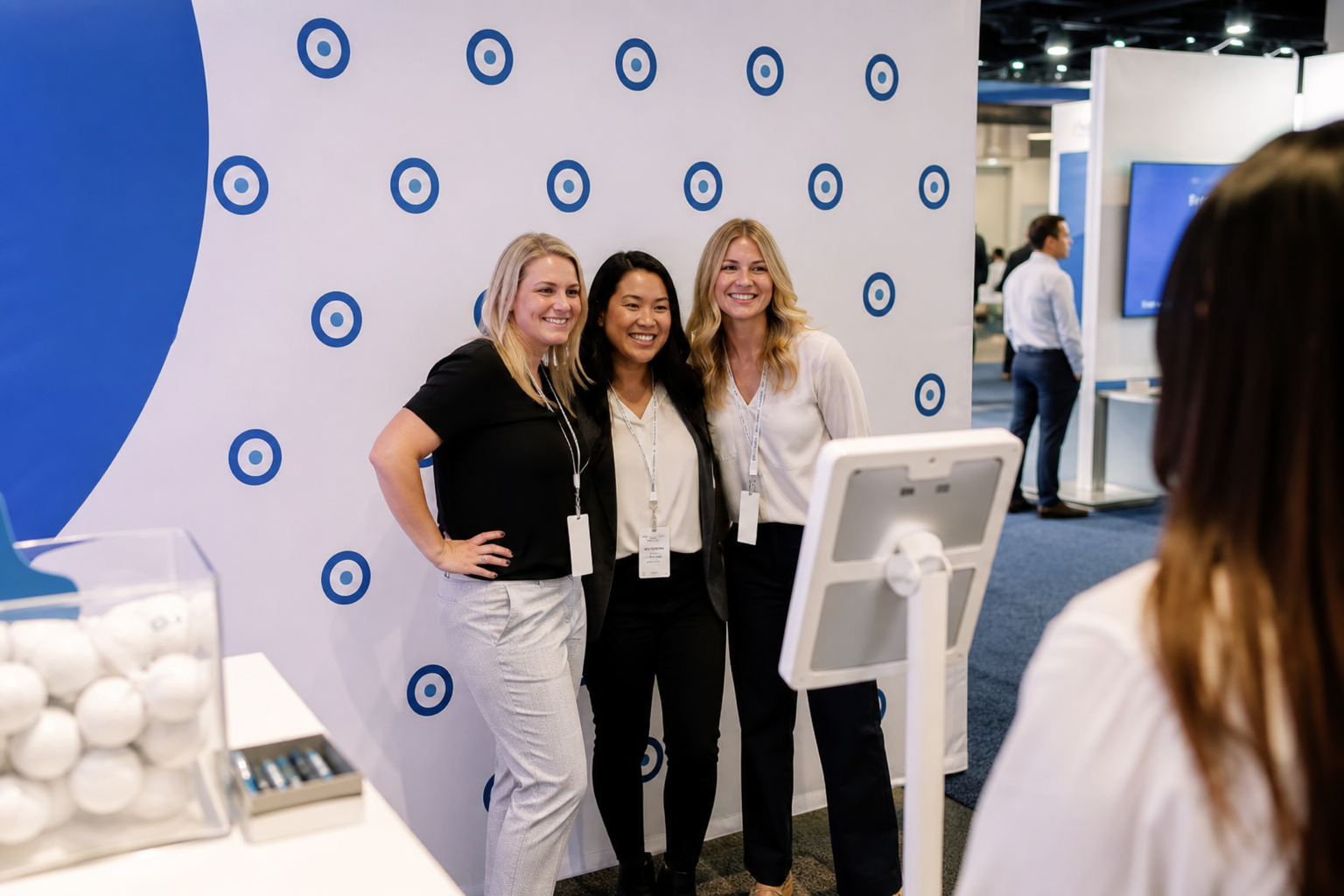
Midnight on the dance floor. The iPad dims. The line dissolves. Here’s how to keep that from happening: lock the iPad to ZillaBooth with Apple’s Guided Access. With Guided Access or Single App Mode on, the screen stays on all event. Set Auto-Lock to Never and keep the iPad plugged in.
Keep Awake (Pro): with Guided Access, the booth screen stays on all event.
The problem
iOS power management assumes tablets sit idle on desks, not run a bright booth screen for six hours straight. Unexpected sleep breaks guest trust, slows the line, and sends you hunting for the side button while everyone watches. Long events need a plan for keeping the screen on.
Why it matters
- The screen stays on while Guided Access (or Single App Mode) is running
- The booth stays visible in dim reception halls
- No mid-line shutdowns from Auto-Lock, once it’s set to Never
- Plugged into power, the iPad lasts through all-night weddings and festival hours
- Pair with Auto-Restart so guests can run the booth themselves between sessions
Who it’s for
This setup is for every Pro operator running long events: wedding receptions past midnight, New Year’s Eve activations, venue installations, and anyone who has lost a booth to a dimmed screen at the worst moment.
Real-world moments
- A wedding booth stays on until after last call, with Guided Access on and the iPad plugged in
- A New Year’s Eve party booth stays bright through the countdown and the biggest line of the night
- A weekend venue installation stays guest-ready through long open hours
How to set it up
- Turn on Guided Access in Settings → Accessibility → Guided Access and set a passcode. (On a dedicated booth iPad, you can use Single App Mode instead.)
- Set Auto-Lock to Never in Settings → Display & Brightness.
- Plug the iPad into power for the whole event.
- Open ZillaBooth and start Guided Access. With Pro, the booth screen stays on all event and Settings stay hidden while Guided Access is on.
Add Auto-Restart and ambient status alerts, and you can focus on the event, not the tablet.
The booth should outlast the dance floor—not nap during it.
Does keeping the screen on drain the battery faster?
Yes, a screen that stays on uses more power. Keep the iPad plugged in for all-night events.
Do I still need Guided Access?
Yes. The screen stays on only while Guided Access (or Single App Mode) is running, and Guided Access is also what keeps guests inside the app. Set Auto-Lock to Never as well.
Which tier keeps the screen on with Guided Access?
ZillaBooth Pro, a monthly or yearly subscription.
Does it work with ambient status alerts?
Yes. On the iPad Event Layout, Pro shows small on-screen badges for things like low battery or an offline printer, and with Guided Access on, the screen stays on so you can see them.