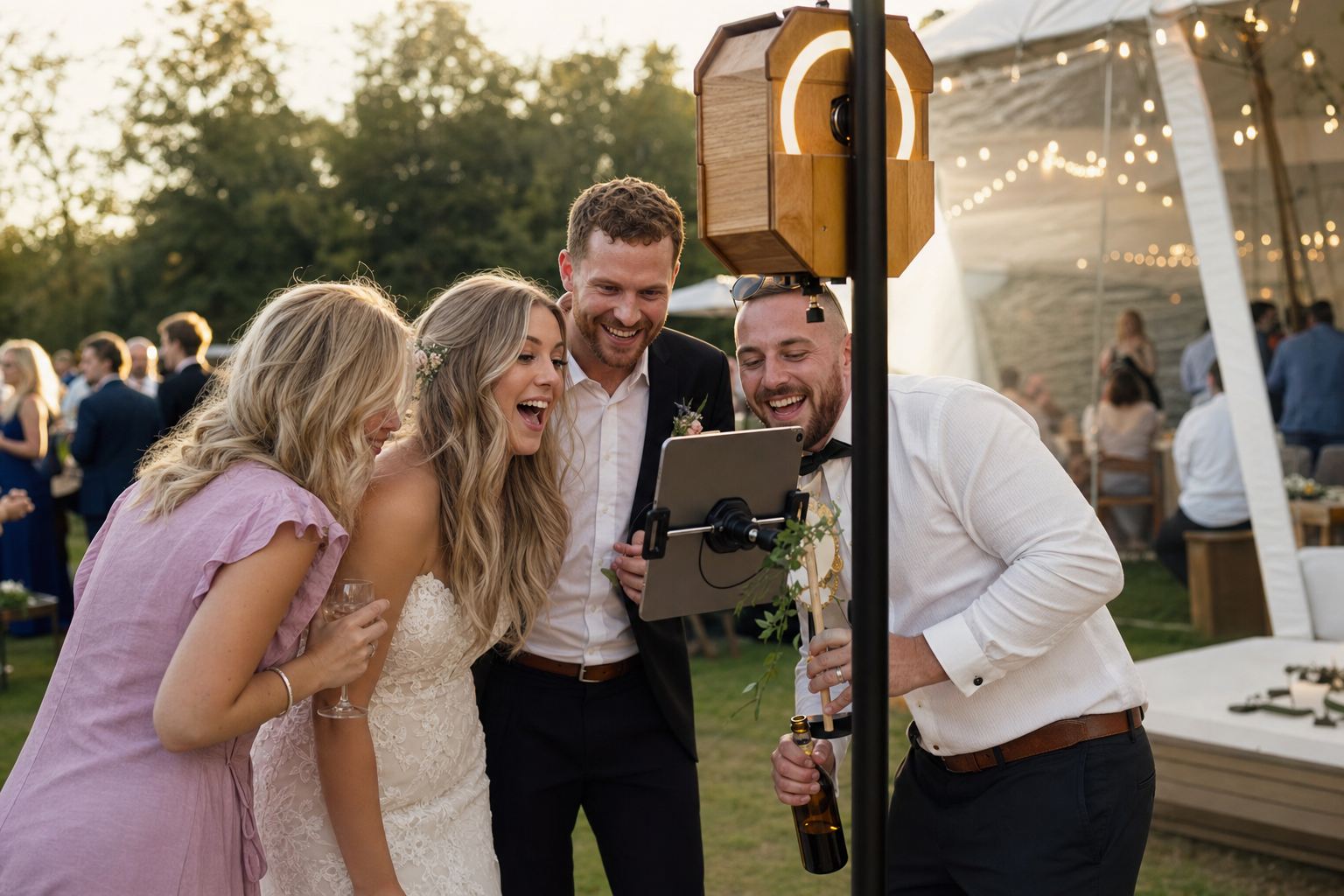
The post highlights inexpensive photo booth props that can help guests take playful, shareable photos. It focuses on budget-friendly wearables, signs, and inflatables such as oversized sunglasses, feather boas, letterboards, speech bubbles, and giant frames.
It also suggests avoiding costly rental equipment by using an iPad with the ZillaBooth app to create an unattended photo booth kiosk.
Great Photos Start With Great Props
You don’t need to spend a fortune to get your guests laughing and posing. The secret to a hilarious, highly shareable photo booth is a great prop table. Skip the expensive rental add-ons and hit up Amazon or your local dollar store for these budget-friendly hits.
Wearables & Accessories
Oversized Sunglasses: Heart-shaped, pixelated “deal with it” glasses, or giant stars.
Feather Boas: A classic. Buy a multi-color pack so guests can mix and match.
Giant Picture Frames: An inflatable gold baroque frame guests can hold up.
Ready to Set Up Your Booth?
Now that you have your props, you need the camera! Don’t spend $800 renting a machine. Download ZillaBooth, mount your iPad on a stand, and turn it into a professional, unattended photo booth kiosk in seconds.
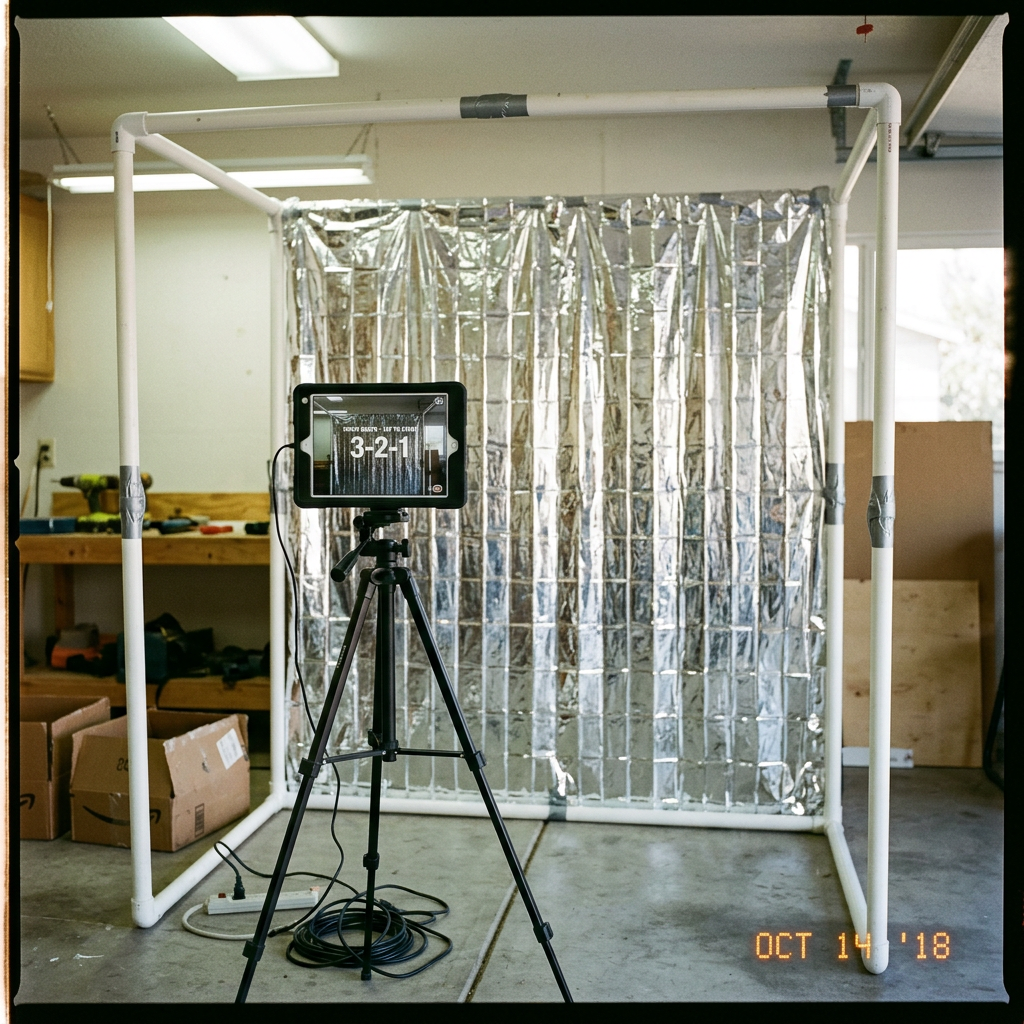
A budget-friendly photo booth backdrop can be built with a simple PVC pipe frame and inexpensive materials. The post suggests using foil fringe curtains, sequin fabric, or balloon garlands to create a themed background.
It also notes that a phone or iPad on a tripod can be used with the ZillaBooth app to let guests take photos throughout the event.
Set the Scene on a Budget
A plain white wall isn’t going to cut it. A dedicated backdrop tells your guests exactly where the photo booth is and sets the visual theme for your event. Building one yourself is surprisingly easy and cheap.
The Frame: PVC Pipe is Your Best Friend
You don’t need to buy an expensive photography stand. A quick trip to the hardware store for some 1-inch PVC pipes and connector joints is all you need. You can build a sturdy 7×7 foot frame for under $25. It’s lightweight, easy to assemble on-site, and breaks down for storage.
3 Cheap & Easy Backdrop Ideas
Foil Fringe Curtains: The ultimate party hack. Tape 3 or 4 metallic fringe curtains to your top pipe. They cost about $10 a pack and look incredibly vibrant on camera.
Sequin Fabric Panels: Buy a cheap sequin tablecloth online and drape it over your frame. It catches the ring light beautifully and gives a premium, Hollywood feel.
Balloon Garlands: Buy a DIY balloon arch kit. Attach it to one corner of your frame and let it cascade down the side for a modern, organic look.
Capture the Magic
Once your backdrop is glowing, put it to use! Download ZillaBooth on your iPhone or iPad, set it on a tripod, and let your guests capture memories all night long.
Want to let guests walk away from your photo booth with their photos without exchanging phone numbers, handing out USBs, or managing a complicated app? QR Code Image Delivery makes it effortless — guests scan a posted QR code, find their photo in a shared cloud gallery, and save it directly to their phone in seconds.
The best part: this works with ZillaBooth right now, using features already built in. No app updates, no new subscriptions, no code. Just a 15-minute setup using free tools you likely already have.
What is QR Code Image Delivery?
QR Code Image Delivery is a setup — not a separate feature — that uses ZillaBooth’s built-in Simplified Sharing BCC field together with an IFTTT automation and a cloud storage folder (like Google Drive) to create a self-updating photo gallery guests can access by scanning a single QR code.
Every time a guest completes a photo session and taps Share, ZillaBooth silently BCC’s a copy of the email — photo attachment included — to an IFTTT trigger address. IFTTT automatically deposits that photo into your cloud folder. Guests scan the QR code you’ve posted near the booth, open the gallery on their phone, and save their photo. No app to download. No account to create. No friction.
Start by creating a dedicated folder in your cloud storage provider (like Google Drive) for your event. Giving it a specific name (like Smith Wedding 2026 Photos) keeps it organized and ensures guests only see photos from their event.
Replace this image: ZillaBooth settings screen for ZillaBooth QR Code Photo Delivery Setup
Open Google Drive and create a new folder for your event.
Right-click the folder → Share → change access to “Anyone with the link can view.”
Copy the shareable link — you’ll use it to generate your QR code in Step 4.
Tip: Create a fresh folder and QR code for each event so guests only see photos from that day — not from previous sessions.
Step 2 — Set up the IFTTT automation
IFTTT (If This Then That) is a free automation platform that connects your apps and services. Here you’ll set it up to watch for incoming emails and automatically save any photo attachments to your Google Drive folder.
Click Connect and authorize both your email and Google Drive accounts when prompted.
When configuring the action, set the Google Drive folder path to the event folder you created in Step 1.
Save and enable the applet.
Note your IFTTT trigger email address: trigger@applet.ifttt.com — this is the address you’ll enter in ZillaBooth.
That’s the automation. Any email sent to trigger@applet.ifttt.com with a file attachment will have that attachment automatically uploaded to your specified Google Drive folder.
Step 3 — Configure ZillaBooth’s BCC field
Open ZillaBooth and navigate to your Simplified Sharing settings.
In the BCC field, enter: trigger@applet.ifttt.com (or whatever your specific IFTTT trigger email address is)
Save your settings.
That’s it on the ZillaBooth side. From this point on, every time a guest completes a session and taps Share, ZillaBooth will silently BCC that email — and IFTTT will automatically deposit the photo into your Google Drive event folder.
Step 4 — Generate and display your QR code
Take the shareable Google Drive folder link you copied in Step 1.
Paste it into a free QR code generator.
Download the QR code image.
Print it on a sign, postcard, table tent, or sticker — anywhere guests will see it near the booth.
Suggested sign text:“Scan to get your photos! Your image will appear here within seconds of sharing.”
Tip: Many QR code generators let you add a logo or custom colors. Drop in your event or company branding to make the sign look polished and professional.
The guest experience
Here’s what the flow looks like from a guest’s point of view:
Guest takes photos at the ZillaBooth.
Guest enters any email address at the sharing screen (their own, a placeholder, or a dummy — it doesn’t matter) and taps Share.
The photo arrives in the Google Drive folder automatically via IFTTT — typically within seconds to about a minute.
Guest scans the QR code posted near the booth, opens the folder on their phone, finds their photo, and saves it.
The flow is familiar, zero-friction, and requires no app installation on the guest’s part.
Tips and customization
One folder per event: Create a fresh Google Drive folder and a new QR code for each event so guests only see photos from their event — not previous ones.
Want it even faster? Upgrade to IFTTT Pro for near-real-time automation speeds. The free tier can have up to a 1-hour delay.
Not a Google Drive user? IFTTT also supports Dropbox, OneDrive, Box, and others. Swap in whatever cloud storage you already use — the ZillaBooth BCC configuration stays exactly the same.
Want branded QR codes? Tools like QRCode Monkey let you embed a logo and choose custom colors for a more polished look. For a streamlined, minimal QR code, we love using PEW’s Corner QR Code Generator.
Already use Make or Zapier? Both platforms support similar email-to-cloud-storage automations if you prefer them over IFTTT.
A note on the sharing step
For this flow to work, the guest does need to complete the Simplified Sharing step — entering an email and tapping Share. This is intentional: it’s the action that triggers ZillaBooth to send the BCC. In practice it takes only a few seconds, and many guests will enter their real email address anyway to receive a personal copy of their photo.
Ready to set it up?
Download ZillaBooth free and give your guests the effortless photo pickup experience they’ll remember.
The days of harshly lit, sterile-looking event spaces are over. A major, undeniable shift has taken place in the event industry, particularly in weddings and milestone celebrations: the rise of the atmospheric, low-light ceremony and reception. This aesthetic, characterized by hundreds of flickering candles, string lights, dramatic uplighting, and strategically placed spot lamps, creates an air of romance, intimacy, and sophisticated moodiness that guests adore. It’s a photographer’s dream for ambiance, but it can quickly become a photo booth operator’s nightmare.
If you’re running a DIY photo booth like ZillaBooth…a system celebrated for its portability and professional-grade results…you know that great photos rely on one thing above all else: great lighting. When you introduce a powerful, non-diffused light source like a standard camera flash into a carefully curated low-light environment, you risk blowing out the atmosphere. However, if you rely on the venue’s dim lighting, you’ll end up with dark, grainy, blurry, and frankly unusable photos.
The good news? You don’t have to choose between a moody ambiance and delivering stellar photo booth strips. By understanding the fundamentals of lighting control and leveraging specific tools with your ZillaBooth, you can conquer any dark reception hall and turn the low-light setting into an artistic advantage. We’re going to break down two essential, yet distinct, strategies for achieving flawless results: the consistent, soft glow of the ring light and the high-contrast drama of the Pro “Flash Control.”
Strategy 1: The Ring Light … Simple, Soft, and Effective
For operators seeking a classic, flattering, and instantly recognizable photo booth look, pairing your ZillaBooth with a dedicated, high-quality ring light is the best strategy. The ring light offers a consistent, diffuse, and shadow-minimizing light source that is perfect for low-light conditions because it adds light without destroying the existing mood.
Selecting the Right Ring Light Not all ring lights are created equal. When operating in a low-light venue, you need control and power. Look for a model that meets these specifications:1. Large Diameter (18-20 inches): A larger light source is a softer light source. A wider diameter ensures the light wraps around the subject’s face, reducing harsh shadows and creating the signature, attractive circular catchlights in the eyes. 2. Adjustable Color Temperature (Bi-Color): This is non-negotiable for working in moody venues. Low-light spaces often use warm (amber/yellow) tungsten or LED lighting (typically 2700K-3500K). To prevent your photo booth subjects from looking blue or cold, you need to match the ambient warmth. A bi-color ring light allows you to dial in the color temperature from cool white (daylight, ~5500K) all the way down to a warm tungsten glow (~3200K). Match the light to the venue’s color scheme for a cohesive, professional look. 3. Variable Dimming: Being able to adjust the brightness from 10% to 100% is crucial. In a very dark room, you may need it at 80% or higher. If the venue has some existing light, you might only need 30% to serve as a flattering fill light.
Setting Up the Ring Light with ZillaBooth
Integrating the ring light with the ZillaBooth is straightforward and results in a beautiful, consistent product. * Mounting: If your ZillaBooth stand supports it, mount the ring light directly around the camera lens. This ensures the light is perfectly centered for that iconic, shadowless look. If it requires a separate stand, position the ring light as close as possible to the lens axis.
The closer the light is to the camera, the softer the final image will appear. * Dialing In the Power: The key to using a ring light in a low-light venue is consistency . Once you’ve set the color temperature to match the venue’s warmth, take a few test shots. Increase the power until the subject’s face is brightly and evenly illuminated, but stop before the light begins to “spill” too heavily onto the background, which would destroy the dark, moody ambiance. The goal is to isolate the subject.
Pro Tip: The Power of Proximity
Remember the inverse square law of light: light falls off rapidly as the distance from the source increases. By positioning the ZillaBooth and ring light system a comfortable distance from the background (say, 5-8 feet), the ring light will brilliantly illuminate the subjects while the background remains in the relative darkness, enhancing the cozy, dramatic feel of the low-light venue. The soft, even light of the ring light is the best way to guarantee flattering, high-quality images while respecting the intentional darkness of the room.
Strategy 2: The Pro “Flash Control” … High-Contrast Drama
While the ring light offers soft consistency, there are times when you need raw, uncompromising power, especially if you want to capture the dynamic energy of a packed, dark dance floor or if you encounter a space that is so dark that a ring light alone introduces too much noise or motion blur. This is where the advanced functionality of the ZillaBooth Pro (or a similar manual control app) and its “Flash Control” feature becomes indispensable.
Understanding the Forced Flash Aesthetic In auto-mode, a standard camera flash tries to balance the flash with the dim ambient light, which often results in a slow shutter speed. Slow shutter speeds in a photo booth environment guarantee motion blur…ruined photos. The Pro “Flash Control” allows you to manually force the flash to fire at full power, regardless of the ambient lighting. This accomplishes two critical things:1. It freezers motion: A powerful, brief flash allows the camera to use a fast shutter speed (e.g., 1/160th of a second), which completely eliminates motion blur from dancing or moving guests. The subject is frozen perfectly in time. 2. It creates high contrast: By forcing a fast, powerful, and undiffused flash, you create a dramatic, high-contrast look often called the “paparazzi aesthetic” or “editorial flash.” The subject is intensely illuminated, while the rest of the dark room falls away into deep, black shadows. This aesthetic perfectly complements the drama of a low-light venue.
How to Leverage ZillaBooth Pro’s Flash Control
The core principle is to take the flash function out of automatic control. * Access the Pro Settings: Navigate to the advanced settings menu in your ZillaBooth Pro application. Locate the flash icon or “Flash Control” setting.
Set to Manual “Force On”: Change the setting from “Auto” to “Manual Force On” or simply “On.” This ensures the flash fires with every single shot, giving you complete control over the exposure.
Adjusting Shutter and ISO: Since the flash is now your primary light source, you can manually set the camera’s ISO (sensitivity) to a low number (e.g., ISO 100 or 200) to virtually eliminate digital noise (graininess). You can also set a fast, safe shutter speed (e.g., 1/125th) to guarantee sharpness. The flash exposure controls the subject, and the fast shutter speed controls the blur.
Pro Tip: The Drag the Shutter Technique (Advanced)
If you want to capture some of the beautiful ambient background light (like those string lights or candles) while still freezing the subject, use a technique called “dragging the shutter.”1. Keep the flash “Force On.”
Slow the shutter speed slightly (e.g., from 1/125th down to 1/30th or even 1/15th of a second).
The flash will still fire, freezing the subject perfectly, while the slower shutter speed allows the camera to record a bit of the colorful, streaky background ambient light. The result is a dynamic, high-energy photo…a sharp subject with a moody, artistic, slightly blurred backdrop. This is a highly professional technique that works wonders in dark spaces.
Bonus Tips for Flawless Dark Venue Booths
Mastering the light is only part of the equation; placement and preparation are equally important when dealing with the challenge of low-light venues. * Background Management: In a dark venue, the background can be a messy distraction. If you’re not using a dedicated backdrop, place the ZillaBooth against a dark, featureless wall or an area where the lighting is particularly sparse. This lets your lighting strategy (whether ring light or forced flash) isolate the subjects and allow the rest of the room to fade away, enhancing the portrait-like quality of the photos.
Avoid Competing Light Sources: Position the photo booth away from any venue spotlights, aggressively bright exit signs, or large windows. These competing light sources can confuse the camera and create wildly inconsistent exposures in your shots. You want your controlled light source to be the only significant light source on your subject.
Use the Prop Tray Strategically: Glitter, sequins, and reflective surfaces are your friends when working with direct light. Encourage the use of shiny props. The ring light or the forced flash will bounce aggressively off these materials, creating an explosive, dynamic effect that adds visual energy to the photo, which is especially important in an otherwise dark setting.
Lens Maintenance: Dust or smudges on the camera lens are invisible in bright light but become glaringly obvious when a powerful flash or ring light hits the glass. Before the event and periodically throughout, give your lens a quick wipe with a microfiber cloth. A clean lens ensures maximum light transmission and crystal-clear results.The modern low-light event is an aesthetic challenge, but it’s also a powerful opportunity. By implementing the soft, consistent light of a high-quality ring light or the dramatic, sharp contrast of the Pro “Flash Control” technique, you transform the ZillaBooth from a simple camera system into a sophisticated lighting tool. You no longer have to compromise the beauty of the venue for the quality of the photo…you can leverage the darkness to make your guests truly stand out. Go forth and master the light, even when there is almost none.
The modern wedding or large-scale event is a whirlwind of fleeting moments, intimate connections, and sprawling activity across multiple locations. From the silent, nervous anticipation of the bridal party to the raucous, uninhibited joy on the dance floor, every client wants proof that their entire world was captured, preserved, and documented. This is not just a passing preference; the data confirms it. Over half…a staggering 52% of all couples…express a clear desire for comprehensive, wall-to-wall photographic documentation that captures every single aspect of their day, from the grand entrance to the tiny, unscripted moments others might miss.
For professional photographers, this mandate creates an immediate, costly, and often logistical challenge. The traditional solution is simple, yet expensive: hire a dedicated second shooter.
A human second shooter is invaluable for capturing multiple angles during the ceremony, covering the groom’s prep while the main shooter is with the bride, or ensuring detail shots are taken while the couple’s portrait session is underway. However, a human second shooter means a second payroll, a second vendor meal, and a second set of complex scheduling and management considerations. For many clients, the added expense simply pushes their photography budget past its breaking point, forcing them to compromise on their dream of full-day coverage.
But what if you could have all the benefits of that second shooter…the extended coverage, the different perspective, the dedicated documentation of an entire segment of your event…without any of the associated costs or logistical headaches?
Enter ZillaBooth: The Automated Professional Second Shooter.
ZillaBooth is not a traditional, clumsy photo booth with fuzzy digital output and novelty props. It is a strategically deployed, automated photographic station designed by professionals to function as a seamless, high-resolution complement to the lead photographer. We’ve redefined the role of the “photo booth” and elevated it into a dedicated, stationary camera operator whose sole purpose is to fill the critical coverage gap that a single roving photographer, no matter how talented, simply cannot manage on their own.
Its function is precisely framed by the needs of a comprehensive documentation plan: the main photographer is liberated to roam. They are free to chase the perfect light, follow the couple through various locations, direct the formal family portraits, and ensure every scheduled, key moment is captured with the artistry and technical precision that justifies your high-end service.
Meanwhile, ZillaBooth takes on the crucial task of dedicated guest documentation. It remains permanently in one spot, acting as an unwavering, high-quality camera capturing the energy, the fun, and the candid authenticity of your attendees. This separation of duties is the strategic advantage that satisfies the client’s demand for 100% coverage without the 100% markup of a human assistant.
The Power of Stationary Coverage: Why A Booth Works Better Than a Roving Eye
The single biggest failure point in event photography is often the coverage of the reception, cocktail hour, and late-night guest interactions. The main photographer is pulled in a dozen directions: detail shots of the cake, the official first dance, candid moments between the couple and their parents, and vendor hand-offs. It is impossible for one person to also simultaneously capture the atmosphere of the cocktail lounge or the spontaneous group photo attempts by the bar.
ZillaBooth is placed in a high-traffic, low-formality area…the perfect environment for its role. It provides a consistent, professional lighting setup and high-resolution camera gear that is always on, always ready, and always focused on one thing: capturing the guests in their element.1.
Consistency and Quality: Unlike a photographer who must constantly adjust their lighting and exposure as they move through a space, ZillaBooth is a fixed-light scenario. It offers studio-grade flash output and a high-end camera lens, ensuring that every single image…from the first snap of the evening to the final shot…is perfectly lit, consistently exposed, and razor-sharp. This consistency makes the resulting archive feel cohesive and professional, not like a collection of disparate phone snaps.
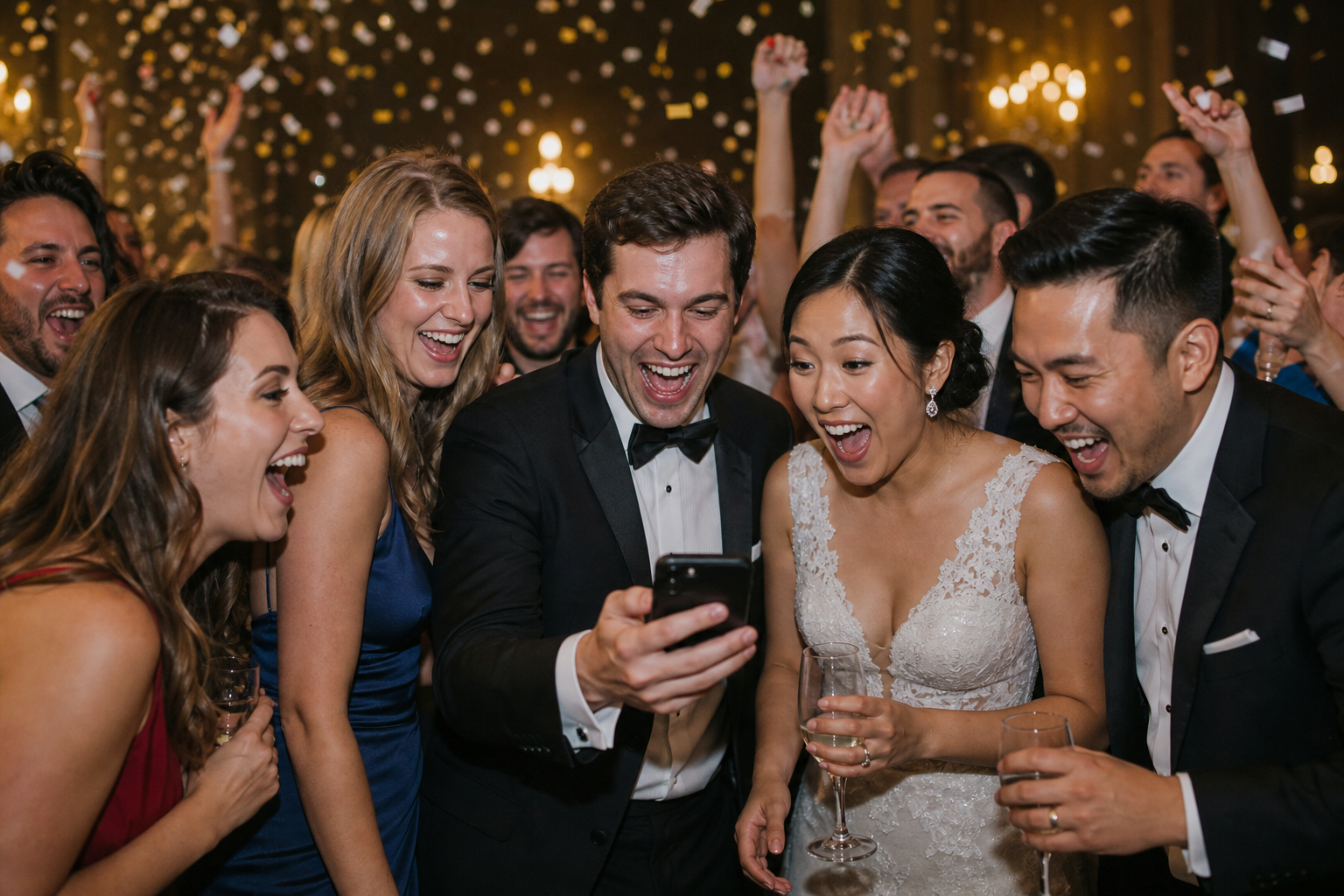
The Candid Factor: The human element, while essential for directed moments, can be a barrier for true candids. Guests often feel a degree of self-consciousness when a photographer raises a long lens to their face. The genius of the automated ZillaBooth is that it is a machine. Guests interact with it differently. The moments captured in a booth…the silly faces, the uninhibited laughter, the in-jokes acted out with props…are often the most raw, honest, and truly personal photographs of the entire day. These are the spontaneous “paparazzi aesthetic” moments of genuine fun, the ones that capture the true spirit of the celebration, which perfectly complements the main photographer’s polished, editorial work. ZillaBooth harvests an archive of pure, unforced guest joy.
Complete Archival Coverage: The numbers don’t lie. A single photographer, even with a second, is limited by their attention and movement. ZillaBooth is an unblinking eye that works for hours without a break, generating a massive volume of guest data. This is what clients are truly paying for when they demand “every aspect of the day photographed”…they want every person captured, not just the principals. ZillaBooth guarantees a photographic record of every attendee who steps in front of the lens.Technical Integration into the Professional Workflow
For professional photographers, ZillaBooth isn’t competition; it’s a force multiplier. It integrates seamlessly into the post-production workflow, acting as an outsourced department of the photography team. * File Handling: The modern ZillaBooth system operates on professional-grade software that exports raw or high-resolution JPEG files. These files are typically delivered to the main photographer or designated client contact post-event, often via a streamlined cloud-sharing folder. This allows the primary photography team to color-correct, edit, and deliver the booth photos alongside the rest of the professional archive, maintaining brand consistency across all images.
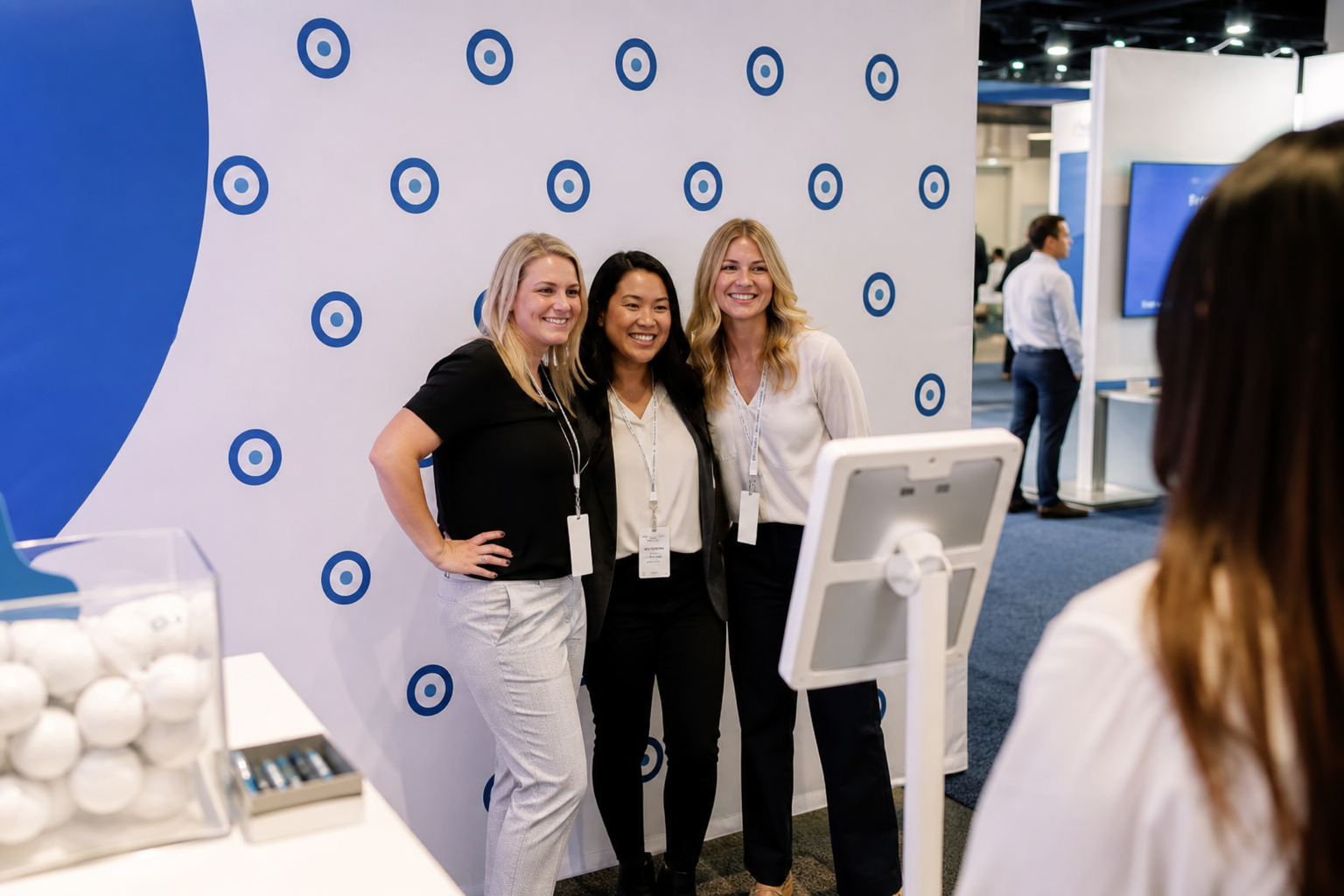
Customization: It becomes another tool for branding and personalization. Clients can select custom backdrops that match the event’s aesthetic…a professional floral wall, a clean geometric pattern, or a custom step-and-repeat banner. The output feels intentional and curated, not like an afterthought.
Instant Gratification & Marketing: Many ZillaBooth models feature instant digital sharing. While the high-resolution files go to the photographer for professional delivery, guests can text or email a watermarked, social-media-ready version to themselves immediately. This creates massive on-the-day engagement, ensures immediate positive feedback for the client, and generates organic social media buzz for the entire event…all without distracting the lead photographer.Strategic Deployment: Maximizing the Value of Your Automated Shooter
Where you place ZillaBooth determines the quality and type of secondary coverage you achieve. Treat it as a strategic camera position, not just a decoration.1. The Cocktail Hour Anchor: Position the ZillaBooth near the bar or entrance during the cocktail hour. This is a crucial time when the main photographer is often occupied with family portraits or couple’s portraits. The Booth captures every arriving guest, ensuring the initial energy and fashion of the event are documented.
The Reception Entertainment Zone: Place it near the periphery of the main reception hall or, ideally, near the dance floor entrance. As the party progresses and inhibitions lower, the Booth becomes an entertainment magnet, yielding those truly candid, high-energy, late-night shots that a photographer might miss while focusing on the main events.
Bridal/Groom Prep Alternative: For extended coverage packages, consider setting up a simplified ZillaBooth station during the morning prep in one of the primary getting-ready locations. It provides a fun, lighthearted alternative for the bridal party to use while the main photographer is focused on the gown, the details, or the first look, generating an extra set of casual images without the need for a third photographer.In an industry where comprehensive coverage is quickly becoming the expectation, not the luxury, relying solely on human resources is an unsustainable business model for both the client and the photographer. ZillaBooth provides the elegant, technological answer. It is a cost-effective, high-quality, and reliable automated camera station that stands guard, documenting the vital and dynamic guest experience while the lead photographer is free to capture the story of the principals.
It is the stationary, dedicated, and professional second shooter that never needs a break, never asks for overtime, and perfectly complements the artistry of the human team. By framing ZillaBooth not as a fun accessory, but as a critical piece of the photographic infrastructure, you give clients the full, 52%-approved, wall-to-wall coverage they desire, allowing the main photographer to deliver their best work, and ultimately, ensuring that every single aspect of the celebration is beautifully and professionally captured. It’s not just a product; it’s a strategic partnership in full-service event documentation.
Every ZillaBooth creator knows that the magic of the app lies in its ability to transform raw footage into highly polished, viral-ready content. But even the most sophisticated software is only as good as the hardware running it. If you’re serious about building your audience, landing brand deals, and turning your ZillaBooth channel into a full-time business, you need to stop relying on desk lamps and stacks of books and invest in a professional, travel-ready kit.
This is more than just a list of gadgets. This is a blueprint for your ultimate mobile studio. We’ve scoured the market for the best-performing, most reliable pieces of gear that will integrate seamlessly with your ZillaBooth workflow. Each recommendation is focused on three things: Quality, Portability, and Endurance. When your lighting is perfect, your camera is rock-steady, and your battery lasts through a full day of shoots, your only job is to create.
Let’s dive into the three pillars of the ZillaBooth “Influencer” Kit.
Pillar 1: The Illuminated Canvas – Choosing the Right Ring Light
Lighting is the single greatest determinant of video quality. It dictates mood, sharpness, and most importantly, how flattering the final image is. While ZillaBooth’s editing suite can fix a lot, it can’t fix terrible lighting. A good ring light is non-negotiable for eliminating distracting shadows, reducing skin blemishes, and giving your eyes that characteristic, professional sparkle. For ZillaBooth creators, portability and color accuracy are the two most crucial features.
Why a Ring Light for ZillaBooth? Ring lights provide a uniquely soft, even, and almost shadowless light that wraps around your subject. When shooting with the ZillaBooth front-facing camera for Q&A sessions, tutorials, or unboxing videos, the ring light ensures your face is perfectly and consistently illuminated, making color grading in post-production a breeze. For the more advanced 3D scanning features of ZillaBooth Pro, consistent, shadow-free lighting is vital for creating clean, high-fidelity object models.
Key Features to Look For:1. Bi-Color/Dimmable: You need to be able to match the ambient light around you. A light that can switch between warm (3200K) and cool/daylight (5600K) is essential. Dimmability allows you to control the intensity without moving the light.
USB or Battery Powered: Forget wall sockets. A mobile influencer needs a light that runs off a battery bank or built-in rechargeable cells for on-the-go shooting.
Integrated Phone/iPad Mount: This saves space and keeps your whole setup…light and camera…on the same axis for the most flattering light pattern.
Our Top Gear Recommendations:
The Budget Powerhouse: LumiPro 10-Inch Traveler This model hits the sweet spot for new creators. It’s USB-powered, meaning you can connect it directly to your battery bank (see Pillar 3). Its 10-inch size is compact enough to fit in a backpack but powerful enough for close-up shots. It includes a basic tripod and a flexible phone mount. It’s the perfect, cost-effective entry point to immediately professionalize your look. [Affiliate Link: LumiPro 10-Inch Traveler]
The Mid-Range Workhorse: BrightStar 18-Inch Pro Ring Designed for dedicated home studios that still need to be mobile. At 18 inches, it provides significantly more coverage, making it ideal for full-torso shots or shooting objects on a tabletop. It features an AC adapter and a swappable battery pack option, giving you the choice between unlimited power at home or mobility in the field. It also offers dedicated dials for precise bi-color temperature and brightness adjustments. [Affiliate Link: BrightStar 18-Inch Pro Ring]
Pillar 2: The Steady Hand – The Best iPad Stands
A shaky camera is the quickest way to lose credibility. Whether you’re live-streaming a tutorial or recording a high-fidelity ZillaBooth scan, the shot must be stable. Since the ZillaBooth app is optimized for the iPad’s larger screen and superior processing power, your setup needs a stand that can handle the size and weight of a tablet without wobbling or collapsing.
Why a Dedicated Stand is Essential: Trying to prop up a large iPad with makeshift items is unprofessional and unsafe for your gear. A dedicated stand ensures consistent framing, which is crucial for multi-shot videos where you need seamless cuts. Furthermore, when using ZillaBooth’s motion-tracking features, a perfectly stable base is necessary for the app to correctly map 3D space or track your movements accurately.
Key Features to Look For:1. Rock-Solid Stability: Must have a weighted base or a wide, locking tripod footprint. A stand with a wobbly head will ruin your focus.
Height and Angle Adjustability: You need to be able to shoot from seated eye-level, standing height, and even downward for flat-lay shots. Look for 360-degree rotation.
Universal/Adjustable Mount: The clamp must be able to securely hold various iPad sizes, ideally with a soft-touch interior to protect the device.
Our Top Gear Recommendations:
The Desk Stand King: ApexDesk Multi-Angle Mount This is the ultimate tabletop solution. Its key feature is a dual-hinge design that allows you to position your iPad at virtually any angle, even flat for overhead shots of product creation or sketching. The base is heavy, providing fantastic stability even with a large 12.9-inch iPad. It’s the perfect companion for ZillaBooth live coding or digital art tutorials. [Affiliate Link: ApexDesk Multi-Angle Mount]
The Mobile Studio Tripod: TravelPod X-Treme When you need to shoot on location…a coffee shop, a park, or a convention…this is your stand. It’s a full-height tripod with a quick-release plate specifically designed for tablets. Crucially, the head features a fluid tilt and pan, allowing for smooth, professional camera movements during your ZillaBooth recording without removing the iPad. It collapses down into a highly portable 18-inch package. [Affiliate Link: TravelPod X-Treme]
Pillar 3: The Endurance Engine – Selecting the Right Battery Banks
ZillaBooth is a sophisticated application. Running advanced video processing, augmented reality overlays, and high-intensity shooting for hours on end will drain even the best tablet battery in a flash. The number one reason professional shoots get cut short is a dead battery. A powerful, high-capacity battery bank is not an optional accessory…it is a critical power reserve that keeps your income-generating activity going.
Why You Need Power Delivery (PD): For a modern iPad, a standard USB-A port won’t cut it; it will barely trickle-charge the device while it’s in use. You need a battery bank with USB-C Power Delivery (PD) capability. This protocol allows the bank to deliver high wattage (30W, 45W, or higher), which is required to efficiently charge an iPad, especially while you are actively recording.
Key Features to Look For:1. High Capacity: Look for 20,000mAh or higher. This capacity can fully recharge most iPads at least once, giving you double the shooting time.
USB-C PD Output: At least one port must support 30W+ Power Delivery. Check the specs closely.
Pass-Through Charging: The ability to charge the battery bank while it is charging your iPad. This is essential for long studio sessions.
Our Top Gear Recommendations:
The All-Day Workhorse: TitanCell 25000 PD Max The gold standard for creators. With a massive 25,000mAh capacity and a 65W USB-C PD output, this bank can not only charge your iPad at full speed but can also power a full-sized laptop. It features two USB-C ports and a USB-A port, meaning you can power your iPad, your ring light, and charge your phone all simultaneously. It is slightly heavier, but the peace of mind it offers is worth the trade-off. [Affiliate Link: TitanCell 25000 PD Max]
The Ultra-Portable Backup: PocketJuice 10000 QuickCharge This smaller, lighter option is perfect for emergency power or when you need to travel as light as possible. At 10,000mAh, it’s not designed for a full recharge, but it’s more than enough to give your iPad an 8-hour boost to finish a challenging on-location shoot. Look for the model with at least an 18W USB-C PD port to ensure a fast, reliable power injection. This is the item to throw in your daily bag and forget about until you absolutely need it. [Affiliate Link: PocketJuice 10000 QuickCharge]
Building Your Professional ZillaBooth Studio
The professional creative space, whether it’s a corner of your bedroom or a rented studio, is always a work in progress. But you can instantly elevate your production value by prioritizing quality lighting, unshakeable stability, and non-stop power.
By integrating the right gear…the powerful illumination of a bi-color ring light, the framing consistency of a professional stand, and the endless energy of a high-capacity PD power bank…you are not just buying accessories; you are investing in the reliability and quality of your brand. You are minimizing the technical friction that costs time and concentration, allowing you to focus on what you do best: creating incredible, engaging content with ZillaBooth.
Click on the links above to grab your essential influencer gear today and take the first step toward a smoother, more profitable creator journey. Your next viral hit is waiting for a perfectly lit, rock-steady power source.
Guests tap share and wonder: did it work? A confirmation animation closes that anxiety loop with a celebration guests feel—not a technical shrug.
Available in Party.
The problem
Silent share failures erode trust fast at events. Guests re-tap buttons, clog lines, or walk away unsure whether email or print actually succeeded. Without clear success feedback, even working booths feel broken—and staff spend time reassuring instead of hosting.
Why it matters
Celebrate successful shares with clear on-screen confirmation
Reduce guest uncertainty after email or share actions
Lower repeat attempts that slow busy lines
Pair with simplified sharing and auto-print for end-to-end clarity
Make unattended kiosks feel responsive and trustworthy
Who it’s for
Confirmation animation matters for Party-tier operators running guest-facing kiosks: corporate lead-capture booths, wedding teams using simplified email sharing, and anyone who has watched a guest ask did it go through three times.
Real-world moments
A corporate booth confirms email share success before the guest steps away
A wedding kiosk celebrates completed shares during simplified guest email collection
A festival booth gives instant feedback after high-volume share attempts
How ZillaBooth delivers
Party-tier confirmation animation provides unmistakable feedback when a share or handoff succeeds. It complements Simplified Sharing and auto-print so guests complete the booth loop confidently—critical for unattended iPad setups where no staff member is there to nod yes.
Guests should never guess whether the booth did its job.
The “Share & Print” Workflow: Achieving Instant Photo Gratification
In the fast-paced world of photo booth events, nothing satisfies a guest more than the instant gratification of a printed photo strip they can hold in their hands just moments after they strike a pose. For photo booth operators and event hosts, however, setting up a reliable, high-speed printing station can often feel like a complex wiring and software nightmare. But it doesn’t have to be.
We’re introducing the “Share & Print” Workflow…the definitive guide to establishing a bulletproof printing station using ZillaBooth Party’s powerful “Auto-Print” feature, seamlessly integrated with the ubiquitous simplicity of Apple’s AirPrint technology. This combination strips away the complexity, ensuring your guests get their prints instantly, every single time.
Understanding the “Instant Gratification” Goal
The primary goal of the “Share & Print” Workflow is speed and reliability. Guests should never have to wait more than 30 seconds for a print. Achieving this requires eliminating bottlenecks…namely, complex driver installations, USB cable management, and manual print queuing.
The traditional photo booth setup often involves a computer tethered via USB to a dedicated dye-sublimation printer. While reliable, this locks the operator to a single workstation. The “Share & Print” workflow liberates your host device (iPad, iPhone, or Mac running ZillaBooth Party) by turning the entire process wireless and automatic. Once a session is complete, ZillaBooth’s “Auto-Print” initiates the command, and AirPrint handles the communication…the photo simply appears.
The ZillaBooth Party “Auto-Print” Advantage
ZillaBooth Party’s “Auto-Print” feature is the brain of this operation. By checking a single box within the app’s settings, you tell the system to immediately send the final layout (whether it’s a photo strip, 4×6 print, or collage) to the designated printer after the session countdown is complete.
Key functionalities of “Auto-Print”: * Zero Operator Intervention: No one needs to press “Print” after the photo is taken.
Session-Specific Control: You can set the number of copies to print for each session, ensuring every person in the frame gets a copy.
Fail-Safe Queuing: If the printer is busy or offline momentarily, ZillaBooth Party manages a print queue, automatically retrying the print job until it is successful, preventing lost memories.
Why AirPrint is Essential for Simplicity
AirPrint is Apple’s native network printing technology. It is a communication protocol that allows Apple devices to find and print to compatible printers over a Wi-Fi network without requiring any driver installation or configuration. In the context of a live event, this is a monumental time-saver and a massive boost to reliability.
Because ZillaBooth Party runs on an Apple device (iPad or iPhone), an AirPrint-compatible printer instantly becomes a plug-and-play solution. There are no finicky drivers to install, no operating system compatibility issues, and no dedicated print server software needed. It’s a pure, clean, network-based transaction.
Hardware Deep Dive: Recommendations for Reliability
The “Share & Print” Workflow hinges on three core pieces of hardware: the Host Device, the Printer, and the Network.1. The Host Device (Running ZillaBooth Party):
* **Recommendation:** An iPad Pro or late-model iPhone. These devices have robust Wi-Fi chips that ensure stable network connections for AirPrint jobs. They also handle ZillaBooth Party’s high-resolution image processing with ease.
The AirPrint-Compatible Printer:
This is the most critical and often the most confusing choice. For a true “instant gratification” station, you need a balance of speed, quality, and consumables cost.
The Gold Standard (Dye-Sublimation): For professional photo booth use, a dye-sublimation (dye-sub) printer is non-negotiable. They offer water-resistant, durable prints that emerge completely dry, and they are blisteringly fast (often 8-15 seconds per 4×6 print).
Top Models: DNP DS620A or the Sinfonia CS2.
AirPrint Caveat: Most high-end dye-sub printers are not natively AirPrint compatible. To integrate them into the “Share & Print” Workflow, you will need a small, inexpensive print server device or a Raspberry Pi to act as a bridge and expose the printer as an AirPrint device on the network (a relatively simple process we detail in advanced tutorials).
The Simple/Budget Option (Inkjet): For small, casual events or budget-conscious setups, a high-quality, AirPrint-certified inkjet photo printer is the simplest choice.
Top Models: Canon PIXMA Pro or specific Epson Expression models.
Disadvantage: Slower print speed, consumable ink/paper costs are higher per print, and prints are less durable than dye-sub prints.
The Network Setup:
Reliability is paramount, meaning you should never rely on the venue’s public Wi-Fi.
Recommendation: Dedicated Wireless Access Point (WAP): Purchase a small, travel-sized wireless router (e.g., a GL.iNet router). This device creates a private, isolated, high-speed Wi-Fi network dedicated only to your photo booth equipment.
Setup: The WAP broadcasts a private network (e.g., “ZillaBooth Network”). Your iPad and your AirPrint-compatible printer both connect to this network. This eliminates interference from guest phones, venue networks, and other potential Wi-Fi clutter. It is the single biggest factor in ensuring 100% AirPrint reliability.Step-by-Step Tutorial: Setting Up the “Auto-Print” Workflow
Once your hardware is assembled, setting up the seamless workflow takes less than ten minutes.
Step 1: Printer and Network Initialization1. Connect the Printer: Power on your printer. If it is a native AirPrint device, follow its manual to connect it to your dedicated WAP network. If you are using a non-native dye-sub printer, connect your AirPrint bridge/server device (e.g., Raspberry Pi or dedicated server) to the WAP network and connect the printer to the bridge via USB. 2. Connect the Host Device: Connect your iPad/iPhone running ZillaBooth Party to the exact same dedicated WAP network.Step 2: ZillaBooth Party Configuration1. Open ZillaBooth Party: Launch the app and go to the event setup or global settings menu. 2. Select Printer: Navigate to the Printing section. The app should automatically detect any AirPrint-enabled printers on the network. Select your desired printer from the list (e.g., “DNP AirPrint Bridge” or “Canon PIXMA”). 3. Activate “Auto-Print”: In the same menu, find the “Auto-Print” toggle and switch it ON. 4. Set Copies: Set the default number of copies for the session (e.g., ‘2’ for a photo strip to ensure the guest gets one copy and the host gets one for a memory book).Step 3: Final Test Run1. Start a Session: Begin a photo session in ZillaBooth Party. 2. Complete the Countdown: Pose for the pictures and let the session complete. 3. Monitor the Queue: As soon as the final layout is generated, you should see a pop-up confirmation that the print job has been sent via AirPrint. 4. Instant Gratification: The print job immediately transfers to the printer, and the photo should emerge in seconds.
Troubleshooting and Advanced Tips
The Print Job Fails to Send: The overwhelming majority of AirPrint issues stem from the network. * The Fix: Double-check that your iPad/iPhone and your AirPrint-enabled printer/bridge are connected to the same dedicated Wi-Fi network. Restarting the WAP, the printer, and the iPad in that order often clears transient network errors. My Dye-Sub Printer Isn’t AirPrint Compatible: This is the most common professional hurdle.
* The Fix: You need a network bridge solution. Small, low-cost micro-computers like a Raspberry Pi can be configured as a CUPS (Common Unix Printing System) server, which can then be exposed on the network as a universal AirPrint device. There are also commercial, plug-and-play AirPrint server devices available specifically for dye-sub printers. Best Practices for High-Volume Events: * Pre-Print Calibration: Before every event, run 5-10 test prints to confirm color, cut, and network stability.
Manage Consumables: Always have spare paper and ribbon/ink on hand. With “Auto-Print” running, you’ll be printing more than you think.
Printer Placement: Place the printer close to the host device (within 20 feet) and ensure line-of-sight to your dedicated WAP for maximum signal strength and speed.By combining the hands-off reliability of ZillaBooth Party’s “Auto-Print” with the driverless simplicity of AirPrint and a dedicated network, you transform your photo booth operation. You move from a complicated wired mess to a sleek, wireless “Share & Print” machine that delivers on the promise of instant photo gratification, ensuring delighted guests and a smooth, stress-free event for you.
Digital shares are nice. A physical strip in hand is the moment guests grin and wave it at friends across the room. Auto-print delivers that instant takeaway without a volunteer chained to the print button.
Available in Party.
The problem
Manual print workflows break down under volume: wrong printer selected, queue stalls, guests walk away before pickup. Operators lose the magic moment when digital-only booths forget that booths are tactile experiences. You need reliable automatic printing that keeps pace with the line.
Why it matters
Print collages automatically after each session completes
Deliver instant physical takeaways guests expect from pro booths
Reduce manual operator steps during high-traffic events
Pair with confirmation animation so guests know print succeeded
Support AirPrint-compatible printers common at event setups
Who it’s for
Auto-print is core to Party-tier operator workflows: wedding booth businesses, corporate experiential teams, venues offering print-inclusive packages, and hosts who want rental-style takeaways without rental pricing.
Real-world moments
A wedding booth prints strips automatically for guest book tables and take-home favors
A trade show activation pairs lead capture with instant printed collages
A holiday party prints 2×2 grids while guests share digitally in parallel
How ZillaBooth delivers
Party-tier auto-print sends finished collages to your configured AirPrint printer as sessions complete—no manual export step between guests. Combined with overlays, simplified sharing, and confirmation feedback, it recreates the full pro booth deliverable loop on iPad hardware you control.
The best booth moment is the one guests hold in their hand.
The quest for the perfect photo booth experience has evolved far beyond novelty props and goofy faces. Today’s event hosts, brands, and party planners are chasing a single, dominant aesthetic: the “Glam Booth.” Synonymous with A-list celebrity events, high-fashion editorials, and, yes, the signature black and white, impossibly flawless photos favored by the Kardashian-Jenner family, this look has become the gold standard for premium, high-end photo activations.
It’s not just a filter; it’s a meticulously crafted lighting setup combined with specific post-processing to create a timeless, studio-quality portrait in a fraction of a second. The good news? You don’t need a multi-million dollar studio budget to achieve it. With the right foundational elements…a white backdrop, specific lighting, and the powerful manual controls available in ZillaBooth…you can replicate this coveted, high-contrast, black-and-white masterpiece for any event. This guide will take you step-by-step from zero to flawless, ensuring your ZillaBooth captures that iconic, magazine-cover quality every time.
The Anatomy of A-List Flawlessness
To fake the perfect Glam Booth, you must first understand its core components. The aesthetic is built on three non-negotiable pillars:1. High-Contrast Black and White Conversion: This is what gives the image its timeless, luxurious feel. The absence of color forces the viewer to focus on light, shadow, and texture. Crucially, the conversion isn’t flat; it’s punchy. The blacks are deep and inky, the whites are bright, and the mid-tones are crisp.
Shadow-Eliminating Lighting: The goal of this lighting setup is not drama. It is the antithesis of the harsh “paparazzi aesthetic.” Here, we want to virtually eliminate all harsh shadows, especially under the eyes, chin, and nose. The light must be large, soft, and wrap evenly around the subject. This even illumination is the real secret to the “smoothing” effect.
Flawless Post-Processing: This is where ZillaBooth comes in. The final layer is a subtle, yet essential, skin-smoothing or ‘beauty’ filter. This step reduces blemishes, softens fine lines, and evens out skin tone, completing the hyper-real, airbrushed look that defines the aesthetic.Part One: The Essential Foundation…The White Backdrop
A professional studio look demands a professional backdrop. The white backdrop is more than just a canvas; it’s a critical part of the lighting system.
Why White is Non-Negotiable: * Light Spill and Reflection: A white backdrop acts as a giant, soft reflector. When your main light hits the subject, some light continues onto the white background and then bounces back onto the subject. This fill light is what subtly opens up the shadows on the dark side of the face, contributing significantly to the overall smoothing effect.
High-Key Separation: In black and white photography, contrast is everything. A properly lit white background should appear bright, almost pure white, which makes the (darker-toned) subject pop forward. This creates a clean, elegant separation that looks instantly professional.
The Seamless Look: For the “Kardashian” look, you must use a seamless white backdrop. This usually means a roll of photography paper or a tension-fabric pillowcase backdrop stretched taut on a frame. Never use sheets, curtains, or wrinkled materials, as the light will pick up every crease, ruining the illusion of perfection.Setup Tip: Place your backdrop at least 3-4 feet behind your subject’s final position. This distance is vital for keeping stray shadows off the background and allowing the backdrop to be lit separately if necessary (though often the light spill from the main subject light is enough).
Part Two: Mastering the Light…The Smoothing Power
This is the most critical and most misunderstood step. For this aesthetic, you need one large, soft light source that is placed close to the subject and is aimed straight-on or slightly to one side.
The Ideal Lighting Choices:1. The Ring Light (The Classic Choice): The most common and effective tool for a Glam Booth. A large (18-inch or greater) LED ring light is placed directly in front of the subject, and the ZillaBooth unit or camera is placed right in the center of the ring.
Why it works: This setup provides perfectly even, shadowless illumination. The light hits the face from all angles simultaneously, filling in every shadow and wrinkle. It also creates that signature, flattering circular catchlight in the eyes.
The Large Softbox or Strip Light (The Professional Choice): For a more sophisticated look, use a large softbox (at least 24×36 inches) or a tall strip light (9×36 inches).
Placement: Position the softbox 45 degrees to the left or right of the camera and tilt it down slightly.
Why it works: This creates a beautiful, large source of light that ‘wraps’ around the subject’s face. It still eliminates harsh shadows but provides a slightly more dimensional look than a flat ring light, giving a subtle contour that the B&W conversion will emphasize.Pro Tip on Power: The light source must be powerful enough to be the dominant source of illumination in the room. This ensures consistency and prevents environmental light (like yellow overhead lamps) from contaminating the white balance.
Part Three: ZillaBooth…Your Digital Darkroom
Once the hardware is set, the magic happens inside ZillaBooth. You need to pre-set the application to capture and process the image in a specific, high-end way. Forget ‘Auto’ settings; we are locking in the perfect exposure and applying the proprietary ‘Glam’ effects.
Replace this image: ZillaBooth settings screen for The “Kardashian” Glam Booth: How to Fake It
Step 1: Lock the Exposure (Manual Control is Key) In ZillaBooth’s settings, locate the manual exposure controls. * Shutter Speed: Set this high (e.g., 1/125th or 1/160th of a second). Since you are using a dedicated light source (ring light or strobe), you need to ensure the fast shutter speed eliminates any motion blur from the subject and only captures the flash’s light. * ISO: Keep this low (e.g., ISO 100 or 200). A low ISO prevents image noise (grain), which is critical for that flawless, smooth finish. * Flash Control: Ensure your light is triggering reliably with ZillaBooth’s external flash sync or, if using a constant LED ring light, simply lock the exposure based on that constant light.Step 2: Activate the “Studio B&W” Filter ZillaBooth offers various B&W conversion options. For the high-contrast Glam look, select the Studio B&W or High-Contrast Monochrome profile. This profile automatically boosts the clarity and contrast, deepening the shadows and brightening the highlights.
Step 3: The Secret Sauce…The Smoothing Slider The most defining feature of this aesthetic is the flawless skin. In ZillaBooth’s real-time filter panel, locate the ‘Beauty/Smoothing’ slider. * The Right Level: Do not max this out. Excessive smoothing looks artificial and plastic. Set the slider to a moderate level (e.g., 50-60%). This is enough to blur minor imperfections and even out skin tone without removing all natural texture. The combination of the smooth lighting and this subtle software smoothing is what delivers the final, airbrushed result.Step 4: Lock and Save the Template Save this entire configuration…exposure, B&W filter, and smoothing level…as a reusable template (e.g., “Kardashian Glam Template”). This ensures every photo taken during the event is perfectly consistent.
Step-by-Step Execution Guide for Event Day1. Check the Background: Before the event starts, take a test shot of the empty backdrop. The white should be pure white, with no shadows or gray areas. If the background looks gray, increase the power of your main light or move the subject closer to the light source.
Test the Posing Spot: Have a friend or model stand exactly where the guests will stand. Pay close attention to the shadows under the chin and under the eyebrows. If there are shadows, the light is too high or not large enough. Adjust the light’s height until the shadows disappear.
Review the Output: Take three test photos. Review them on a large screen:
Contrast Check: Are the blacks truly black, and the whites truly pure white?
Flawlessness Check: Does the smoothing look natural but effective?
Consistency Check: Does the subject look consistently lit across all three frames?
Coach Your Guests: Unlike a standard photo booth, the Glam Booth look is often enhanced by specific posing. Encourage guests to:
Look straight at the camera/light.
Use a slight ‘squinch’ (slightly squinting the eyes) for a confident, editorial look.
Turn their body 45 degrees but keep their face toward the lens. This instantly makes them look slimmer and more dynamic.Pro Tips for Next-Level Glam * Accessorize with Light: Encourage guests to wear reflective jewelry (sequins, large earrings, metallic fabrics). The powerful, close light source will reflect dramatically off these elements, creating sparkly highlights that look sensational in high-contrast black and white.
Matte is Better (For Skin): Advise guests that a touch of setting powder can work wonders. The smoothing effect works best when there is no high-shine oil on the skin, which can sometimes ‘blow out’ or over-brighten under the direct studio light.
Use the Vignette Tool: For a final, editorial touch, apply a subtle, dark vignette using ZillaBooth’s effects panel. This subtly darkens the edges of the frame, drawing the viewer’s eye even more powerfully into the perfectly lit center subject and increasing the sense of drama and luxury.The Glam Booth aesthetic is the ultimate expression of modern, high-end event photography. It’s an investment in the guest experience, providing a premium takeaway that feels less like a party snap and more like a commissioned portrait. By combining the physical foundation of the seamless white backdrop and soft, shadow-killing light with the digital precision of ZillaBooth’s manual exposure and smoothing filters, you are no longer ‘faking it.’ You are creating a professional-grade photo booth experience that genuinely lives up to its A-list inspiration. Now go forth, and make every shot flawless.
Midnight on the dance floor. The iPad dims. The line dissolves. Keep Awake prevents the screen from sleeping so your booth survives the night the event actually happens.
Available in Party.
The problem
iOS power management assumes tablets sit idle on desks—not run bright kiosk displays for six hours straight. Unexpected sleep breaks guest trust, kills throughput, and sends staff hunting for the side button while a line watches. Long events need explicit stay-on behavior.
Why it matters
Prevent the device display from sleeping during active events
Maintain kiosk visibility in dim reception halls
Avoid mid-line shutdowns from auto-lock timers
Support all-night weddings and festival operating hours
Pair with auto-restart for continuous unattended operation
Who it’s for
Keep Awake serves every Party-tier operator running extended events: wedding receptions past midnight, New Year’s Eve activations, venue installations, and anyone who has lost a booth to a dimmed screen at the worst moment.
Real-world moments
A wedding booth runs until after last call without screen dimming interrupting guests
A New Year’s Eve party kiosk stays bright through countdown and peak line volume
A venue weekend installation remains guest-ready across multi-hour open periods
How ZillaBooth delivers
Party-tier Keep Awake maintains display readiness during event operation so iPad kiosks stay visibly active for walk-up guests. Combined with hide settings, auto-restart, and ambient status alerts, it is part of the operational toolkit that keeps pro booths running while you focus on the event—not the tablet.
The booth should outlast the dance floor—not nap during it.
THE ULTIMATE GUIDE TO POWERING YOUR POP-UP OFF-GRID
Festival season brings the buzz, the crowds, and the high-energy environment every vendor dreams of. But it also presents a silent, often deadly challenge to technology-dependent businesses: power. Whether you’re setting up at a sprawling outdoor music festival, a bustling street market, or a remote vineyard pop-up, you will face one of two scenarios: unreliable, expensive generator-fed power, or absolutely no power at all. For any vendor relying on a modern system…a tablet, a printer, and particularly a high-performance photo booth like the ZillaBooth…this can be the difference between a massive success and a total shutdown.
This guide is your blueprint for achieving total power independence. By pairing the robust, self-contained architecture of the ZillaBooth with a carefully selected battery solution, you can operate completely off-grid, ensuring 100% uptime regardless of the venue’s electrical chaos. This isn’t just about keeping the lights on; it’s about guaranteeing that every captured moment, every transaction, and every piece of data is secured and processed on-site, free from the constraints of mains power and spotty Wi-Fi.
WHY GO OFF-GRID IS THE ONLY RELIABLE OPTION
When you are paying top dollar for a prime event space, the last thing you want is a failure due to something as simple as a circuit breaker tripping. Event power is notorious for “dirty power”…fluctuations, brownouts, and sudden losses that can corrupt data, damage sensitive electronics, and force a hard reset right when a line is forming. Relying on venue power or a noisy, fuel-guzzling generator introduces major points of failure: fuel running out, engine failure, voltage spikes, and the simple fact that someone else controls the plug you are relying on.
The ZillaBooth Off-Grid Solution is about total control and ultimate reliability. When your entire system is self-contained and powered by a dedicated battery unit, you eliminate all external electrical risks. You simply plug your booth into your own power source, and you are immediately operational. This is the professional, enterprise-grade way to handle temporary, high-traffic installations.
THE ZILLABOOTH ADVANTAGE: BUILT FOR OFFLINE
Before we even discuss batteries, it’s critical to understand the architecture of the ZillaBooth. A key feature that makes ZillaBooth uniquely suited for off-grid operation is its robust offline capability. Unlike many web-based photo booth systems that require a constant connection to the internet to process data, save files, or handle transactions, ZillaBooth runs on its local hardware.
This means: – Local Storage: All captured photos, videos, and guest data are stored directly on the ZillaBooth’s internal storage drive. The event can run for hours, days even, without a single moment of connectivity, and no data is ever lost.
Offline Processing: The booth can process captures, apply filters, generate GIFs, and even handle local printing queues without calling out to a server.
Reliable Data Sync: The internet is only needed at the end of the event, or during downtime, to rapidly upload the saved files to the cloud for sharing and post-event analytics. This minimizes the network requirement to a simple batch sync, rather than a continuous stream, saving bandwidth and precious battery life.Because the system is designed to live and breathe locally, we only need to worry about one utility: electricity. And for that, we turn to the modern power station.
POWERING THE BOOTH: YOUR BATTERY PACK TOOLKIT
The heart of your off-grid setup is a high-quality, portable power station. Do not confuse this with a simple phone charging bank; these are sophisticated, high-capacity lithium battery units capable of providing wall-outlet power.1. CAPACITY (WATT-HOURS / Wh) This is the single most important metric.
A Watt-Hour is the equivalent of running a 1-watt device for one hour. To determine your minimum capacity, you need to estimate your ZillaBooth’s total consumption. A standard ZillaBooth setup (including the tablet, camera, LED ring light, and a small external printer) typically draws between 60W and 120W of continuous power, with momentary spikes higher during flash or printing.
For a typical 8-hour festival day, we’ll use an average of 100W for safety. 100 Watts x 8 Hours = 800 Watt-hours (Wh) . Therefore, your power station should have a minimum capacity of 800Wh. However, you should never fully drain a battery, and you may run multiple days. Professional operators should target a unit with 1000Wh to 1500Wh capacity. This allows for a full day of operation plus a 20-30% reserve for safety and running additional peripherals (like a fan or charging a team member’s phone).
INVERTER TYPE: PURE SINE WAVE IS NON-NEGOTIABLE
Your power station converts the DC (Direct Current) stored in its battery cells into AC (Alternating Current) that your ZillaBooth uses. There are two types: Modified Sine Wave and Pure Sine Wave. – Modified Sine Wave inverters produce a choppy, stepped electrical signal. This ‘dirty’ power can cause a humming noise in audio equipment, run motors inefficiently, and, most importantly, can damage sensitive digital electronics like the ZillaBooth’s internal computer and tablet.
Pure Sine Wave inverters reproduce the exact clean, smooth power signal you get from a standard wall outlet. This is absolutely mandatory for protecting your ZillaBooth and ensuring smooth operation of the printer. Always verify that your prospective power station is rated for Pure Sine Wave output.3. OUTPUT PORTS AND WATTAGE
Check the maximum continuous AC output wattage. If your ZillaBooth and its peripherals draw, say, 120W, your power station must be rated to output significantly more than that…ideally 500W to 1000W…to handle the momentary surge from a printer or a high-intensity flash without shutting down. You will also need multiple USB ports (USB-A and USB-C) to power any accessories like LED light strips, fans, or backup devices.STEP-BY-STEP OFF-GRID SETUP GUIDE
Getting operational is fast, clean, and silent with a battery solution.1. CHARGE EVERYTHING IN ADVANCE A few days before the event, plug your power station into a wall outlet and charge it to 100%. If you are using a solar panel option (discussed below), perform a full field test to ensure it is working. Never go to an event with a partially charged battery.
CONNECT THE ZILLABOOTH CORE UNIT
Place your fully charged power station near the ZillaBooth. Connect the ZillaBooth’s primary AC power cord directly into one of the power station’s pure sine wave AC outlets. Turn the power station’s AC output on. Power up your ZillaBooth.
INTEGRATE PERIPHERALS
Avoid using a messy multi-plug extension cord. Plug the remaining components directly into the power station or a high-quality surge protector plugged into the power station: – Printer: The thermal or dye-sublimation printer is often the highest intermittent power draw. Plug it in directly.
Lighting: If using external LED strip lighting or floodlights for the backdrop, plug them into the remaining AC or a dedicated USB port on the power station. LED lights are very efficient and draw minimal power.
Payment Terminal: If using a Square or similar terminal, charge its internal battery from a low-power USB port on the power station.4. MONITOR AND TRACK CONSUMPTION
Most modern power stations feature a clear digital display showing the input (if charging) and output (consumption) in Watts. During your pre-event setup and during slow periods, monitor this number. This will give you a real-time assessment of your power burn rate and allow you to accurately predict how many hours of run-time remain.POWER MANAGEMENT 101 FOR MULTI-DAY EVENTS
For events spanning multiple days, smart power management is essential.1. TWO-BATTERY ROTATION SYSTEM The gold standard for multi-day events is a two-battery system. Use one 1000Wh+ battery for the day’s operation. After closing the booth, take that depleted battery to your accommodation or a secured, known-good power source and plug it in to recharge overnight. The next morning, bring the fresh, fully charged second battery to power the booth. This guarantees you start every day with 100% capacity and eliminates downtime.
SOLAR TOP-OFF (A SUPPLEMENT, NOT A PRIMARY SOURCE)
For very long events or to simply extend the day, consider a foldable solar panel array. It’s important to note that solar charging at events is typically a top-off strategy. While a 200W solar panel can technically recharge a 1000Wh battery in 5-10 hours of peak sunlight, real-world conditions (clouds, shadows, non-optimal angle) make it unreliable as a sole power source. It is excellent for extending the life of your battery by 20-30% over the course of a day.THE TRUE FREEDOM OF OFFLINE OPERATION
The biggest psychological and logistical benefit of this off-grid, battery-powered setup isn’t just reliable electricity…it’s the guaranteed capture of customer data.
Many event venues offer notoriously weak, overcrowded, or non-existent Wi-Fi and cell service. If a cloud-dependent booth fails to connect, it can lock up, refuse to take payments, or, worst of all, lose the captured photos until a signal is restored.
With ZillaBooth, the data is captured, saved, and processed locally the moment the shutter clicks. Your team doesn’t have to stress about network outages or trying to find the one corner of the tent with three bars of 5G. This allows staff to focus entirely on customer experience and sales, knowing the technology is silently and reliably doing its job in the background. The entire setup is a dedicated, self-sufficient vending machine, fully capable of operating in the middle of a desert, atop a mountain, or inside a steel hangar…anywhere the crowds are.
CONCLUSION: POWER YOUR SUCCESS, NOT THE GRID
The transition to a fully battery-powered, off-grid ZillaBooth setup is a fundamental upgrade to your event strategy. It replaces anxiety about power drops with confidence in uptime, noise and emissions with silent operation, and dependence on external systems with complete self-sufficiency.
By investing in a reliable, pure sine wave power station with adequate Watt-hour capacity, you are not just buying a battery…you are buying the freedom to choose any festival, market, or remote location you want, knowing your business operations are secured by the silent, steadfast power of an independent electrical system. This festival season, unplug from the hassle and charge up your success.
Guest one finishes. Guest two taps nothing because the booth still shows the last session’s share screen. Auto-restart keeps the kiosk ready so the line never stalls on a reset someone forgot to tap.
Available in Party.
The problem
Unattended booths die quietly in the idle state after a share or print. The next guest assumes it is broken, staff scramble to reset, and throughput collapses during peak hours. Manual restart is fine for demos—it fails when two hundred guests expect rental-grade reliability.
Why it matters
Return the booth to ready state automatically after each session
Keep lines moving without staff resetting between guests
Reduce abandoned attempts from confused walk-up users
Support unattended kiosks at weddings and brand activations
Pair with attention shutter so each guest sees the same clear starting point
Who it’s for
Auto-restart is essential for Party-tier unattended operations: venue booths running without dedicated attendants, festival kiosks with volunteer rotation, and operators who measure success in sessions per hour.
Real-world moments
A wedding reception iPad kiosk resets automatically during peak dance-floor line surges
A trade show booth runs unattended during keynote blocks with continuous guest flow
A venue weekend kiosk stays ready between groups without staff intervention
How ZillaBooth delivers
Party-tier auto-restart returns the booth to a ready capture state after guests complete sharing, printing, or other session endings. Combined with keep awake, hide settings, and confirmation animation, it delivers the always-on reliability guests expect from rental booths.
A pro booth is ready for the next guest before they step up.