
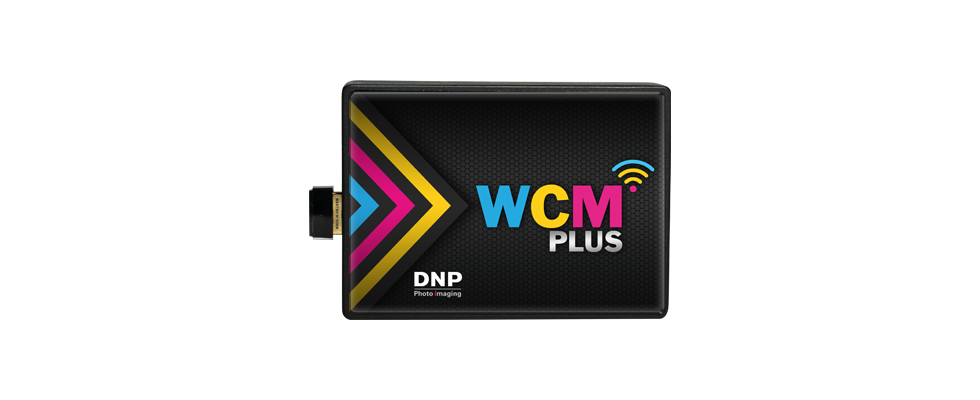
ZillaBooth is fully compatible with DNP dye-sublimation printers when you connect them through DNP’s WCM-Plus Wireless Communication Module. Printing uses Apple AirPrint over Wi‑Fi or wired Ethernet — no custom SDK, no vendor driver on the iPhone or iPad, and no change to ZillaBooth’s existing AirPrint print sheet. This guide covers supported models, hardware setup, network modes, printing from ZillaBooth, live monitoring, official links, and known limitations.

Supported DNP printers
These DNP models work with ZillaBooth when connected through WCM-Plus:


In ZillaBooth, select the WCM-advertised AirPrint endpoint in the standard print sheet (for example, a size-specific name like DS620-4x6). Jobs go to WCM-Plus; the module queues them and sends them to the USB-connected DNP printer(s).
Why this setup works well for booth operators

Wi‑Fi or wired Ethernet
WCM-Plus can advertise AirPrint on the local network whether the iPad reaches it over Wi‑Fi or over wired Ethernet. Apple documents that AirPrint works over Wi‑Fi or a wired connection (Use AirPrint — HT109349). For connecting an iPad or iPhone with a USB‑C Ethernet adapter, see Apple’s accessory guides:
The WCM-Plus User Guide covers Wired Printing (including direct device↔WCM Ethernet and shared LAN).
Managed print queue on the module
WCM-Plus acts as a small print server: it receives jobs, holds a Print Queue, and transfers them to attached DNP printers. In the admin portal you can see jobs as processing, transferred, or failed, and reprint from the last ten jobs. One WCM-Plus supports up to three USB DNP printers.
Browser admin portal (no dedicated app)
Setup and live monitoring use a web browser on iPhone, iPad, Android, Windows, or Mac on the same network as the WCM. There is no separate DNP management app. From the portal you can:
- View and manage the Print Queue
- Check current printer status and remaining media
- Open Device Info (CPU, RAM, temperature, disk)
- Review reports and logs
- Complete network and printer setup
Guest print page
Guests can also submit prints from a browser at the guest path /print on the WCM (for example http://192.168.4.1/print when on the hotspot). That is a web page, not a separate App Store app.
DNP print quality and volume
DNP dye-sub printers are built for high-volume event printing with fast, photo-quality output — a strong fit for party and photobooth workflows once the WCM bridge is in place.
Step-by-step setup
1. Hardware
- Connect each supported DNP printer to a USB port on the WCM-Plus.
- Power the WCM-Plus with its 5V / 3A supply.
- Important for QW410: use the WCM’s 5V/3A supply — do not substitute the printer’s lower-amperage USB power supply (QW410 USB-A is 5V/2A).
- Power on the printer(s) and wait for the WCM welcome / test page (and QR codes when shown).
2. First connection (hotspot)
- On your phone or tablet, join the WCM hotspot:
- Network name:
WCMPlus-xxx(xxx varies by unit) - Password:
dnp12345
- Network name:
- Open a browser to
http://192.168.4.1(default admin portal on hotspot). - Sign in with the default admin credentials
dnpwcm/password, then change them immediately.
IP notes (easy to mix up):
| Address | When it applies |
|---|---|
192.168.4.1 | Default admin portal while you are on the WCM hotspot |
192.168.5.1 | Only when the iPad/Mac is Ethernet-cabled directly to the WCM |
| Venue LAN IP | After the WCM joins venue Wi‑Fi or Ethernet, use the actual IP shown in Network Settings / Device Info — 192.168.4.1 will not work from the venue LAN |
Guest print on hotspot: http://192.168.4.1/print.
3. Network mode
In the WCM admin portal → Network Settings, choose how the module should live on site:
- Stay on hotspot, or
- Join venue Wi‑Fi, or
- Use Ethernet (wired printing / shared LAN as in the User Guide)
Confirm the printers appear and note the AirPrint / printer endpoint names the WCM advertises.
4. Print from ZillaBooth
- On the iPhone or iPad running ZillaBooth, join the same network the WCM is using (hotspot, venue Wi‑Fi, or the wired LAN path you configured).
- In ZillaBooth, turn on Simple Printing in Settings → Pro → Simple Printing (or your usual print flow that opens the system AirPrint sheet).
- Open the AirPrint sheet and select the WCM-advertised endpoint (for example
DS620-4x6or the name shown for your size/model). - Send a test print and confirm the job appears in the WCM Print Queue, then on the physical printer.
5. Mixing printers
- Mixing DNP models across the WCM’s USB ports (up to three) is supported.
- Non-DNP brands (Mitsubishi, HiTi, Citizen, Sony, etc.) are not supported on WCM-Plus.
Monitoring during an event
- Keep a tablet or laptop on the same network as the WCM.
- Open the admin portal (hotspot
192.168.4.1, or the WCM’s LAN IP /192.168.5.1if direct-cabled). - Watch:
- Print Queue (processing / transferred / failed; reprint last ten as needed)
- Current printer status and remaining media
- Device Info if you need a quick health check
What you will not get from the stock portal: push error alerts, a remote cloud dashboard, or a published queue-depth KPI. Plan on opening the browser portal for live ops.
Official links & contacts
| Resource | Link / contact |
|---|---|
| WCM-Plus product page | new.dnpphoto.com — WCMPlus |
| WCM-Plus User Guide v5.6 (PDF) | WCM_Plus_User_Guide.pdf |
| DS620A | dnpphoto.com/products/printers/ds620a |
| DS820A | dnpphoto.com/products/printers/ds820a |
| QW410 | dnpphoto.com/products/printers/qw410 |
| DS-RX1HS | dnpphoto.com/products/printers/rx1hs |
| Apple — AirPrint (Wi‑Fi or wired) | support.apple.com/en-us/109349 |
| Apple — iPad USB‑C Ethernet adapters | support.apple.com/en-us/108894 |
| Apple — iPhone USB‑C Ethernet adapters | support.apple.com/en-us/105099 |
| DNP technical support | dnpsupport@dnp.imgcomm.com · 855-367-7604 |
| DNP sales / marketing | sales_marketing@dnp.imgcomm.com |
| Drivers & downloads | dnpphoto.com/downloads · Manuals index |
For a management / print API on WCM-Plus, contact DNP directly — it is not published as a public self-serve SDK.
Important limitations
- WCM-Plus is DNP-only. Other dye-sub brands do not attach through this module.
- Path is AirPrint via WCM, not a private ZillaBooth↔printer USB SDK. ZillaBooth uses the system AirPrint sheet; WCM bridges to USB DNP printers.
- iPhone / iPad assumed for the ZillaBooth side of this guide (AirPrint). Mac/Windows can open the admin portal and may print via other WCM paths (Hot Folder / FTP / etc.), but this page is written for ZillaBooth on iOS/iPadOS.
- Default passwords and IPs above are DNP’s documented defaults — change admin credentials and confirm the live IP after joining venue network.
- Management API and any unpublished integration options require contacting DNP (support or sales as appropriate).
- Party Print HDMI output on WCM (where equipped) is for slideshow / guest display — it is not the admin UI.
Related links
- User Guide & Support — full ZillaBooth documentation
- Auto-Print and Confirmation — Pro auto-print overview
- ZillaBooth Pro — subscription features and pricing
- Questions? Email Hello@ZillaBooth.com
Recommended next
- Auto-Print and Confirmation — Turn on Simple Printing and the Confirmation Animation in Pro.
- Readiness Checklist — Verify battery, storage, and printer connectivity before doors open.
- External Camera Setup — UVC webcam and PTP tethered DSLR options for iPad booths.