Tag: ZillaBooth Pro

  • Hand the Couple the Remote: Bluetooth Shutter

    Hand the Couple the Remote: Bluetooth Shutter

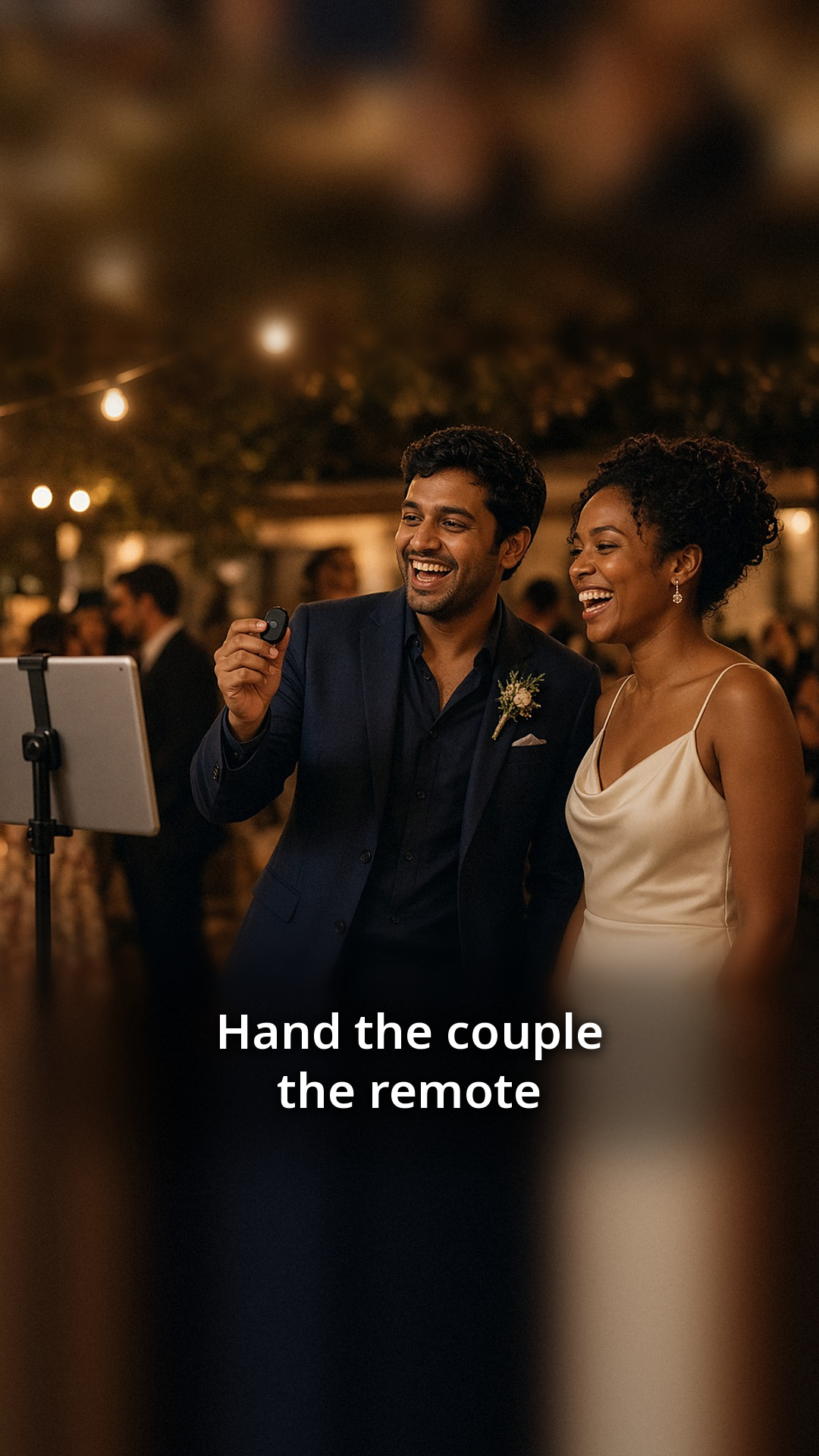
    Most couples never get a proper turn at their own photo booth. Guests crowd around it, the line moves fast, and the newlyweds are busy greeting people. A small Bluetooth remote fixes that. Hand it to the couple, and they decide exactly when the countdown starts.

    What the remote does

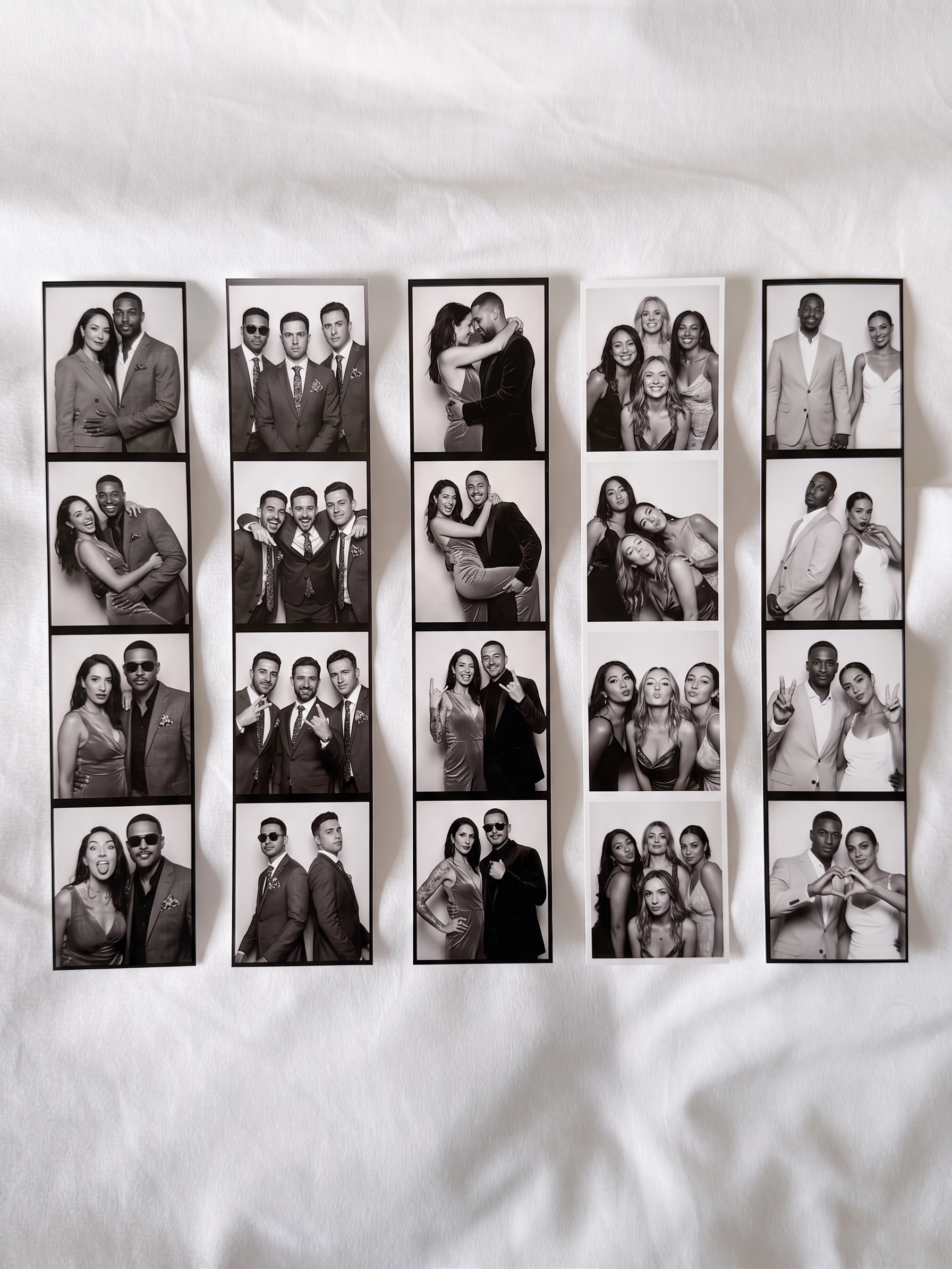
    With ZillaBooth Pro, you can turn on Bluetooth Remote Shutter, pair a small Bluetooth shutter remote, and a single click starts the countdown. One press starts the countdown and then all four shots. Four photos later, the couple has a strip of their own. The booth runs the same way for guests, who tap the screen as usual.

    It is an opt-in setting, so it does not change anything until you switch it on.

    How to set it up

    The setup is quick, and it is worth doing a day or two before the reception:

    1. Open ZillaBooth on the iPad and go to Settings.
    2. Turn on Bluetooth Remote Shutter in the Pro settings.
    3. Pair your remote with the iPad as you would any Bluetooth accessory, then test it with ZillaBooth before the event, since remotes vary.
    4. Run a test session and click the remote once. Check that the countdown starts and four photos are taken.

    Try it from the spot where the couple will be standing. Bluetooth works best within a normal room distance, so a short test saves surprises later.

    When to hand over the remote

    Some couples use it right after the first dance, when the room is buzzing and everyone wants a photo. Others hold it for the end of the night, when the crowd has thinned and they can take a few relaxed strips together. A good rule is to give it to the couple at the start of the reception and let them choose.

    If you have a friend acting as the booth contact, ask them to show the couple how to click once and hold still for the countdown.

    Prints for the couple

    After the session, the couple can print their strip right away. Printing works on every tier through AirPrint, and Pro adds Simple Printing, a one-tap Print button. Keep the printer close to the booth so the couple does not have to walk across the room to collect the print.

    A fun idea: keep the first strip of the night for the guest book or the thank-you card.

    What it costs

    ZillaBooth is free to download. Pro is a monthly or yearly subscription that includes Pocket, and you can see current pricing in the app. If you only need Pro for a wedding weekend, a monthly plan covers it.

    Small details that help

    • Put a fresh battery in the remote and pack a spare.
    • Pair the remote at home, not during the reception.
    • Add a “Tap to start” sign so guests know they do not need the remote.
    • Make sure the iPad is plugged in and the stand is stable.

    Where this fits in your wedding plan

    The remote is a nice extra, not a requirement. Your reception booth will work well with just the iPad and a stand. If you are still planning, start with our wedding reception photo booth checklist and add the remote once the basics are in place. The wedding photo booth page also shows how couples set up ZillaBooth at receptions.

    Ready to give the couple the remote? See what ZillaBooth Pro includes and test the setting before the big day.

  • ZillaBooth Now Works with DNP Dye-Sub Printers via WCM-Plus

    ZillaBooth Now Works with DNP Dye-Sub Printers via WCM-Plus

    Running a busy photobooth means prints have to keep up. ZillaBooth Pro already prints through Apple AirPrint with Simple Printing, so guests can send their photo straight to a saved printer with no print dialog. With DNP’s WCM-Plus Wireless Communication Module in the middle, that same AirPrint sheet now reaches DNP dye-sublimation printers — including DS620A, DS820A, QW410, DS-RX1HS, DS40, and DS80.

    You don’t need a custom SDK or a special ZillaBooth driver. Connect your DNP printer(s) to WCM-Plus over USB, put the iPad on the same network (Wi‑Fi or wired Ethernet), turn on Simple Printing in ZillaBooth Pro, and choose the WCM-advertised printer (for example DS620-4x6) once from the iOS printer list. ZillaBooth saves it, so every print after that goes straight to the printer with no dialog.

    Why operators care

    • High-volume dye-sub quality from DNP event printers
    • Up to three DNP printers on one WCM-Plus, with a managed queue (processing / transferred / failed, reprint last ten)
    • Browser admin portal for live queue, media remaining, and device health — no separate DNP management app
    • Flexible networking: hotspot, venue Wi‑Fi, or Ethernet (including Apple USB‑C Ethernet adapter paths)

    Get the full setup

    Step-by-step hardware, hotspot IP notes (192.168.4.1 vs venue LAN IP vs direct-cable 192.168.5.1), QW410 power caveats, monitoring tips, and official DNP / Apple links are in our support guide:

    → ZillaBooth + DNP Printers via WCM-Plus — Compatibility & Setup Guide

    Questions? Hello@ZillaBooth.com

  • Introducing ZillaBooth 3.0: Professional Photo Booth Features Made Simple

    Introducing ZillaBooth 3.0: Professional Photo Booth Features Made Simple

    ZillaBooth 3.0 is officially here. This major update brings a mature, feature-complete experience designed for event professionals, venue operators, and casual hosts who need a reliable photo booth that can run guest-led.

    We built ZillaBooth with a focus on stability and ease of use. Whether you are managing a high-traffic brand activation or setting up an iPad at a wedding reception, ZillaBooth 3.0 turns your hardware into a polished kiosk that works while you host. With Guided Access plus Pro’s Hide Settings, and the iPad plugged in, guests can run the booth themselves, so you can run the event.

    Here is an overview of the new professional tools, our three user tiers, and the engineering that makes ZillaBooth the smart choice for your next event.

    What’s New in Version 3.0?

    Version 3.0 introduces a suite of powerful, thoughtfully engineered features designed to give operators complete control and peace of mind during live events.

    • USB External Camera Support: For professional setups, you can now connect UVC-compliant USB webcams and tethered Canon EOS cameras to your iPad. This provides a camera connection option with a clean, high-quality feed, giving you consistent framing independent of the iPad’s built-in camera.
    • Live Readiness Checklist: Make sure your hardware is ready before the doors open. Open Settings → Pro → System Monitoring to see a live checklist of battery and charging, device temperature, storage, printer, network, and email queue.
    • Ambient Device Status Alerts: Subtle live status chips on the iPad camera screen keep operators informed of low battery, overheating, or printer issues without interrupting the guest flow.
    • Bluetooth Remote Shutter: Trigger photo captures seamlessly using standard Bluetooth remotes, volume buttons, or the new iPhone Camera Control button. It utilizes a unified shutter path to ensure flawless hands-free attendant operation.
    • Custom Save Locations: Professional workflows require flexibility. You can now save individual photos and finished collages directly to external drives, Files folders, or iCloud Drive for instant editor access and same-night handoffs.
    • Attention-Grabbing Shutter Button: Designed for guest-led setups, an optional animated particle halo or swirling emoji ring around the iPad shutter helps draw guests in and maximize engagement.

    Three Tiers Designed for Different Users

    Rather than a one-size-fits-all approach, ZillaBooth is structured into three distinct tiers tailored to different types of users and use cases. With the 3.0 release, we are officially renaming our one-time purchase tier to Pocket to better reflect its intended use.

    Core (Free)

    ZillaBooth Core is designed for casual use and testing. It remains completely free to download, requires no account or login, and produces clean collages with zero watermarks.

    • Classic Collages: Capture exactly four photos in sequence to automatically generate a 2×2 grid or 1×4 vertical strip.
    • Automated Flow: Simple automatic countdown timers and full-screen flash for consistent illumination.
    • Instant Sharing: Share or save your collage instantly using the native iOS share sheet.

    Pocket (One-Time Purchase)

    Designed for casual users and content creators who want a customizable photo booth experience right in their pocket. While it works beautifully on an iPad, Pocket is primarily envisioned for iPhone users.

    • Custom Timing & Manual Capture: Adjust initial and between-photo countdowns, or switch to Manual Capture to take photos at a natural, human-paced rhythm.
    • Creative Aesthetics: Apply professional black-and-white filters and add customized border spacing and colors.
    • Automated Organization: Auto-save individual photos and collages directly to your library, and embed GPS metadata with geotagging.
    • Custom Share Messages: Pre-fill the iOS share sheet with your own custom caption or event hashtag.

    Pro (Monthly or Yearly Subscription)

    The Pro tier is aimed directly at pros and DIY users running events, parties, and permanently installed photo booths. It leverages all the custom controls of Pocket and adds a complete suite of event-grade tools.

    • iPad Event Layout: Transform your iPad into a full-screen kiosk with an oversized shutter and dedicated collage review buttons.
    • Integrated SMTP Email: Guests receive their collages in seconds via your own email domain. A persistent BCC feature seamlessly integrates with your marketing lists.
    • Graphic Overlays: Import your own transparent PNG artwork for custom logos, borders, and brand themes. There is no proprietary template lock-in.
    • Simple Printing: Connect to any AirPrint-compatible venue printer to instantly deliver 4×6 physical keepsakes.
    • Booth Automation: Auto-Restart after idle periods, plus Hide Settings while Guided Access is on, keep the booth guest-ready. With Guided Access or Single App Mode on, the screen stays on all event. Set Auto-Lock to Never and keep the iPad plugged in.

    Why ZillaBooth?

    ZillaBooth 3.0 is built natively for iPhone and iPad using Apple’s AVFoundation framework. This ensures highly reliable captures, system-level performance, and an interface that feels instantly familiar to your staff and guests.

    Most importantly, ZillaBooth respects your professional workflow. We believe in zero proprietary lock-in: use the hardware you already own, the email infrastructure you trust, and the branding your clients demand.

    Download ZillaBooth 3.0 today and see how easy running a professional photo booth can be.

  • Geotagging: Remember Where Every Booth Moment Happened

    Geotagging: Remember Where Every Booth Moment Happened

    Years later, you remember the laughter—but not which vineyard, rooftop, or hometown hall hosted it. Geotagging anchors every booth moment to the place your story actually happened.

    Available in Pocket.

    The problem

    Event photos scatter across camera rolls and shared albums without location context. When couples revisit booth memories or operators deliver client archives, missing place data makes sorting and storytelling harder. You should not need a separate notebook to remember where the best night of your life unfolded.

    Why it matters

    • Embed location metadata into booth captures automatically
    • Organize post-event galleries by venue when revisiting memories
    • Help operators tag multi-day or multi-venue client projects
    • Support travel weddings and destination events with built-in place context
    • Pair with autosave so archived files carry location into your library
    Photorealistic rooftop city wedding booth with skyline backdrop, evening celebration, no UI — Geotagging: Remember Where Every Booth Moment Happened

    Who it’s for

    Geotagging serves Pocket-tier hosts who value memory preservation: destination wedding couples, family reunion organizers spanning multiple locations, and operators archiving client events with searchable metadata.

    Real-world moments

    • A destination wedding tags every booth capture with the resort coordinates for future albums
    • A multi-venue tour operator separates gallery folders by city using location data
    • A couple revisits anniversary photos sorted by the three venues that hosted their celebration weekend
    Photorealistic family reunion booth at lakeside pavilion, summer gathering, no readable text — Geotagging: Remember Where Every Booth Moment Happened

    How ZillaBooth delivers

    Pocket-tier geotagging adds location metadata to booth output so your photos remember where they were taken. It works alongside autosave and share features—turning scattered fun into an organized archive you can navigate long after the last guest leaves.

    Photorealistic couple revisiting printed booth photos at home with travel mementos, warm domestic setting, no app visible — Geotagging: Remember Where Every Booth Moment Happened

    Memories fade. Place data helps them find their way home.

    Do guests see location data when sharing?

    Location is embedded in file metadata for organization; share behavior depends on the destination app and guest choices.

    Does geotagging require cell service at the venue?

    Location capture uses device location services; availability may vary in areas with limited GPS signal.

    Which tier includes geotagging?

    Geotagging is part of the Pocket one-time unlock alongside autosave, strip layout, and custom share messaging.

    Can I disable geotagging for privacy-sensitive events?

    Hosts who prefer not to record location can adjust usage based on event requirements and device permissions.

  • Simple Email Sharing: Guest Email on Your Terms

    Simple Email Sharing: Guest Email on Your Terms

    Your brand activation looked flawless on the mood board. Then guest emails started bouncing from a generic send address, and your follow-up list never materialized. Simple Email Sharing puts guest email collection on your terms—without turning the booth into an IT project.

    Available in Pro.

    The problem

    Corporate and wedding hosts often need guest contact info after the booth closes, but bolt-on email tools feel clunky, off-brand, or technically fragile. Guests hesitate when the share flow looks unfamiliar, and operators lose leads when delivery fails silently. You need a share path that matches your event polish and lands in inboxes guests actually check.

    Why it matters

    • Collect guest emails through a streamlined share flow built for live events
    • Keep the experience on-brand instead of handing guests off to a third-party form
    • Reduce friction so more guests complete sharing before they leave the booth
    • Support follow-up marketing and thank-you notes
    • Pair with the confirmation animation so guests know their photo is on its way
    Photorealistic lifestyle scene of business-casual guests at a trade show booth sharing photos, energetic convention hall atmosphere, no UI visible — Simple Email Sharing: Guest Email on Your Terms

    Who it’s for

    Simple Email Sharing is built for Pro operators who treat the booth as a lead-gen or relationship tool: corporate marketers capturing qualified contacts, wedding planners collecting guest addresses for thank-you notes, venue teams running sponsored activations, and booth businesses delivering client-ready data handoffs.

    Real-world moments

    • A trade show booth collects work emails before sending branded collage previews to attendees
    • A wedding couple adds a BCC address, so a copy of every guest’s photos lands in their own inbox
    • A retail pop-up captures opt-ins for a launch-day follow-up campaign tied to booth photos
    Photorealistic wedding reception booth corner with guests holding printed strips while one guest uses phone nearby, warm reception lighting, no readable screens — Simple Email Sharing: Guest Email on Your Terms

    How ZillaBooth delivers

    Pro’s Simple Email Sharing sends each guest’s collage by email from your own address, so it looks like it came from you, at staffed or guest-led booths. It fits alongside the confirmation animation and Simple Printing, so guests get physical and digital takeaways without confusion.

    Setup scene of iPad kiosk on stand with small printer table and branded backdrop at corporate event, clean cable management, no readable display content — Simple Email Sharing: Guest Email on Your Terms

    Every share should feel like part of your event—not an afterthought.

    Do guests need to create an account to share?

    No. The share flow is designed for walk-up guests who want a quick, familiar email handoff without extra sign-up steps.

    Is Simple Email Sharing only for corporate events?

    It shines at brand activations and lead capture, but weddings and private celebrations also use it so guests leave with their photos and hosts can send thank-yous. See the wedding photo booth guide.

    Which tier includes Simple Email Sharing?

    Simple Email Sharing is part of ZillaBooth Pro (a monthly or yearly subscription), alongside iPad kiosk tools, overlays, and event controls.

    Can I use this with Simple Printing at the same booth?

    Yes. Many Pro setups combine instant prints with email sharing so guests choose the takeaway that fits them.

  • Auto-Restart: The Booth Stays Ready Between Guests

    Auto-Restart: The Booth Stays Ready Between Guests

    Guest one finishes. Guest two taps nothing because the booth still shows the last session’s share screen. Auto-restart keeps the kiosk ready so the line never stalls on a reset someone forgot to tap.

    Available in Pro.

    The problem

    Self-serve booths die quietly in the idle state after a share or print. The next guest assumes it is broken, staff scramble to reset, and throughput collapses during peak hours. Manual restart is fine for demos—it fails when two hundred guests expect rental-grade reliability.

    Why it matters

    • Return the booth to ready state automatically after each session
    • Keep lines moving without staff resetting between guests
    • Reduce abandoned attempts from confused walk-up users
    • Support guest-led kiosks at weddings and brand activations
    • Pair with attention shutter so each guest sees the same clear starting point

    Who it’s for

    Auto-restart is essential for Pro operators running guest-led booths: self-serve venue booths, festival kiosks with volunteer rotation, and operators who measure success in sessions per hour.

    Real-world moments

    • A wedding reception iPad kiosk resets automatically during peak dance-floor line surges
    • A trade show booth runs guest-led during keynote blocks, locked with Guided Access
    • A venue weekend kiosk stays ready between groups without a manual reset

    How ZillaBooth delivers

    Pro’s auto-restart returns the booth to a ready capture state after guests complete sharing, printing, or other session endings. Combined with Guided Access (with Pro, the screen stays on and Settings stay hidden) and the confirmation animation, it delivers the always-on reliability guests expect from rental booths.

    A pro booth is ready for the next guest before they step up.

    Does auto-restart work after Simple Printing?

    Yes. Auto-restart keeps kiosk flow continuous after print and share completions.

    Can I disable auto-restart for styled sessions?

    Pro event controls support pro workflows; configure behavior during pre-event setup.

    Which tier includes auto-restart?

    Auto-restart is part of ZillaBooth Pro, a monthly or yearly subscription.

    How does auto-restart relate to keeping the screen on?

    With Guided Access or Single App Mode on, the screen stays on all event, and auto-restart resets the session. Together, with Auto-Lock set to Never and the iPad plugged in, they keep the booth running.