

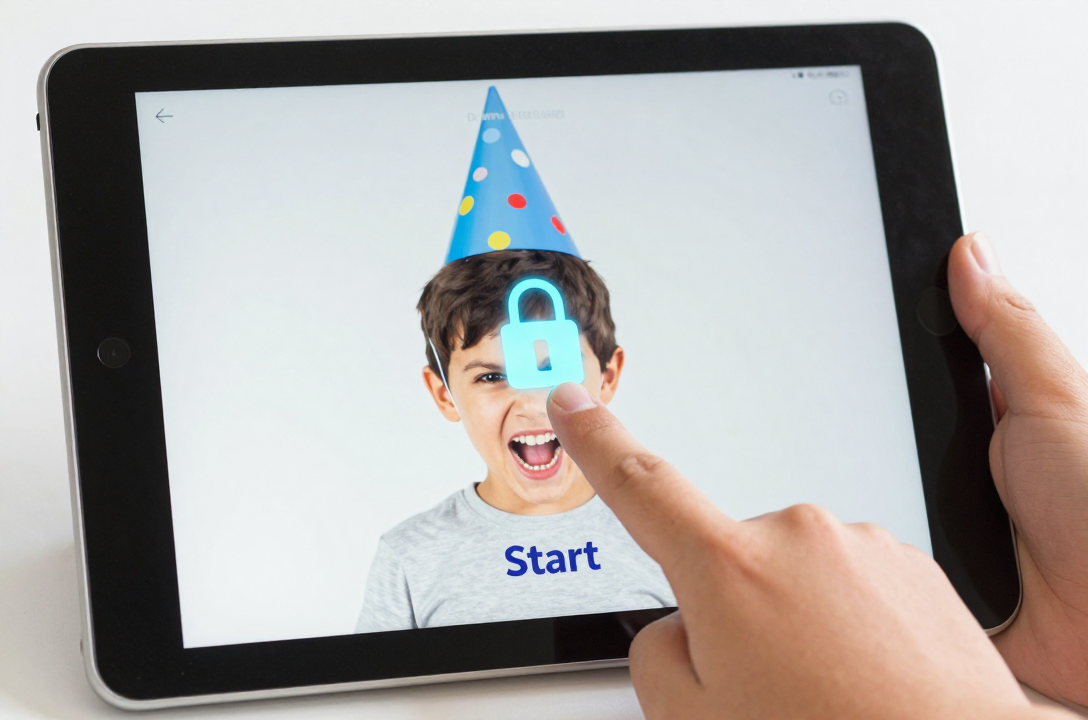
The Definitive Technical Guide to Locking Down Your iPad Photo Booth
If you have ever operated an iPad photo booth at a high-traffic event…whether a vibrant wedding, a corporate gala, or a kid’s birthday party…you have likely experienced the immediate, stomach-dropping panic when you realize a guest, particularly a curious child or an enthusiastically tipsy adult, has somehow managed to exit the photo booth application. Suddenly, your beautifully branded, revenue-generating machine is a vulnerable piece of personal computing hardware, potentially displaying your private messages, exposing your Wi-Fi password, or deleting critical data. This is not just a minor annoyance; it is a critical security and user-experience flaw that can derail an event and damage your professional reputation.
The solution is not a physical lock, but a digital fortress. To deliver a truly professional, worry-free photo booth service that runs flawlessly, unattended, from the first snap to the last, you must master the strategic, two-part combination of the ZillaBooth Party ‘Keep Awake’ setting and the powerful native iOS feature known as Guided Access. This technical deep dive is your blueprint for transforming a consumer-grade iPad into a hardened, dedicated commercial kiosk that is functionally “kid-proof.”
The first line of defense is ensuring the booth is always operational, which is precisely where the ZillaBooth Party ‘Keep Awake’ feature comes in. Standard iOS settings are designed to save battery by putting the device to sleep after a short period of inactivity. For a photo booth, this is a fatal flaw; a dark, unresponsive screen is the primary cause of lost revenue and user confusion. The ‘Keep Awake’ function within ZillaBooth Party is an essential, application-level safeguard that sends a continuous, subtle signal to the iOS operating system. This signal prevents the screen from dimming or the device from auto-locking, regardless of the system-wide time-out setting. You will typically find this simple toggle switch within the general or kiosk-mode settings of the ZillaBooth app. When activated, it guarantees that your custom start screen, instructions, and entire user interface remain fully illuminated and responsive at all times, ensuring the interactive surface is consistently welcoming and available. While this feature is crucial for event continuity and user experience, it does not prevent users from attempting to exit the app, which is why the full solution requires the next, more secure step.
The true secret to locking down your photo booth lies in the deep technical implementation of Guided Access. Guided Access is an extremely robust, often-overlooked accessibility feature built directly into the iOS operating system. Its original intent was to help users with certain cognitive challenges stay focused on a single task, but its functionality makes it the perfect Kiosk Mode for any public-facing iPad application. When correctly enabled and configured, Guided Access locks the iPad into a single, specified application and, crucially, allows the administrator to selectively disable hardware buttons and specific touch areas on the screen.
Technical Setup: Enabling Guided Access on the iPad
The setup process requires a one-time configuration in your iPad’s settings.1. Navigate to Settings: Open your iPad’s main Settings application.
2. Access the Feature: Scroll down and tap on the Accessibility menu.
3. Locate Guided Access: In the Accessibility features list, scroll down past the Vision and Physical/Motor sections until you find the Learning category, which contains Guided Access. Tap this to open the configuration pane.
4. Activate and Secure:
* Toggle the main Guided Access switch to the ‘On’ position.
* Immediately tap on Passcode Settings. This is the most vital step: setting a Guided Access Passcode. This passcode must be complex and entirely distinct from your main iPad lock screen passcode. This unique code is the only way to exit or disable the lock once it is activated. Do not use an easily guessable sequence. You may also enable Face ID or Touch ID here, which allows you to bypass the manual passcode entry simply by authenticating yourself…a major time saver during an event.
5. Enable the Shortcut: Toggle the Accessibility Shortcut to ‘On’. This enables the control center for Guided Access to be accessed instantly by a simple triple-click of the Home button (on older iPads) or the Side/Power button (on newer models). Without this shortcut, starting and stopping the session requires navigating back into the Settings app, which is impractical and time-consuming during an event.The Final Lock: Implementing the Kiosk Mode in ZillaBooth Party
Once the feature is enabled, the final stage is to activate the lock specifically around the ZillaBooth Party application. This procedure is performed live, on-site, just before the event begins, taking only seconds to deploy the full security protocol.1. Launch the Application: Open the ZillaBooth Party app and ensure it is displaying the event’s start screen or the main interactive menu.
- Activate the Control Panel: Perform the quick, triple-click on the Home or Side button. The Guided Access control panel will overlay the ZillaBooth screen. If this is the first session since setup, you may be prompted to enter your Guided Access passcode.
- Configure Session Options (The Technical Deep Dive): Tap the Options button at the bottom of the screen. This is where you finalize the kiosk’s security. This menu allows for granular control over the iPad’s physical and screen functions:
- Side/Sleep/Wake Button: OFF (Critical). This prevents users from being able to put the device to sleep, which would temporarily disrupt the booth.
- Volume Buttons: OFF (Recommended). Prevents users from accidentally or intentionally muting or blasting the photo booth’s sound effects and music.
- Motion (Screen Rotation): OFF (Recommended). Ensures that if the iPad stand is accidentally bumped, the screen cannot rotate, which can break the user experience and the booth’s calibration.
- Keyboards: OFF (Optional/Secure). If your photo booth mode does not require text entry (like for email sharing), disabling the on-screen keyboard adds an extra layer of security.
- Touch (Advanced Restriction): While the main touch function must remain ON for the guests to interact, this setting also enables the ability to zone-restrict the screen. With your finger, you can draw circles or boxes around any specific area of the screen you wish to make non-responsive. For instance, if ZillaBooth has a small settings cog or an on-screen exit button that is visible but not for guest use, you can draw a restrictive circle over it. Guided Access will instantly create a gray overlay in that area, making touch input permanently disabled only in that region, leaving the rest of the screen fully interactive for the photo booth. This highly technical, precise control is what separates a basic lock from a fully managed kiosk interface.
- Start the Session: Once all options are configured, tap Start in the upper-right corner. The iPad is now fully locked. A small banner will briefly appear confirming “Guided Access Started.” At this point, no amount of frantic button pressing, swiping, or gesture control will allow a user to exit the ZillaBooth Party application. The physical hardware buttons are disabled, the home-screen swipe gestures are neutralized, and the device is now a dedicated, secure photo booth kiosk.Exiting the Lock and Final Thoughts
To exit the Guided Access session and regain control of the iPad for event wrap-up, maintenance, or software updates, you simply perform the initial triple-click of the Home or Side button again. The screen will prompt you to enter the Guided Access passcode (or use your pre-configured Face ID/Touch ID). Upon successful authentication, you will be returned to the Guided Access configuration screen, where you must tap End in the top-left corner to fully unlock the device.
For the professional photo booth operator, the strategic combination of ZillaBooth Party’s screen-management functionality and the robust, multi-layered security of iOS Guided Access is the definitive, non-negotiable standard for unattended operation. This dual-layered security is a proactive technical investment that eliminates the single biggest operational headache in the photo booth business, safeguarding your event continuity, your data, and the professional integrity of your service. Mastering this powerful iOS feature is the secret to a stress-free, profitable, and truly “kid-proof” photo booth experience.