Tag: Event Tech

  • Printing Station Setup: The “Share & Print” Workflow

    Printing Station Setup: The “Share & Print” Workflow

    The “Share & Print” Workflow: Achieving Instant Photo Gratification

    In the fast-paced world of photo booth events, nothing satisfies a guest more than the instant gratification of a printed photo strip they can hold in their hands just moments after they strike a pose. For photo booth operators and event hosts, however, setting up a reliable, high-speed printing station can often feel like a complex wiring and software nightmare. But it doesn’t have to be.

    We’re introducing the “Share & Print” Workflow…the definitive guide to establishing a bulletproof printing station using ZillaBooth Party’s powerful “Auto-Print” feature, seamlessly integrated with the ubiquitous simplicity of Apple’s AirPrint technology. This combination strips away the complexity, ensuring your guests get their prints instantly, every single time.

    Understanding the “Instant Gratification” Goal

    The primary goal of the “Share & Print” Workflow is speed and reliability. Guests should never have to wait more than 30 seconds for a print. Achieving this requires eliminating bottlenecks…namely, complex driver installations, USB cable management, and manual print queuing.

    The traditional photo booth setup often involves a computer tethered via USB to a dedicated dye-sublimation printer. While reliable, this locks the operator to a single workstation. The “Share & Print” workflow liberates your host device (iPad, iPhone, or Mac running ZillaBooth Party) by turning the entire process wireless and automatic. Once a session is complete, ZillaBooth’s “Auto-Print” initiates the command, and AirPrint handles the communication…the photo simply appears.

    The ZillaBooth Party “Auto-Print” Advantage

    ZillaBooth Party’s “Auto-Print” feature is the brain of this operation. By checking a single box within the app’s settings, you tell the system to immediately send the final layout (whether it’s a photo strip, 4×6 print, or collage) to the designated printer after the session countdown is complete.

    Key functionalities of “Auto-Print”: * Zero Operator Intervention: No one needs to press “Print” after the photo is taken.
    * Session-Specific Control: You can set the number of copies to print for each session, ensuring every person in the frame gets a copy.
    * Fail-Safe Queuing: If the printer is busy or offline momentarily, ZillaBooth Party manages a print queue, automatically retrying the print job until it is successful, preventing lost memories.Why AirPrint is Essential for Simplicity

    AirPrint is Apple’s native network printing technology. It is a communication protocol that allows Apple devices to find and print to compatible printers over a Wi-Fi network without requiring any driver installation or configuration. In the context of a live event, this is a monumental time-saver and a massive boost to reliability.

    Because ZillaBooth Party runs on an Apple device (iPad or iPhone), an AirPrint-compatible printer instantly becomes a plug-and-play solution. There are no finicky drivers to install, no operating system compatibility issues, and no dedicated print server software needed. It’s a pure, clean, network-based transaction.

    Hardware Deep Dive: Recommendations for Reliability

    The “Share & Print” Workflow hinges on three core pieces of hardware: the Host Device, the Printer, and the Network.1. The Host Device (Running ZillaBooth Party):

      * **Recommendation:** An iPad Pro or late-model iPhone. These devices have robust Wi-Fi chips that ensure stable network connections for AirPrint jobs. They also handle ZillaBooth Party’s high-resolution image processing with ease.
    
    1. The AirPrint-Compatible Printer:
      This is the most critical and often the most confusing choice. For a true “instant gratification” station, you need a balance of speed, quality, and consumables cost.

      • The Gold Standard (Dye-Sublimation): For professional photo booth use, a dye-sublimation (dye-sub) printer is non-negotiable. They offer water-resistant, durable prints that emerge completely dry, and they are blisteringly fast (often 8-15 seconds per 4×6 print).
        • Top Models: DNP DS620A or the Sinfonia CS2.
        • AirPrint Caveat: Most high-end dye-sub printers are not natively AirPrint compatible. To integrate them into the “Share & Print” Workflow, you will need a small, inexpensive print server device or a Raspberry Pi to act as a bridge and expose the printer as an AirPrint device on the network (a relatively simple process we detail in advanced tutorials).
      • The Simple/Budget Option (Inkjet): For small, casual events or budget-conscious setups, a high-quality, AirPrint-certified inkjet photo printer is the simplest choice.
        • Top Models: Canon PIXMA Pro or specific Epson Expression models.
        • Advantage: Truly native AirPrint support, plug-and-play.
        • Disadvantage: Slower print speed, consumable ink/paper costs are higher per print, and prints are less durable than dye-sub prints.
    2. The Network Setup:
      Reliability is paramount, meaning you should never rely on the venue’s public Wi-Fi.

      • Recommendation: Dedicated Wireless Access Point (WAP): Purchase a small, travel-sized wireless router (e.g., a GL.iNet router). This device creates a private, isolated, high-speed Wi-Fi network dedicated only to your photo booth equipment.
        • Setup: The WAP broadcasts a private network (e.g., “ZillaBooth Network”). Your iPad and your AirPrint-compatible printer both connect to this network. This eliminates interference from guest phones, venue networks, and other potential Wi-Fi clutter. It is the single biggest factor in ensuring 100% AirPrint reliability.Step-by-Step Tutorial: Setting Up the “Auto-Print” Workflow

    Once your hardware is assembled, setting up the seamless workflow takes less than ten minutes.

    Step 1: Printer and Network Initialization1. Connect the Printer: Power on your printer. If it is a native AirPrint device, follow its manual to connect it to your dedicated WAP network. If you are using a non-native dye-sub printer, connect your AirPrint bridge/server device (e.g., Raspberry Pi or dedicated server) to the WAP network and connect the printer to the bridge via USB.
    2. Connect the Host Device: Connect your iPad/iPhone running ZillaBooth Party to the exact same dedicated WAP network.Step 2: ZillaBooth Party Configuration1. Open ZillaBooth Party: Launch the app and go to the event setup or global settings menu.
    2. Select Printer: Navigate to the Printing section. The app should automatically detect any AirPrint-enabled printers on the network. Select your desired printer from the list (e.g., “DNP AirPrint Bridge” or “Canon PIXMA”).
    3. Activate “Auto-Print”: In the same menu, find the “Auto-Print” toggle and switch it ON.
    4. Set Copies: Set the default number of copies for the session (e.g., ‘2’ for a photo strip to ensure the guest gets one copy and the host gets one for a memory book).Step 3: Final Test Run1. Start a Session: Begin a photo session in ZillaBooth Party.
    2. Complete the Countdown: Pose for the pictures and let the session complete.
    3. Monitor the Queue: As soon as the final layout is generated, you should see a pop-up confirmation that the print job has been sent via AirPrint.
    4. Instant Gratification: The print job immediately transfers to the printer, and the photo should emerge in seconds.Troubleshooting and Advanced Tips

    The Print Job Fails to Send:
    The overwhelming majority of AirPrint issues stem from the network. * The Fix: Double-check that your iPad/iPhone and your AirPrint-enabled printer/bridge are connected to the same dedicated Wi-Fi network. Restarting the WAP, the printer, and the iPad in that order often clears transient network errors.My Dye-Sub Printer Isn’t AirPrint Compatible:
    This is the most common professional hurdle. * The Fix: You need a network bridge solution. Small, low-cost micro-computers like a Raspberry Pi can be configured as a CUPS (Common Unix Printing System) server, which can then be exposed on the network as a universal AirPrint device. There are also commercial, plug-and-play AirPrint server devices available specifically for dye-sub printers.Best Practices for High-Volume Events: * Pre-Print Calibration: Before every event, run 5-10 test prints to confirm color, cut, and network stability.
    * Manage Consumables: Always have spare paper and ribbon/ink on hand. With “Auto-Print” running, you’ll be printing more than you think.
    * Printer Placement: Place the printer close to the host device (within 20 feet) and ensure line-of-sight to your dedicated WAP for maximum signal strength and speed.By combining the hands-off reliability of ZillaBooth Party’s “Auto-Print” with the driverless simplicity of AirPrint and a dedicated network, you transform your photo booth operation. You move from a complicated wired mess to a sleek, wireless “Share & Print” machine that delivers on the promise of instant photo gratification, ensuring delighted guests and a smooth, stress-free event for you.
  • Guided Access: The Secret to “Kid-Proofing” Your Booth

    Guided Access: The Secret to “Kid-Proofing” Your Booth

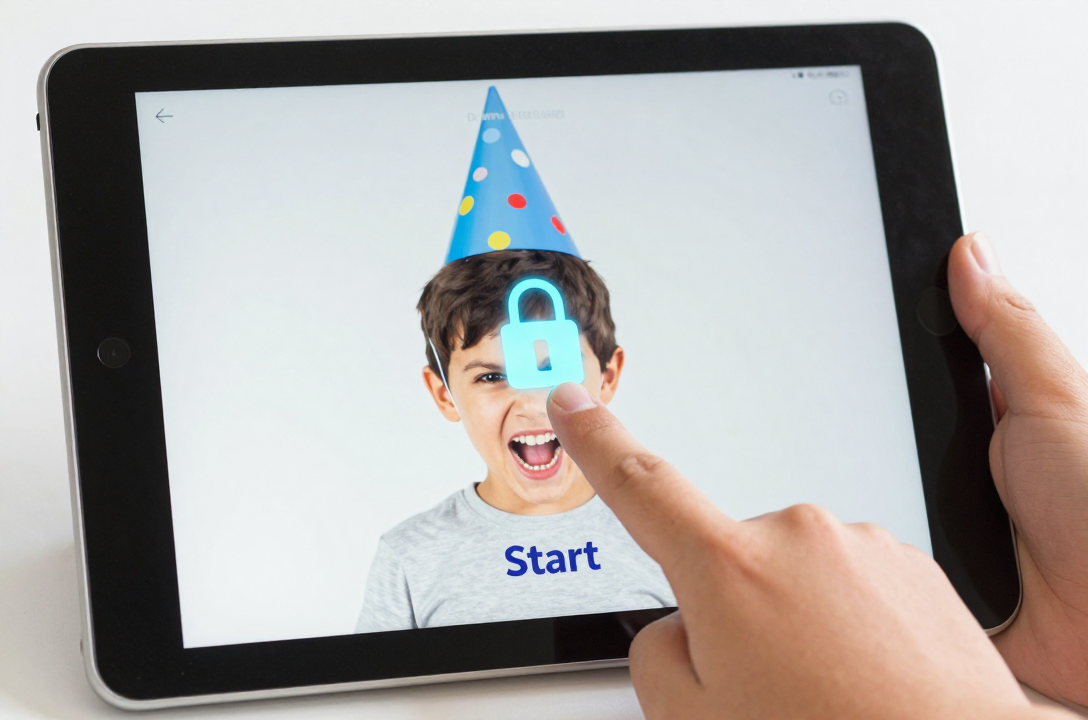
    The Definitive Technical Guide to Locking Down Your iPad Photo Booth

    If you have ever operated an iPad photo booth at a high-traffic event…whether a vibrant wedding, a corporate gala, or a kid’s birthday party…you have likely experienced the immediate, stomach-dropping panic when you realize a guest, particularly a curious child or an enthusiastically tipsy adult, has somehow managed to exit the photo booth application. Suddenly, your beautifully branded, revenue-generating machine is a vulnerable piece of personal computing hardware, potentially displaying your private messages, exposing your Wi-Fi password, or deleting critical data. This is not just a minor annoyance; it is a critical security and user-experience flaw that can derail an event and damage your professional reputation.

    The solution is not a physical lock, but a digital fortress. To deliver a truly professional, worry-free photo booth service that runs flawlessly, unattended, from the first snap to the last, you must master the strategic, two-part combination of the ZillaBooth Party ‘Keep Awake’ setting and the powerful native iOS feature known as Guided Access. This technical deep dive is your blueprint for transforming a consumer-grade iPad into a hardened, dedicated commercial kiosk that is functionally “kid-proof.”

    The first line of defense is ensuring the booth is always operational, which is precisely where the ZillaBooth Party ‘Keep Awake’ feature comes in. Standard iOS settings are designed to save battery by putting the device to sleep after a short period of inactivity. For a photo booth, this is a fatal flaw; a dark, unresponsive screen is the primary cause of lost revenue and user confusion. The ‘Keep Awake’ function within ZillaBooth Party is an essential, application-level safeguard that sends a continuous, subtle signal to the iOS operating system. This signal prevents the screen from dimming or the device from auto-locking, regardless of the system-wide time-out setting. You will typically find this simple toggle switch within the general or kiosk-mode settings of the ZillaBooth app. When activated, it guarantees that your custom start screen, instructions, and entire user interface remain fully illuminated and responsive at all times, ensuring the interactive surface is consistently welcoming and available. While this feature is crucial for event continuity and user experience, it does not prevent users from attempting to exit the app, which is why the full solution requires the next, more secure step.

    The true secret to locking down your photo booth lies in the deep technical implementation of Guided Access. Guided Access is an extremely robust, often-overlooked accessibility feature built directly into the iOS operating system. Its original intent was to help users with certain cognitive challenges stay focused on a single task, but its functionality makes it the perfect Kiosk Mode for any public-facing iPad application. When correctly enabled and configured, Guided Access locks the iPad into a single, specified application and, crucially, allows the administrator to selectively disable hardware buttons and specific touch areas on the screen.

    Technical Setup: Enabling Guided Access on the iPad

    The setup process requires a one-time configuration in your iPad’s settings.1. Navigate to Settings: Open your iPad’s main Settings application.
    2. Access the Feature: Scroll down and tap on the Accessibility menu.
    3. Locate Guided Access: In the Accessibility features list, scroll down past the Vision and Physical/Motor sections until you find the Learning category, which contains Guided Access. Tap this to open the configuration pane.
    4. Activate and Secure:
    * Toggle the main Guided Access switch to the ‘On’ position.
    * Immediately tap on Passcode Settings. This is the most vital step: setting a Guided Access Passcode. This passcode must be complex and entirely distinct from your main iPad lock screen passcode. This unique code is the only way to exit or disable the lock once it is activated. Do not use an easily guessable sequence. You may also enable Face ID or Touch ID here, which allows you to bypass the manual passcode entry simply by authenticating yourself…a major time saver during an event.
    5. Enable the Shortcut: Toggle the Accessibility Shortcut to ‘On’. This enables the control center for Guided Access to be accessed instantly by a simple triple-click of the Home button (on older iPads) or the Side/Power button (on newer models). Without this shortcut, starting and stopping the session requires navigating back into the Settings app, which is impractical and time-consuming during an event.The Final Lock: Implementing the Kiosk Mode in ZillaBooth Party

    Once the feature is enabled, the final stage is to activate the lock specifically around the ZillaBooth Party application. This procedure is performed live, on-site, just before the event begins, taking only seconds to deploy the full security protocol.1. Launch the Application: Open the ZillaBooth Party app and ensure it is displaying the event’s start screen or the main interactive menu.

    1. Activate the Control Panel: Perform the quick, triple-click on the Home or Side button. The Guided Access control panel will overlay the ZillaBooth screen. If this is the first session since setup, you may be prompted to enter your Guided Access passcode.

    2. Configure Session Options (The Technical Deep Dive): Tap the Options button at the bottom of the screen. This is where you finalize the kiosk’s security. This menu allows for granular control over the iPad’s physical and screen functions:
      • Side/Sleep/Wake Button: OFF (Critical). This prevents users from being able to put the device to sleep, which would temporarily disrupt the booth.
      • Volume Buttons: OFF (Recommended). Prevents users from accidentally or intentionally muting or blasting the photo booth’s sound effects and music.
      • Motion (Screen Rotation): OFF (Recommended). Ensures that if the iPad stand is accidentally bumped, the screen cannot rotate, which can break the user experience and the booth’s calibration.
      • Keyboards: OFF (Optional/Secure). If your photo booth mode does not require text entry (like for email sharing), disabling the on-screen keyboard adds an extra layer of security.
      • Touch (Advanced Restriction): While the main touch function must remain ON for the guests to interact, this setting also enables the ability to zone-restrict the screen. With your finger, you can draw circles or boxes around any specific area of the screen you wish to make non-responsive. For instance, if ZillaBooth has a small settings cog or an on-screen exit button that is visible but not for guest use, you can draw a restrictive circle over it. Guided Access will instantly create a gray overlay in that area, making touch input permanently disabled only in that region, leaving the rest of the screen fully interactive for the photo booth. This highly technical, precise control is what separates a basic lock from a fully managed kiosk interface.
    3. Start the Session: Once all options are configured, tap Start in the upper-right corner. The iPad is now fully locked. A small banner will briefly appear confirming “Guided Access Started.” At this point, no amount of frantic button pressing, swiping, or gesture control will allow a user to exit the ZillaBooth Party application. The physical hardware buttons are disabled, the home-screen swipe gestures are neutralized, and the device is now a dedicated, secure photo booth kiosk.Exiting the Lock and Final Thoughts

    To exit the Guided Access session and regain control of the iPad for event wrap-up, maintenance, or software updates, you simply perform the initial triple-click of the Home or Side button again. The screen will prompt you to enter the Guided Access passcode (or use your pre-configured Face ID/Touch ID). Upon successful authentication, you will be returned to the Guided Access configuration screen, where you must tap End in the top-left corner to fully unlock the device.

    For the professional photo booth operator, the strategic combination of ZillaBooth Party’s screen-management functionality and the robust, multi-layered security of iOS Guided Access is the definitive, non-negotiable standard for unattended operation. This dual-layered security is a proactive technical investment that eliminates the single biggest operational headache in the photo booth business, safeguarding your event continuity, your data, and the professional integrity of your service. Mastering this powerful iOS feature is the secret to a stress-free, profitable, and truly “kid-proof” photo booth experience.

  • Wedding Vendors: Add “Photo Booth” to Your Package for $0

    Wedding Vendors: Add “Photo Booth” to Your Package for $0

    Stop Leaving Money on the Table: Why Your Existing iPad is the Key to Thousands in Extra Wedding Revenue

    If you’re a professional wedding DJ or planner, you’re already a master of logistics, atmosphere, and client satisfaction. You know the market, you have the clients, and you have the expertise. But in an industry where every dollar counts and every client is looking for maximum value, there is a good chance you are overlooking the single easiest way to generate a significant, high-margin, nearly-pure-profit revenue stream this year: adding a photo booth to your service package.

    Wait, don’t scroll past. We’re not talking about buying a massive, expensive, $10,000 piece of equipment, dealing with bulky crates, or hiring a new dedicated staff member. We are talking about leveraging the professional-grade technology you already carry in your gear bag…your iPad…and unlocking its potential with one simple, industry-leading app: ZillaBooth.

    This is the ultimate business hack for wedding vendors. The core promise is simple: transform an existing, depreciated asset (your iPad) into a highly desirable, high-value, four-hour rental that clients are happy to pay for, starting today. You don’t need a capital investment, you don’t need additional payroll, and you don’t need storage space for new gear. You already have the venue access, the client trust, and the contract, making the integration seamless and the profit margin astronomical. This is how you stop leaving hundreds, or even thousands, of dollars on the table at every wedding booking.

    The Vendor’s Dilemma: Maximizing Revenue vs. Minimizing Stress

    Every wedding professional knows the dance: clients want more, but they are often budgeting aggressively. You, the vendor, want to offer comprehensive, competitive packages without overloading your team or sinking cash into new inventory. A dedicated photo booth company is an extra contract, another deposit, another vendor to coordinate, and another logistical headache for both the client and the planner. By positioning the photo booth as a simple, no-fuss “add-on” managed directly by the primary vendor (you), you solve the client’s problem while dramatically inflating your own package value.

    This is fundamentally an issue of convenience. Clients prefer buying services from people they already trust. When you, the DJ who controls the entertainment flow, or the Planner who orchestrates the entire event, simply check a box and say, “Yes, we can handle the photo booth, too,” you eliminate client friction and create an immediate, effortless upsell opportunity. The perceived value to the client is high (a professional, modern photo booth experience), but the actual cost and labor for you is minimal.

    Section 1: The Zero-Cost Advantage…Why Traditional Photo Booths Are Obsolete

    The biggest barrier to entry for most vendors considering a photo booth has always been the equipment cost. Traditional, bulky booths are expensive. They require a dedicated rig, a full DSLR camera setup, studio flashes, complex proprietary software, a printer, and a dedicated staff member to manage it all.

    The ZillaBooth + iPad model eliminates all of this.

    Your Existing iPad is the Camera and Computer: The latest generations of iPads, even models a few years old, possess cameras superior to many older dedicated photo booth systems. They are already high-resolution, reliable, and portable. They are the engine of your new revenue stream.

    The Only “New” Cost is Negligible: The ZillaBooth application operates on a flexible subscription model. While pricing varies, the annual cost of the application is typically recouped by the profit from the very first wedding booking. After that, every single photo booth upsell is essentially 95%+ profit. Compared to the $5,000+ investment in hardware, this truly is a $0 capital expenditure strategy.

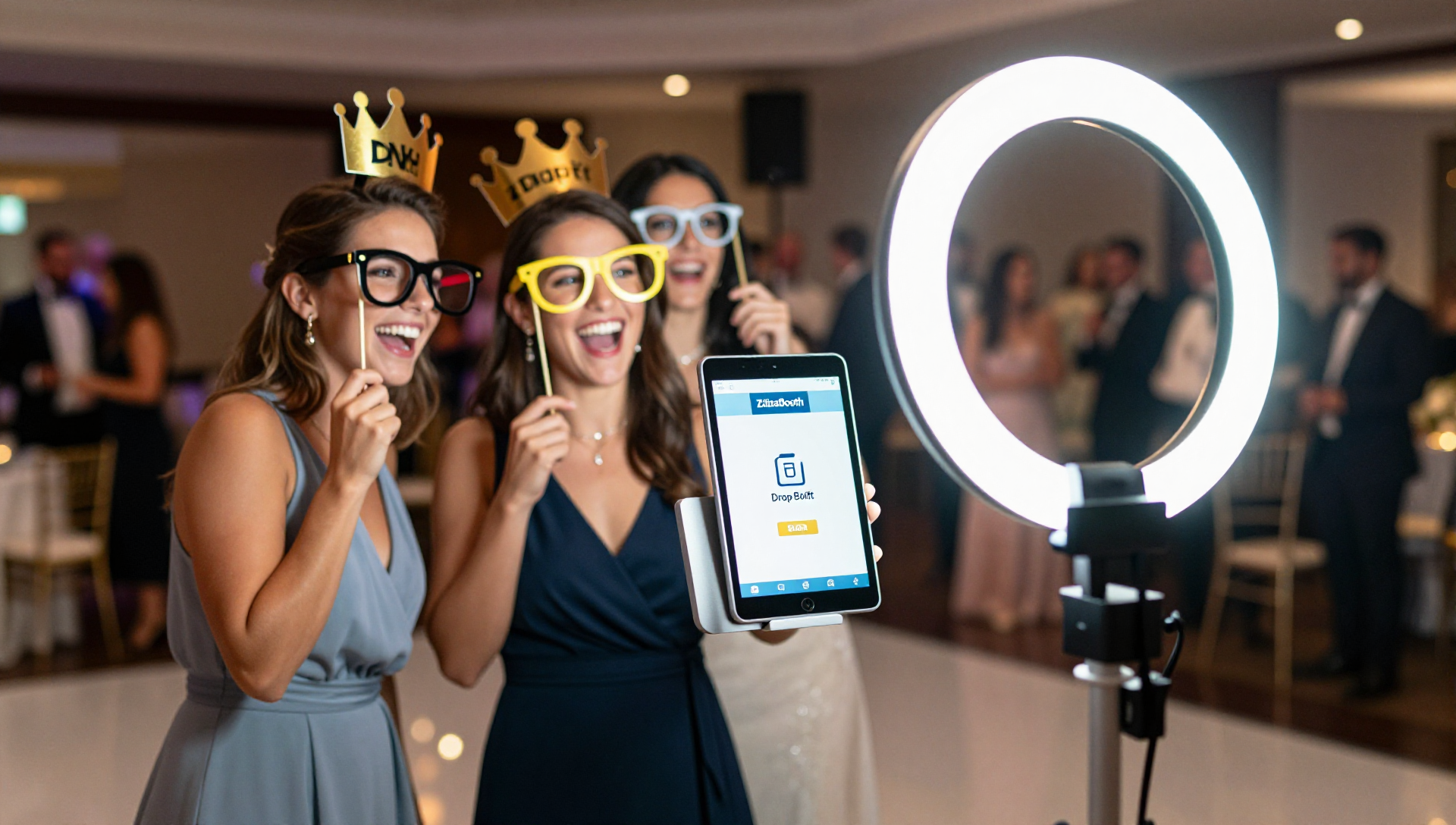
    No Bulky Gear, No Logistics Nightmare: The entire photo booth setup boils down to three things: your iPad, a simple light stand/tripod, and a basic ring light (a quick, under-$100 purchase you’ll use for years). It’s a slim, elegant setup that fits in a small carry bag and takes five minutes to set up, integrating seamlessly into any venue space. The days of lugging massive, heavy crates are over.

    Section 2: The DJ’s Profit Multiplier…Integrate and Automate

    For the mobile DJ, this is the most natural add-on service imaginable. You are already booked, you are already setting up in a high-traffic area, and you are already the life of the party.

    Optimal Placement and Power: Your DJ booth is the hub of the party. You have dedicated power and a reserved footprint. Tucking a sleek, iPad-based photo booth on a stand near the dance floor is a perfect, low-impact way to utilize your existing real estate.

    Fully Automated Operation: The secret to the DJ’s success with this model is the ‘Drop-Off Booth’ concept, enabled perfectly by ZillaBooth. Once you’ve set up the tripod, ring light, and iPad running ZillaBooth, the booth is entirely self-service. Guests tap the screen to start, the app guides them through the process, and they instantly receive a text or email link to their photos and GIFs. Your DJ or assistant can keep an eye on it, but it requires no constant supervision, meaning you can sell four hours of photo booth time without adding four hours of payroll.

    Enhancing the Guest Experience: By offering the booth, you’re providing an additional form of entertainment that runs concurrently with your music sets. It keeps guests engaged during dinner or slow points, and the instant-sharing feature acts as an organic, digital memento of the night. Guests walk away remembering the fun your company provided.

    Pricing Strategy for DJs: Start by offering the photo booth as a tiered add-on, priced between $400 and $700 for a four-hour rental, depending on your market. This is pure package inflation with no commensurate cost inflation for you. If you book 15 weddings a year and upsell the booth to half of them, that’s over $4,500 in pure extra profit.

    Section 3: The Wedding Planner’s Competitive Edge…The Seamless Solution

    For the wedding planner, adding the ZillaBooth service is less about direct staffing and more about control, margin, and client experience.

    Becoming the One-Stop-Shop Hero: Clients are always looking to minimize vendors. When a planner can confidently say, “I have a trusted, modern photo booth solution that I manage personally,” it eliminates a line item from the client’s to-do list. This is a massive relief for a stressed couple and immediately elevates the planner’s perceived value as a full-service provider.

    Eliminating Vendor Coordination: No more chasing down contracts, coordinating load-in/load-out times, or dealing with the insurance paperwork of an external photo booth company. You control the equipment and the timeline. This streamlines your entire event management process and reduces your day-of stress.

    The Dual Revenue Stream: Planners have two options to generate revenue:1. Direct Mark-up Model: The planner invests in the ZillaBooth app subscription and the simple hardware (tripod/ring light). They brand the service as their own and charge the client the full rental price, pocketing 100% of the profit. They can then either run it with an assistant or, even better, partner with a trusted DJ and pay them a small commission ($50-$100) to manage the quick setup and tear-down.
    2. Commission/Referral Model: The planner can partner with a trusted, ZillaBooth-equipped DJ and negotiate a referral commission (10-20% of the booth rental fee). This is 100% passive income for the planner, rewarding them for simply coordinating the package without any physical involvement.In both cases, the planner has created a new, reliable source of income while simultaneously improving the client experience and simplifying the vendor list…a true win-win.

    Section 4: The 5-Minute Technical Setup Guide

    Doubtful that a professional-grade experience can come from an iPad? That’s where the ZillaBooth application proves its worth. It’s not a hobby app; it’s a professional photo booth software suite.

    Step 1: The Hardware Foundation
    The only two items you need beyond your existing iPad are an adjustable light stand or tripod and an LED ring light. * The Stand: Look for an inexpensive but sturdy stand with an adjustable mount for your iPad. Total cost: ~$50.
    * The Ring Light: This is critical. While the iPad flash works, a good ring light ($75-$125) ensures flattering, even lighting on all guests, mimicking the look of professional studio light.Step 2: ZillaBooth Customization
    The ZillaBooth app is where the magic happens. Before the event, you will upload the client’s custom template or overlay (e.g., “The Smiths – 10.15.2024”) and load any digital props. * Branding & Overlays: Design a template that matches the wedding’s aesthetic. ZillaBooth allows you to upload custom graphics that frame the final photos.
    * Sharing: Set the booth to allow instant sharing via email, text message, and QR code downloads. This is the feature that guests love and what drives social media buzz.
    * GIFs and Boomerangs: Unlike basic camera apps, ZillaBooth handles multi-shot sequences, turning them into shareable GIFs or Boomerangs automatically…a huge value add that feels modern and high-tech.Step 3: The Backdrop and Props
    While a traditional booth might require heavy curtains, the elegant iPad stand looks great against a simple, well-lit wall. * Simple Backdrops: A sequined cloth backdrop on a lightweight stand ($50) or simply the venue’s existing brick wall or draped fabric. The iPad setup is so compact it blends into its surroundings.
    * Props: This is the fun part. Invest in a small, clean set of high-quality physical props (hats, signs, oversized glasses) and simply lay them on a small table next to the stand.Step 4: The Event Workflow
    When you arrive at the venue, set up the stand, mount the iPad, plug in the ring light, and launch the ZillaBooth app with the client’s custom template. Do a quick test shot. Explain the two-step process (tap to start, follow the prompts) to the venue coordinator or an available assistant. That’s it. You have just deployed a professional photo booth that requires no further attention for the entire duration of the rental.

    The Revenue Breakdown: A Look at Your New Profit Margin

    Let’s be conservative with the numbers.

    Initial Investment (Year 1, One-Time): * Quality Ring Light/Stand Combo: $100
    * ZillaBooth Pro Annual Subscription: $200
    * Total First Year Expense: $300Ongoing Cost (Subsequent Years): * ZillaBooth Pro Annual Subscription: $200 (The only recurring cost)Revenue From One Single Booking: * Photo Booth Rental Price (4 hours): $550
    * Profit From First Booking: $550 – $300 = $250
    * Profit From Second Booking: $550 – $0 recurring cost = $550After just one wedding, you have paid for all your initial hardware and software costs. Every single photo booth rental after that is virtually 100% profit.

    Potential Annual Profit (Based on a Vendor Who Does 20 Weddings and Upsells 10 of them): * 10 Bookings @ $550/each: $5,500
    * Subtract Annual Software Cost: $5,500 – $200 = $5,300
    * Total Added Revenue: $5,300A single, small add-on service, utilizing an asset you already own, just increased your annual revenue by over $5,000. This is the definition of smart business in the wedding industry…high-leverage, low-labor, high-profit.

    Final Action: Update Your Package Pricing Today

    The era of big, expensive photo booth rigs is ending, replaced by sleek, modern, digital-first solutions that rely on the power of modern mobile devices. For wedding DJs and planners, this is not just a trend…it’s an urgent business imperative. You are already at the venue, you have the trust of the client, and you possess the core technology. The only thing you are missing is the final step: downloading the ZillaBooth application and updating your pricing sheet.

    Stop recommending outside vendors for a service you can provide better, cleaner, and with an immediate 100% profit margin. Take control of the upsell, become the one-stop solution, and start cashing in on the easiest money you will make this wedding season. Download ZillaBooth Pro, add the line item to your contract, and watch your package value…and your bank account…grow overnight.